
Advance Reminders #
Advance Reminder notices functionality is located within the Aurora Backroom application. However, in order to allow this application to be invoked and run without human intervention, it also needs to be able to be invoked separately. To achieve this and to allow other tasks to be run in batch mode and by a scheduling process, a pair of applications – Aurora Watcher and Aurora Task are used.
Aurora Watcher #
As the Aurora Watcher name suggests, this application watches out for files added to specific directories and each file will invoke a task. For the purposes of ‘tasks’ such as Advance Reminders, the directory in which the file will be placed will typically reside on a server disk. Aurora Watcher sits and waits for a file to be placed into the ‘task’ directory and while doing so it does not need to poll or use system resources, but is told by Windows once a file arrives, and then it performs the task. The file contains the information needed to invoke the task; in the case of Advance Reminders minimal information is required. however, the task file is an XML file, so it will be able to handle additional information as required for other tasks.
Aurora Task #
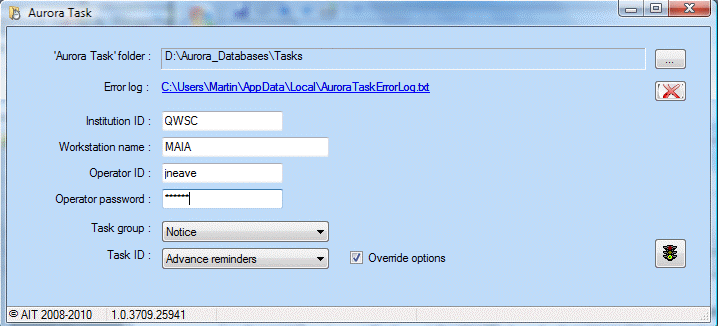
Aurora Task automatically places the file into the designated directory (which can be predefined by running Aurora Task by itself ahead of time and pointing it to the appropriate directory). There is no security issue in holding the login/password details here as the scheduler needs these pieces of information anyway to login and invoke the task at the appropriate time. Aurora Task also allows you to manually invoke the Advance Reminder task by creating the task file, and, as long as Aurora Watcher is running, the task will be invoked.
To manually create a task file simply supply operator login information, select task and press the Go button.
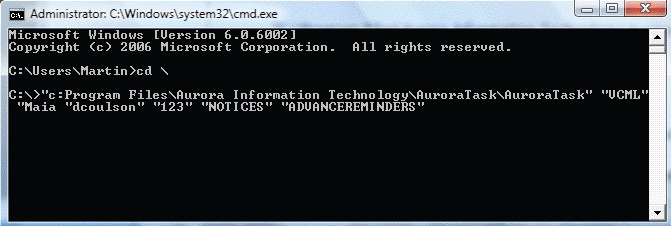
You can also manually invoke it from the command screen.
Scheduling arguments #
Automatic operation is provided through Windows Scheduled tasks using arguments as below:
"<EIn>" "<WorkstationName>" "<OperatorLogin>" "<OperatorPwd>" "<TaskGroup>" "<TaskID>" "<OverrideEmailAddress>" "<OverridePeriod>" "<MaxRecordsToProcess>" "<OverrideAmount>" "<OverridereadOnly>"
Where TaskGroup and TaskID should be in uppercase. For example:
"C:\Program Files\Aurora Information Technology\AuroraTask.exe" "VCML" "Maia" "XXXXX" "XXXX" "NOTICES" "ADVANCEREMINDERS"
OverridePeriod, MaxRecordsToProcess and OverrideAmount must be numeric. Default to 0
OverrideReadOnly must be boolean True or False. Default to false
Additional parameters may be omitted.
Override #
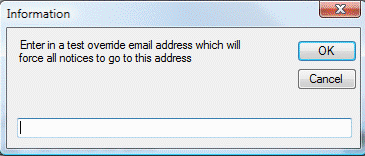
A test option is provided. To use this, check the Override options checkbox. When you do this, Aurora will prompt for entry of an override email address – e.g. your own, which forces all notices produced to be directed to that address. [Note that this test facility limits the notices produced to 5]
Scheduled operation #
For automated, scheduled operations, it is necessary to put the startup information shown in the command screen above into the Windows Task Scheduler (sample screen below).
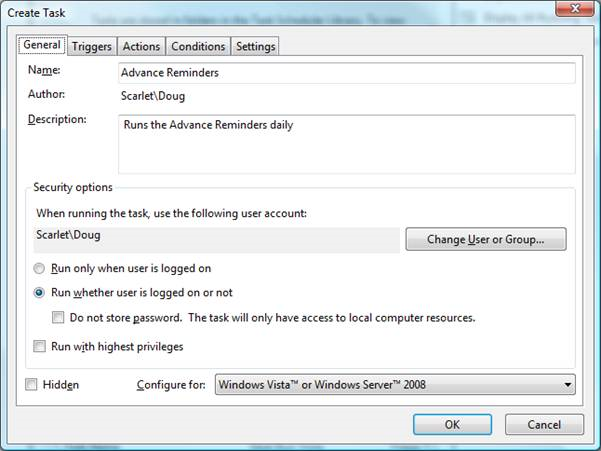
Advance Reminders can be set to run every day at a specific time, and notices will be emailed to the users who have items due back within the next 2 days. Notices for the same user and items are not sent out more than once (unless the user takes the same item out at a later time) and to achieve this each Advance reminder notice is recorded in the Circulation History table as just another transaction – allowing recording of statistics on the number of notices sent. One transaction [Code 63] is recorded to signify that a notice has been sent and another transaction type [Code 64] will be recorded for each item on the notice.
Logs #
Logs detailing success and failure of email despatch are written to the Work folder as
AdvanceReminders_Success_<date>_
Recommended frequency. #
The following table indicates the recommended frequency for the specific tasks provided:
| Task | Recommended Run Frequency |
|---|---|
| Advance Reminders | Daily |
Aurora Cloud Desktop #
To give active feedback, Desktop provides for warnings and notifications of non-responsive actions and are displayed below the module selection tabs.
NB these are time sensitive so a notice of advanced reminded not yet run may be due to login in prior to the task being run for the day.
- where the notification has not been run today
- where specific notifications have failed