
Aurora Watcher #
Aurora Watcher provides a utility which identifies when actions are triggered by other events, invoked by Aurora Task, either manually or as regular scheduled batch operations.
Screen detail #
From version 3.2.26.29386, Watcher becomes database independent. This allows a single Watcher instance to be operational on a Host server, where multiple databases may be resident. While this will not have any impact on a local installation, the screen will show some differences.
Pre-March 2013 #
The screen opens to this display:
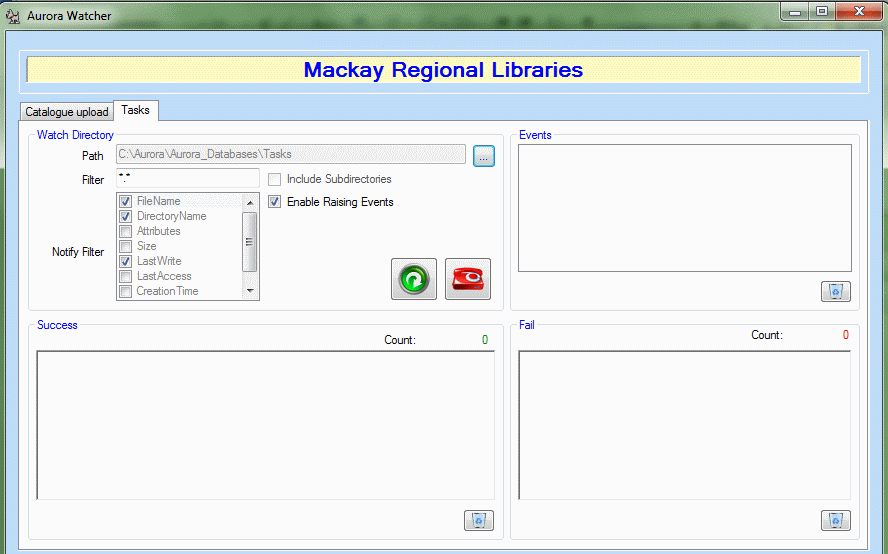
The local institution name is shown in the banner.
Note that a Target Database Connection string must be set. If you receive a warning in relation to the connection string, please check the Configuration details for Data Link (UDL) files.
From March 2013 #
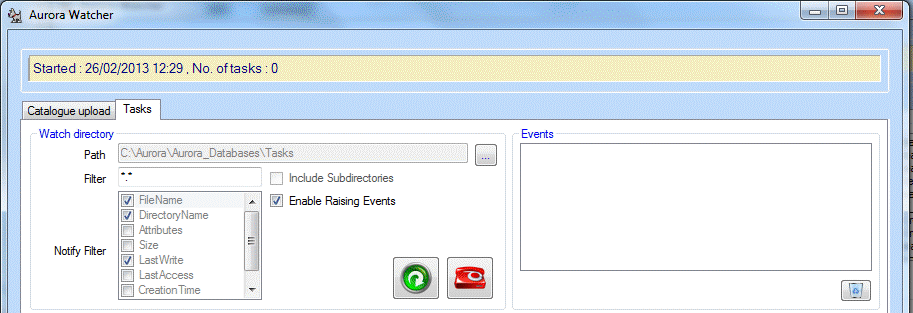
The screen is now changed to this. On Opening, the banner will show the start time, and number of tasks:
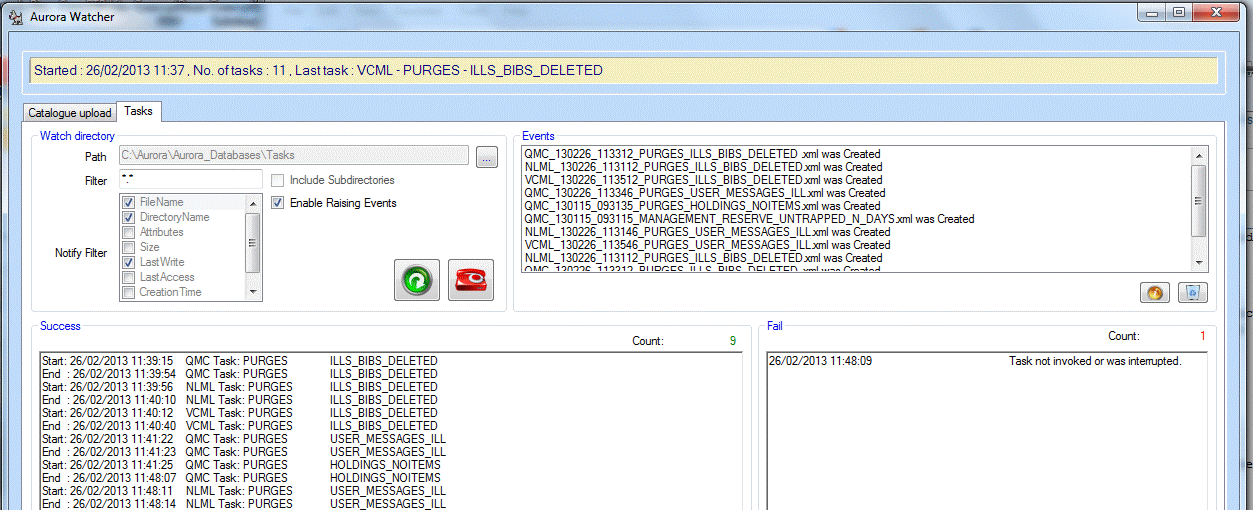
As tasks are processed, the banner will show the number processed, and indicate the last task that was performed. The image below shows a test set of tasks for multiple libraries.
Watcher has two separate tabs:
- Catalogue Upload
- Tasks
Catalogue upload #
This function is used within AIT to control uploads – formerly to the Aurora Union catalogue. It has no general function.
Tasks #
The Tasks tab provides means to review scheduled and manual batch tasks generated through Aurora Task.
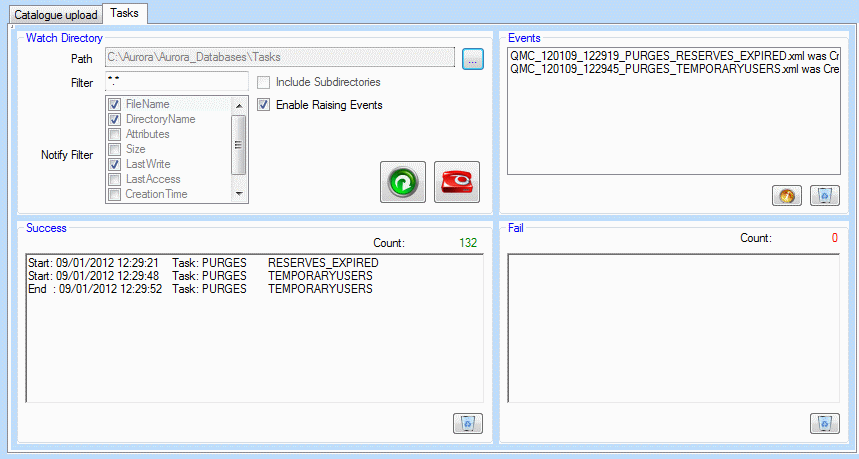
Four separate panels are provided:
Watch directory #
This defines the tasks directory and can be set using the  browse button. By default, this should be the Tasks folder in the /Aurora_Databases directory.
 This button allows the operator to manually invoke any tasks which are waiting for action and have not yet been picked up by the automated processes. Note that this may be required following an upgrade to Watcher and losing the Path to the Tasks folder.
 An emergency stop button is provided, which stops ALL current processes. This may be used in specific testing to ensure that operations are proceeding correctly – where a Task is set manually, it will then need to be redefined; if a scheduled task is interrupted, then it will not restart until the next scheduled time, unless that is itself manually changed.
Events #
This panel shows the XML files that have been created as a result of manual or scheduled operations. This can grow to include multiple files, and the display can be cleared on demand with the Clear button  .
.
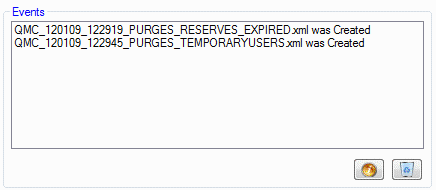
Note that the Clear option will not remove the XML files themselves.
 This button opens the log file for the last completed task
Success #
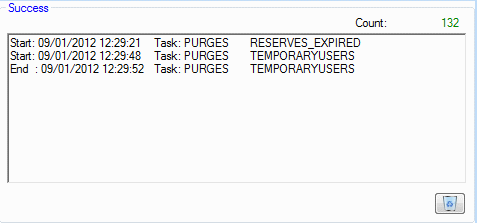
Records the positive outcome of the task, and gives immediate feedback, e.g. on the number of notices sent. Note that this too has a Clear button.
Fail #
If a failure condition occurs this is shown here and should be investigated.
Cloud issue possible #
For those watchers running in a cloud environment, it is possible that the task will be created as per the schedule, but watcher will not pick the files up overnight. An event will be logged seconds after the task is created, in the System area of the Windows Event Log explaining that a permission is required on the component services.
It is impossible to document this exactly as the GUID and process ID of the component service is always different, but the event log will point you to the correct component service to grant more execute permissions.
Once this is done, the watcher will fire as per usual.