
Z39.50 Server #
Aurora ZServer is a Z39.50 server front-end for Aurora databases. It permits users of any standard Z39.50 client utility to access an Aurora database, using the Z39.50 search and retrieval protocol. Simple and complex search terms may be entered and ZServer will respond with records in MARC21 format.
This document covers the installation and administration of ZServer version 5.3.
ZServer runs as a Windows service. Windows services are special applications that run as background processes: they do not need to be logged in and run under a system account. They are typically configured to start automatically when the server is started. This means that, should a power failure or other service interruption occur, ZServer will restart and resume Z39.50 Server service automatically.
Windows services have no console interface. Services are started and stopped via the Windows Control Panel’s Services application. The Windows Event Viewer is used to display informational, warning and error messages from ZServer.
The Windows server on which ZServer is installed requires TCP/IP to be configured and will typically require a static IP address associated with a domain name by which users will access the Z39.50 server service. A connection to the Internet supporting inbound service on Port 210 is required. [Port 210 is the ‘well-known’ TCP/IP port for the Z39.50 protocol (in the same way that Port 80 is the ‘well known’ port for the HTTP protocol used by web servers). It is possible to change this port number via the ZServer.ini file. ]
The Library’s Aurora database must be visible to the server supporting ZServer, and to the server’s System account. The server may be the same domain that supports the Aurora database, or it may be a separate server connected to the database server via a Local Area Network.
The Aurora Z39.50 Server consists of the following components:
- A Z39.50 core engine, which decodes and encodes octet streams to the Z39.50 standard. The cores are built using Aurora’s ASN.1 compiler.
- A Server Executive process which runs all the time that the server is active and manages connections from Z39.50 origins (clients).
- A Client Link manager which handles the mechanics of incoming connections from clients,
- A Data Source Link manager which manages the link to the searchable database of records.
- A BER Trace facility for examining the content of incoming and outgoing messages for diagnostic purposes.
- The ZServer Administrator user interface which allows the site administrator to control the operation of the Z39.50 Server.
Z39.50 Clients (origins) send Z39.50 formatted messages to the server using TCP/IP and the IP address or DNS-registered name of the computer on which the ZServer software is installed. Note that ZServer does not manage this address – it is set up using the Network icon in the Control Panel of Windows NT. You will need to consult your site IT personnel for assistance in obtaining an IP address, and appropriate access to IP connections.
Usually, the Windows server will be connected to the Site’s LAN which will provide the internal or external connections (e.g. via the Internet) by which the clients can access the service.
Clients will usually access ZServer using the ‘well-known’ port for Z39.50 – port 210. This is the default setting but can be overridden by a parameter in the ZServer.ini file. file if required.
Port numbers are automatically allocated on connection (and deallocated on disconnection) for outgoing connections to clients.
The searchable database of bibliographic records can be on the same machine as ZServer, or it could be on a remote machine. If the data source on a remote machine, the same LAN connection as that used for the IP connection can be used for the data source connection.
Bib-1 Attributes #
ZServer supports the Bib-1 attribute set by default, and the following Bib-1 Use Attributes as standard:
- 4 – Title
- 5 – Title Series
- 7 – ISBN
- 21 – Subject
- 63 – Note
- 1003 – Author
- 1018 – Publisher
- 1016 – Any
- 1035 – Anywhere
- 1036 – Author-Title-Subject
All other attributes will be searched against the title attribute.
ZServer can support any attribute set and any Use attribute submitted by a Z39.50 client. However, the ability to search using a given attribute is dependent upon the search data available in your Aurora database. ZServer’s attribute system, therefore, acts as a filter, preventing attributes for which your database has been indexed from being processed, and allowing only those which it knows the database can handle. ZServer will return a Bib-1 diagnostic message of 114 ‘Unsupported Use attribute’ for any attribute that it cannot support. Contact AIT if you require support of an attribute set or attribute other than those noted above.
Installing Aurora ZServer #
ZServer is deployed from a single Zip format file called ZServer_R.5.x.zip (where x is the version designation) obtained from AIT, and containing the main ZServer executable, resource and DLL files.
ZServer has the following prerequisites:
- The Windows Server must have TCP/IP loaded and enabled and should have a static IP address associated with a domain name by which users will access the service.
- The server must be accessible on TCP/IP port 210 from the network(s) (typically the internet) where the intended Z39.50 clients are located. (This typically involves arranging to open port 210 on your organisation’s firewall).
- The server must have access to the Aurora database, either by ZServer being installed on the system containing the database, or it being available via SQL Client connection (SQL Server), from the server’s System account. The Aurora database must have been installed and commissioned, and indexes loaded or created.
- Aurora Web Services (AWS) must be in place to the current release level indicated in ZServer ASR notes.
Deploy ZServer #
- 1. Unzip the ZServer.Net_R.5.x.zipfile to an empty directory: we suggest C:\Program Files\Aurora Information Technology\ZServer
- 2. Change or confirm settings in the ZServer.ini and auZServer.exe.config files. See also additional information on configuration below.
- 3. Run auZServer.exe program with admin rights. You can run the server in a console mode or as windows service.
The file Z39_50_APDU_1995_A3.P3 contains the ASN.1 compiler object.
Configure the ZServer.Ini and auZServer.exe.config File #
The default ZServer.Ini will be installed with the deployment of ZServer. This file contains the operating parameters for ZServer, and the default settings will not generally need to be changed. See ZServer.ini for the full details of this file and its parameters. The following parameter should specifically be checked and modified if required:
[Trace Logs]
Log Root Directory=C:\Program Files\Aurora Information Technology\ZServer\
The application’s settings file auZServer.exe.config defines interactions with Aurora Web Services (AWS). The following data elements need to be available for entry into this file: Operator id and password; workstation name; and institution symbol. See auZServer.exe.config for full details of this file and its parameters.
Run ZServer in Console mode #
Run auZServer.exe with administrator rights [note that it will not run otherwise] and the following screen will appear:
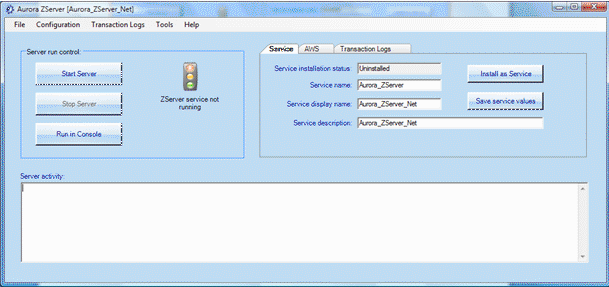
#
You should see a response of Server Activity shown in the lower panel, similar to :
07/10/09 16:12:16 Server started in foreground.
07/10/09 16:12:17 ZServer listening on port 210
Windows firewall might pop up a Security Alert message asking if you wish to allow this:
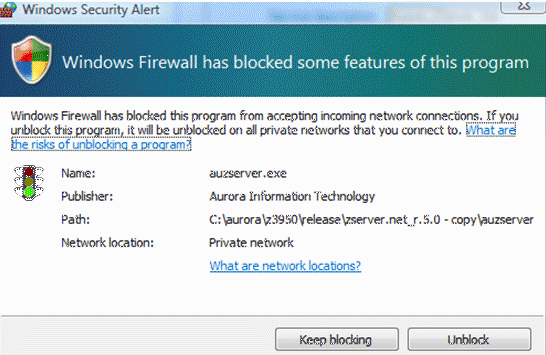
Click Unblock to continue
Install ZServer as a Windows Service #
If the service parameters (name, description, etc.) need to be changed, you will need to stop the server, and make the changes. Then click the ‘Start Server’ button, which will then install ZServer as a Windows Service. You will get additional messages displayed:
07/10/09 16:16:37 btnStartServer_Click. The service 'Aurora_ZServer' is installed under Windows Service Control Manager (SCM), however the registration of the service is still pending. You may need to reboot before the service is properly registered with SCM.
A service application must register itself with Windows Service Control Manager (SCM) before it can be used as a Windows service. Accept the information message which will pop and this will register the service. Please note that a reboot of the server will be required.
No additional registration tools or programs are required in order to register the software as a windows service.
Once restarted the auZServer.exe does not require to run as the windows service should have already started.
You can control ZServer from either the Server’s Control Panel / Services applet or from ZServer’s front end GUI.
If ZServer starts after the service has been installed the button will now read ‘Uninstall Service’ and the service parameters text boxes will be disabled.
By clicking this button the service will (disable first and) uninstall after the next reboot.
You should receive a message indicating that ZServer has been installed as a system service. If an error message is displayed, consult the troubleshooting guide in this manual. The usual reason for the failure of ZServer to be installed as a service is that there is already an entry for it in the SCM database, in which case it is not necessary to re-install it.
Startup Errors #
If ZServer encounters a fatal error condition on startup that makes it impossible to proceed (for example a required file not installed) it will return an ‘initialisation failed’ message to the SCM, and the SCM will display an error message.
ZServer, before halting, will have logged the details of the fault as a Windows application event. Refer to Viewing ZServer Events to determine the nature of the fault, and refer to the following section on troubleshooting.
Testing and troubleshooting #
Testing with a Z39.50 client #
Use a Z39.50 client (such as Aurora Direct) to perform a search on your Aurora database. It is handy for troubleshooting purposes to have a Z39.50 client installed on the server, as if this client can access the server then any connection problems will typically be to do with the network, ports or permissions.
To access ZServer from a client installed on the server, set the IP address the client is to access to 127.0.0.1. This address is referred to as the loopback address, and as the name suggests simply ‘loops back’ any TCP/IP connection request to the system upon which it is running.
Error Conditions and Remote Clients #
ZServer uses the Bib.1 diagnostic set, as specified in the Z39.50 standard, for reporting error conditions to remote Z39.50 clients. Most Z39.50 client utilities will display these errors to the user, who may in turn make reference to them in support calls. The Bib-1 errors raised by ZServer, and the condition under which they are raised, are detailed in the following list. Note however, that, while the short description of each error in the following list is the standard Z39.50 description, the text of the message is not transferred to the client. Therefore, Z39.50 client packages may use different wording.
12 Too Many Records Retrieved
- Aurora ZServer accepts only requests for up to 30 records at a time.
13 Present Request out of range
- Z39.50 clients are able to request the server return records by specifying a range of ordinal positions in the result set of the current search. If the client requests a record number that exceeds the number of records returned by the search, this error will be returned.
30 Specified result set does not exist
- Result sets may be named under Z39.50. If the remote Z39.50 client specifies a result set that it has not explicitly named this error will be returned to the client.
108 Malformed query
- ZServer returns this code if the query submitted by the remote client is malformed, which, in ZServer terms, indicates that the Term elements submitted by the remote client are blank or consist entirely of spaces.
109 Database unavailable
- The Aurora database cannot be accessed or is taking too long to access. The usual reason for this error is a loss of the LAN connection between the Windows system supporting ZServer and the system supporting the Aurora database.
114 Unsupported use attribute
- Z39.50-1995 specifies over 100 Use Attributes in the standard Bib-1 attribute set. The attributes Author (Use Attribute = 1003), Title (Use Attribute = 4) and Subject (Use Attribute = 21) are supported by virtually all Z39.50 servers and clients as a minimum functional set. These attributes are always supported by Aurora ZServer, in addition to the Any attribute (1016). However, some clients may attempt to search using other attributes, and this error condition warns the client that a particular attribute is not supported. ZServer can handle any attribute code, however the feasibility of implementing that attribute depends upon whether it can be searched for in the library database. For special attribute requirements please contact AIT.
121 Unsupported attribute set
- ZServer supports by default the Bib-1 attribute set. This error will be returned if a client requests an attribute set not supported by the library database mappings. Other attribute sets are available for special applications by creating appropriate mappings to your library database. Please contact AIT if attribute sets other than Bib-1 are required.
235 Database does not exist
- ZServer returns this condition code if the database name the client attempts to search does not exist.
These errors are also logged as Windows allocation events.
Viewing ZServer Events #
ZServer, along with other system services, log messages to the Windows Event Log, which can be viewed with the Windows Event Viewer.
- 1. To display the Windows Event Viewer click Start / Programs / Administrative Tools (Common) / Event Viewer.
- 2. To display Application events select Log on the Event Viewer’s menu and select Application.
You will now see a display similar to the following:

Note that events from other Service applications may be shown in this list. All ZServer events are listed with a source of ZServer. There may be three classes of events – Informational, Warning and Error, indicated by the icon to the left of the event line.
To view the event and any message associated with it double click on the event line.
ZServer.ini #
The ZServer.Ini file contains operating parameters for ZServer. A typical example of the.Ini file is shown below. The available parameters are divided into logical sections:
[ZServer] #
| Parameter | Notes |
|---|---|
| Site Name= | is used for display and identification purposes only and has no operational significance. |
| Session Timeout= | indicates the number of minutes ZServer will retain a Z39.50 session without input from the remote Z39.50 client. If no activity takes place for the configured number of minutes, ZServer will issue a Close indication to the remote client and disconnect the IP link. Z39.50 is a session based protocol. A session commences with an initialisation interchange and terminates with a formal close or a disconnection of the IP link. In between, multiple searches may take place. Inactive Z39.50 sessions consume relatively small amounts of memory and little processing resource, so 10 minutes is usually considered a good balance between resource usage and nuisance timeouts for users of your Z39.50 service. |
| Server Unavailable= | Setting this value to ‘Yes’ causes the server to inhibit access to the server by responding to initialization requests from remote clients with a ‘Reject’ result, and the otherInfo field containing a message “Server unavailable”. Clients with current sessions are not affected, and can complete sessions normally. |
| Server Maintenance= | Setting this value to ‘Yes’ causes the server to inhibit access to the server by responding to initialization requests from remote clients with a ‘Reject’ result, and the otherInfo field containing a message “Server closed for maintenance”. Clients with current sessions are not affected, and can complete sessions normally. |
[TCP/IP] #
| Parameter | Notes |
|---|---|
| Port= | The TCP/IP port number that ZServer uses on the Server’s IP address. Port 210 is the standard (or ‘well-known’) port allocated to Z39.50 services and is the default if this key is missing or zero. |
| IP Buffer Size= | Sets the IP buffer size used by ZServer. A size of 2048 characters is a good balance between memory usage and efficiency, and is the default value if this key is missing or zero. |
[DRID Map] #
| Parameter | Notes |
|---|---|
| Default= | default |
| Aurora= | Institution id or national symbol |
- This section records the database name details for an external client search. The default WorkstationEIn parameter value is initially set to [say]: VNILS.
- When the client requests to search the database called ‘Aurora’ or ‘Default’ the request will be serviced. Anything else will return an error description as: ‘Unknown database’ based on the Z39.50 standard.
- The code checks the [DRID Map] section and reads the Institution name from there. The ini file mapping can either return the word ‘default’ or the desired Institution name e.g. VNILS. If the map returns the word ‘default’ then we will use the (default) parameter WorkstationEIn currently set to VNILS; if the map returns anything else the process updates the (user level) parameter WorkstationEIn and searches using this value.
DRID mapping will accept multiple databases.
Examples to clarify:
- auZServer.exe.config parameter setting: WorkstationEIn=VNILS
- auZServer.ini:
[DRID Map]
Default=default
Aurora=VNILS
AuroraVCML=VCML
When the client connects to the ZServer it will specify as a parameter which database wants to connect to e.g. “AuroraVCML” Then our software will go in the DRID mapping and it will get the InstID.
- The database requested from the client is called ‘AIT’ -> ‘Unknown database’ because ‘AIT’ is not in the ini file mapping.
- The database requested from the client is called ‘Aurora’ -> Institution to be used is taken from DRID mapping ‘VNILS’. The value in the settings is disregarded.
- The database requested from the client is called ‘Default’ -> DRID mapping returns ‘default’. The Settings parameter ‘VNILS’ is then read.
[ZEngine] #
| Parameter | Notes |
|---|---|
| Object Resource= | The ASN.1 compilation object of the Z39.50 standard. ‘x’ indicates the compiler structure version number: Z39_50_APDU_1995_A3.p3. This file is used in tracing – see Tracing Requests and Responses |
[Diagnostics] #
| Parameter | Notes |
|---|---|
| BER Trace Enabled= | If “Y” or Yes, the trace mode is enabled. Trace mode collects and writes traces of transactions with remote Z39.50 clients to disk files. This is useful for diagnosing compatibility problems and errors. |
| BER Max Traces= | Number of traces before ZServer shuts off Trace mode. A default value of 100 is used if this key is missing or zero. This prevents the disk drive filling with trace logs if the trace facility is inadvertently left enabled. |
[Trace Logs] #
| Parameter | Notes |
|---|---|
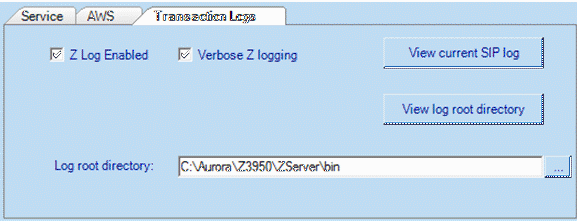
| Log Root Directory = | Change this to the desired directory where under this will appear a ZLog subdirectory with all the logs in it. |
| Log Enabled = | This will enable or disable the server logging activity. |
| Log Verbose = | When logging is enabled this will log all details. Use only for diagnostic purposes as the logs will increase dramatically. |
The settings are visible and able to be maintained in the ZServer interface:
[Windows service] #
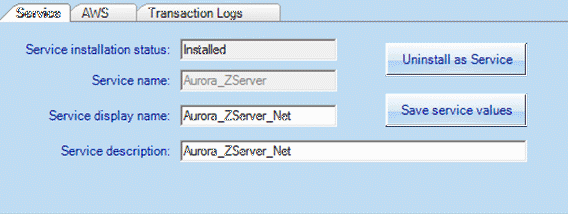
Parameters for running ZServer as a service. These settings display when auZServer.exe is run:
| Parameter | Notes |
|---|---|
| Service Name= | The Windows Service name |
| Display Name= | The Windows Service display name |
| Service Description= | The Windows Service Description |
| Service Name Key= | The Windows Service Name key (not displayed in the ZServer interface, and not editable |
auZServer.exe.config #
The application’s settings file auZServer.exe.config contains currently 9 parameters:
Application settings #
| Parameter | Default | Note |
|---|---|---|
| OperatorLanguage | eng | |
| OperatorID | Must be a defined operator id set in Inst_Operators table. | |
| OperatorPwd | The password for the operator id | |
| WorkstationName | Must be a defined workstation set in the Inst_Workstations table. | |
| BibID | R | Is the prefix for the bibliographic database. |
| iHitCountLimit | 500 | Sets the maximum hits that AWS will return. |
| bInflectionalSearching | True | Flexibility in the search matching |
| iHitMaxLimit | 30 | Sets the maximum number of results that ZServer can return at a time. A search may fail if this is set above 30 |
User settings #
| Parameter | Default | Note |
|---|---|---|
| WorkstationEIn | Gives the institution’s national symbol, or external id |
These parameters are shown in this example, with parameters and values highlighted. Note that core parameters are displayed in ZServer service display on the AWS tab:
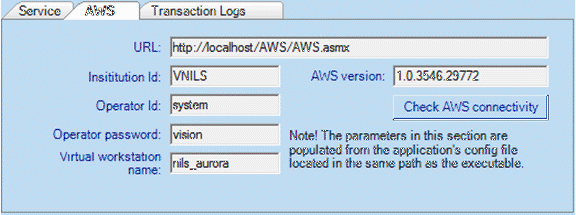
Example:
   <applicationSettings>
       <auZServer.My.MySettings>
           <setting name="auZServer_AWS_local_AWS" serializeAs="String">
               <value>http://localhost/AWS/AWS.asmx</value>
           </setting>
           <setting name="OperatorLanguage" serializeAs="String">
               <value>eng</value>
           </setting>
           <setting name="OperatorID" serializeAs="String">
               <value>OPID</value>
           </setting>
           <setting name="OperatorPwd" serializeAs="String">
               <value>Password</value>
           </setting>
           <setting name="WorkstationName" serializeAs="String">
               <value>Workstation</value>
           </setting>
           <setting name="BibID" serializeAs="String">
               <value>R</value>
           </setting>
           <setting name="iHitCountLimit" serializeAs="String">
               <value>500</value>
           </setting>
           <setting name="bInflectionalSearching" serializeAs="String">
               <value>True</value>
           </setting>
           <setting name="iHitMaxLimit" serializeAs="String">
               <value>30</value>
           </setting>
       </auZServer.My.MySettings>
   </applicationSettings>
   <userSettings>
       <auZServer.My.MySettings>
           <setting name="WorkstationEIn" serializeAs="String">
               <value>VNILS</value>
           </setting>
       </auZServer.My.MySettings>
   </userSettings>
Tracing Requests and Responses #
This section is informational only, to provide administrators with an insight into ZServer’s diagnostic trace facility. ZServer can trace all incoming data from Z39.50 clients, and its own outgoing responses to those clients. This can be extremely useful in tracking down protocol errors and variations. AIT may ask you to enable tracing and to email the results. An example trace is shown in this chapter for information only. You do not need a detailed knowledge of the trace contents.
Traces are written to a directory c:/Aurora Z39.50 Trace/, where c is the system drive. If this directory does not exist when tracing is enabled, ZServer will attempt to create it.
To enable tracing, set the key “BER Trace Enabled=Yes” in the [Diagnostics] section of the ZServer.Ini file. To disable tracing, set the key to “No”, or remove the key entirely. It is not necessary to restart ZServer for a change of this value to take effect. ZServer checks it at 10 second intervals.
There is one trace file per APDU (Application Protocol Data Unit, the unit of transmission). The file names consist of the following format:
Incoming APDUs #
Origin_Id.Txt where Origin is the IP name or address of the client, and Id is a sequential number allocated to each trace.
Outgoing APDUs #
APDUName_Id.Txt where APDUName is the name of one of the Z39.50 APDUs and Id is a sequential allocated to each trace.
BER stands for ‘Basic Encoding Rules’ and is a set of rules by which data elements are encoded under ASN.1, the abstract syntax notion in which the Z39.50 protocol is expressed. An in-depth discussion of BER and ASN.1 is beyond the scope of this document, but in summary each data element consists of a numeric tag identifier, a length specification and a data field. In addition, one or more elements may be grouped into structures, which are themselves tagged. Aurora’s BER Trace decoder resolves the basic structure of a byte stream, and displays it in a format that is human-readable. Below is a typical incoming trace of a search request. The header shows that the trace was captured at 20:26 on 24th September 2009, came from a system identifying itself as AuroraServer at an IP address of 203.9.155.90. This information is useful in identifying the origin of the trace where problems are only being experienced by users with, say, a certain Z39.50 client. AIT can identify encoding and decoding problems from such traces.
**  Aurora BER Trace  **
20:26 24/Sep/2009
Name: Z39.50 APDU from AuroraServer (XXX.9.155.90)
B6 00 00 00 62   [22]
 8D 01 (14)  [13]
 8E 01 (15)  [14]
 8F 01 (14)  [15]
 90 01 (01)  [16]
 91 07 ("default")  [17]
 B2 0A   [18]
   9F 69 07 ("DEFAULT")  [105]
 eoc (DL)
 BF 64 03   [100]
   80 01 (46)  [0]
 eoc (DL)
 BF 65 03   [101]
   80 01 (46)  [0]
 eoc (DL)
 9F 68 07 (2A 86 48 CE 13 05 0A)  [104]
 B5 29   [21]
   A1 27   [1]
     06 07 (2A 86 48 CE 13 03 01)  [6]
     A0 1C   [0]
       BF 66 19   [102]
         BF 2C 0B   [44]
           30 09   [16]
             9F 78 01 (01)  [120]
             9F 79 02 (03 EB)  [121]
           eoc (DL)
         eoc (DL)
         9F 2D 08 ("mitchell")  [45]
       eoc
     eoc
   eoc
 eoc
eoc
End
When BER Trace mode is enabled ZServer consumes approximately twice the CPU and memory resources that it would do normally. In addition, on a busy site the amount of disk space consumed by the traces can become very large. For this reason, the BER trace mode will automatically switch itself off after 100 traces if it is inadvertently left switched on. You can adjust the number of traces using the Maximum Traces= value.
If an error occurs during the trace file operation, the trace is disabled, a warning log event is written, and the ‘BER Trace Enabled=’ setting in ZServer.Ini is set to ‘No’. For example, if ZServer does not have write or directory creation permissions, trace mode will automatically be reset.
Summary of Files #
| File | Location | Remarks |
|---|---|---|
| AuZServer.Exe | System directory | ZServer application. |
| AuZServer.Ini | System directory | ZServer operating parameters |
| Z39_50_APDU_1995_Ax.p3 | System directory | ASN.1 compilation object of the Z39.50 standard. ‘x’ indicates the compiler structure version number. |
| BERTrace.Txt | Windows directory | Self-created BER trace Next-ID-Number file |
This list does not include Microsoft runtime DLLs.