Item Details #

Item Details is a screen that gives information on an item itself, expressed through a number of separate panels, providing comprehensive information on the status of the item.
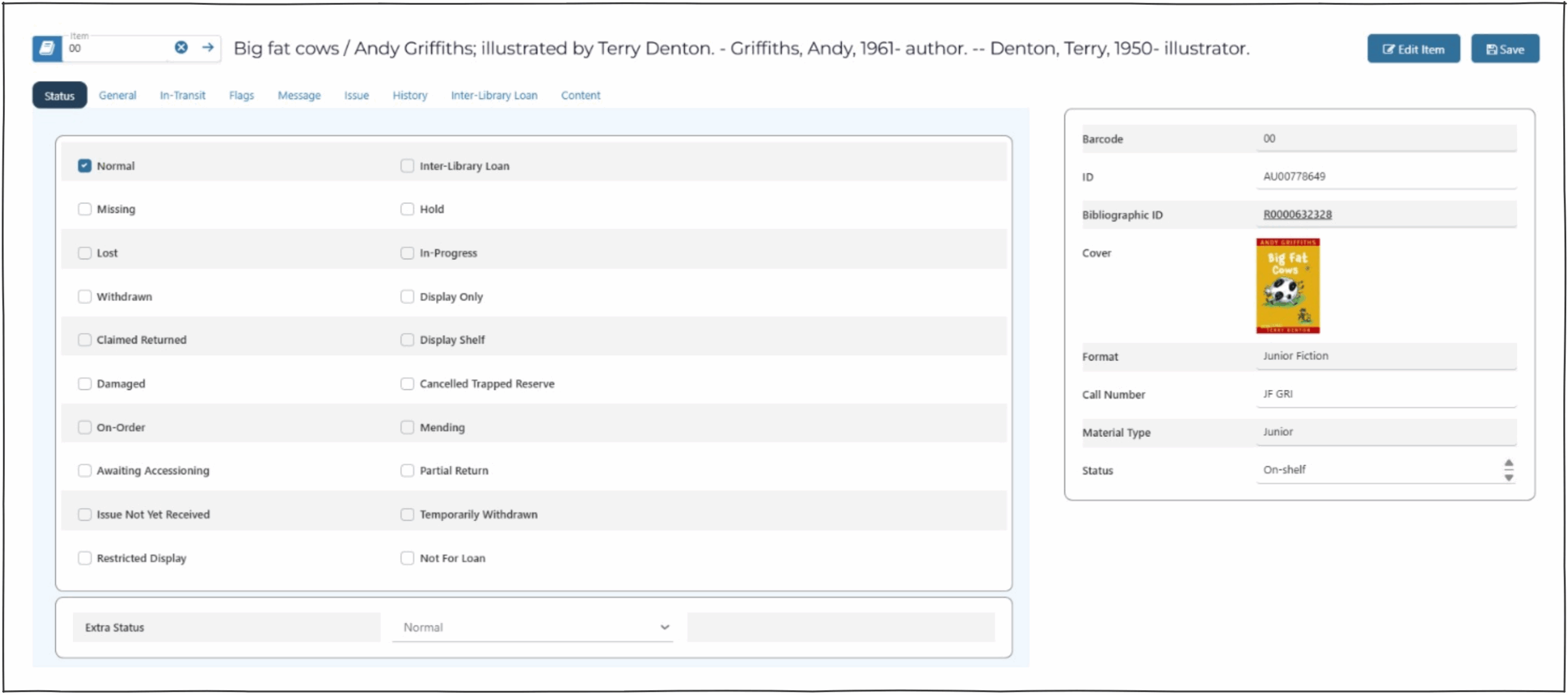
When the details have been retrieved, information will be displayed in 3 parts:
- The top ‘Item search panel‘
- The ‘main information panel‘ on the right.
- The ‘tabs‘ on the bottom of the screen.
Item search panel #
Items can be searched by scanning or typing a barcode, or typing a title.
This panel can be cleared by clicking on the clear icon.
- The item barcode will display in the search panel.
- The title of the item will display to the right.
- NOTE : Clicking the title will open the work in the search screen.

Main information panel #
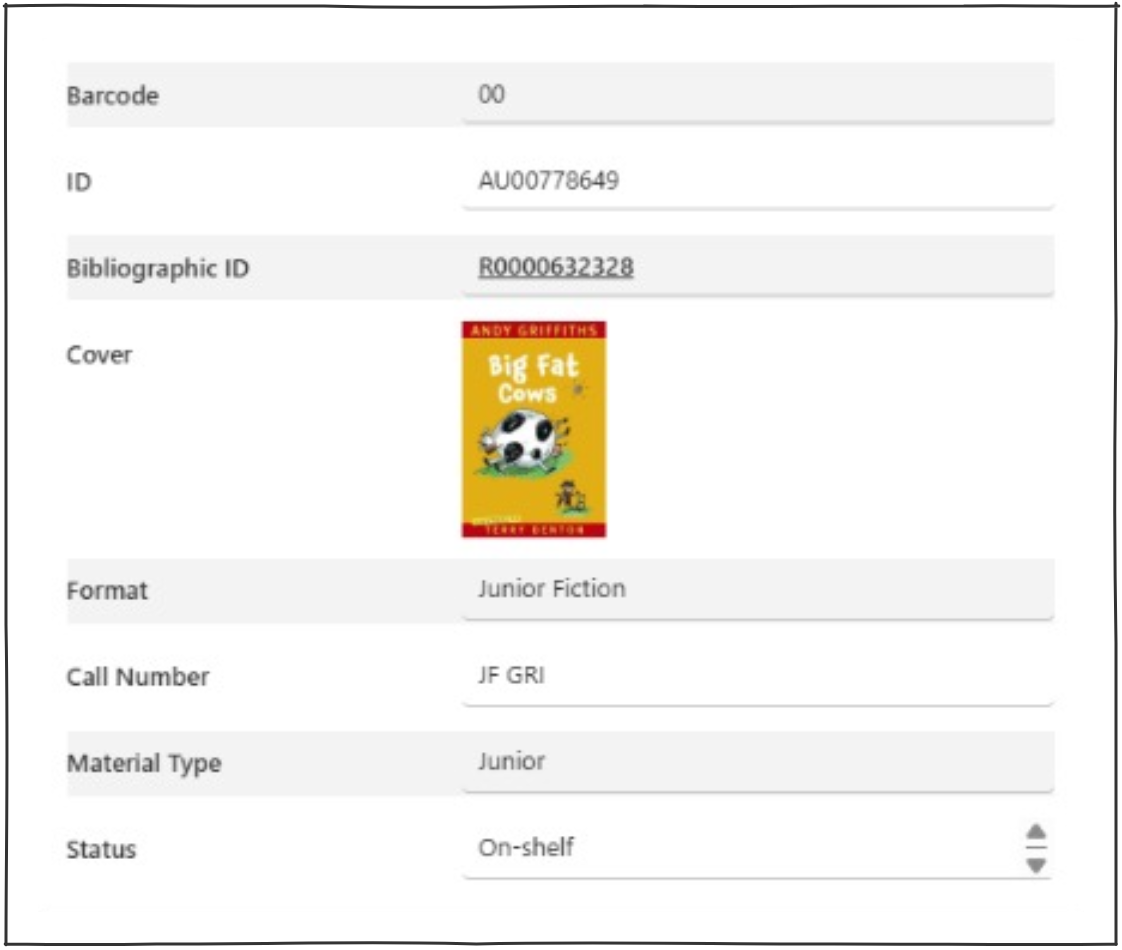
The main information panel is displayed consistently across all item details, in a fixed panel on the right of the screen. As information is changed it will be reflected here.
The panel displays:
- Barcode
- ID
- Bibliographic ID (clicking this opens the cataloguing page for the work).
- Cover (if available)
- Format
- Call number
- Material type
- Status
Tabs #
Status Tab #
This tab is used to identify any special statuses that may apply to an item. Items are ‘Normal’ status by default.
NOTE : Astria also applies a status automatically according to process rules (e.g. when an item is supplied for Inter-Library Loan, is a serial issue awaiting receipt, or is an ordered item).
Item statuses can coexistent, a book may be marked as both Damaged and Lost if separately applicable.
A status is applied or removed with the appropriate checkbox. Item status is reported via a popup message to the operator as part of loaning and returning process, and an option allows removal of the status when the item is returned.
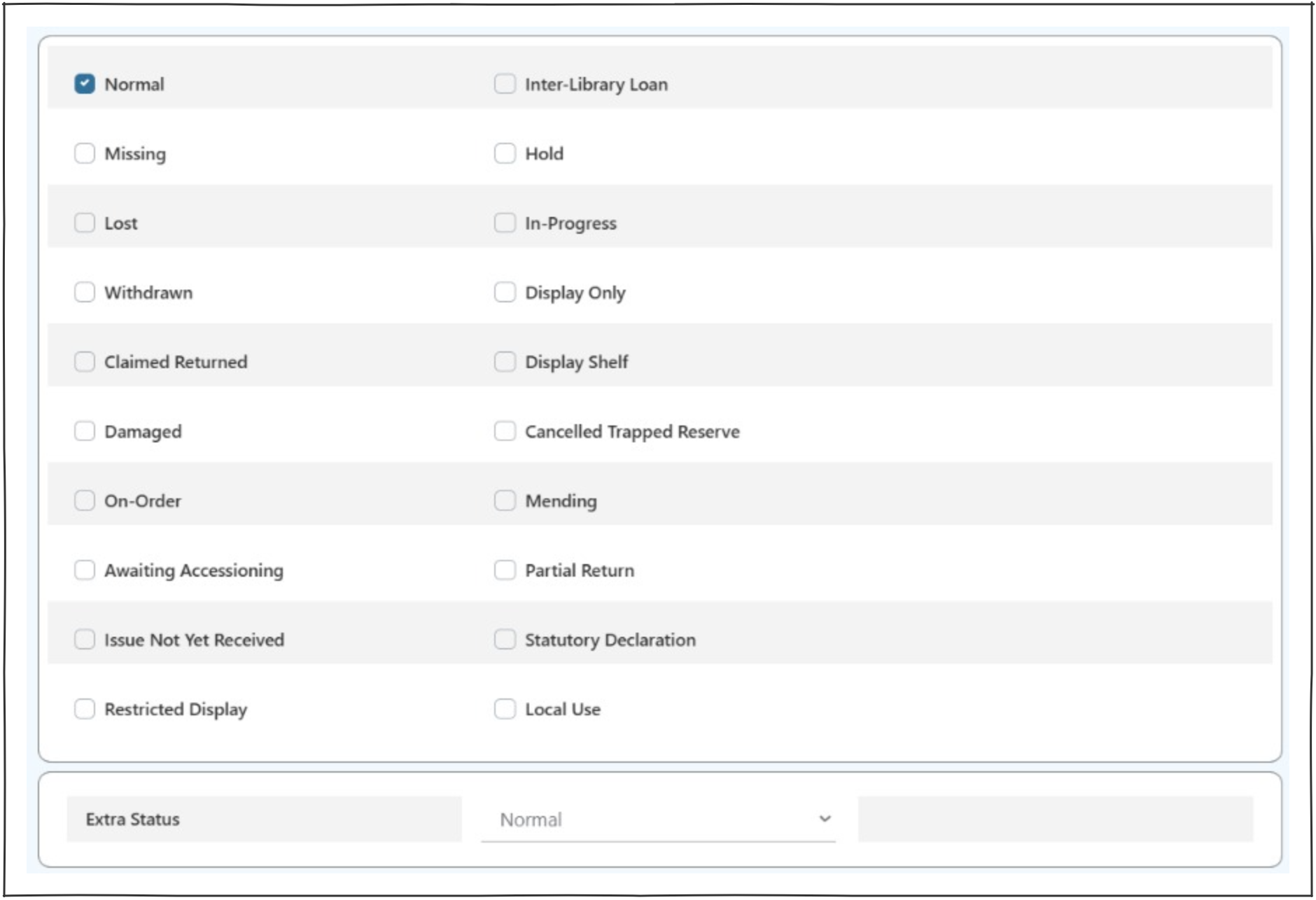
The following statuses are supported:
| Status | Notes | Clear on return | Traps on return if not removed |
|---|---|---|---|
| Normal | This is the default status – effectively lacking any of the following ‘abnormal’ statuses. Note that Astria does not have a separate item status ‘on loan’. | Yes | |
| Missing | Missing items remain attached to their current borrower; items can be declared to be ‘missing’ as part of the overdue processes. | Clears Automatically | Yes |
| Lost | Lost items remain attached to their current borrower; items can be declared to be ‘lost’ as part of the overdue processes. If an item is on loan, and is marked as lost, then this will initiate the Lost/Damaged process. | Clears automatically if Enterprise parameter AutoclearLostOnReturn | Yes |
| Withdrawn | Withdrawn status can be applied but this has no special meaning within circulation functions. It does have a special meaning in the context of bulk deletion via Item Transfer, where all items with the status can be gathered automatically and processed for deletion. | Optional Y/N Question | No |
| Claimed Returned | Claimed returned items remain attached to their current borrower but are signified as such in the current loans list. Claims are written to the user’s history. | Optional Y/N Question | No |
| Damaged | Damaged has specific status in allocations processing for libraries for the blind – a copy which is damaged, or which has a part damaged, is not considered for automatic allocation. If an item is on loan, and is marked as damaged, then this will initiate the Lost/Damaged process. | Optional Y/N Question | No |
| On-order | This status is applied automatically when the item is ordered. | Optional Y/N Question | Yes |
| Awaiting Accessioning | This status is optionally applied to indicate that the material is ‘in process’ having been received, but before completion. If this setting is on, then direct catalogued materials will be given this status. | Optional Y/N Question | Yes |
| Issue not yet received | This status applies to serial issues which are predicted but not yet received. | Optional Y/N Question | No |
| Restricted Display | The Restricted Display status is provided to allow items to be placed on a public display, e.g. material recently received and displayed to attract attention and/or reservations. | Optional Y/N Question | Yes |
| Inter-Library Loan | This status is applied automatically to material provided by an external agency in satisfaction of an inter-library loan request. This status DOES NOT prompt if item is loaned or returned. | Notes but does not give option to clear | Yes |
| Hold | Hold status may be applied to an item which is removed from Circulation for a given reason, e.g. to put aside as an informal reservation. Note: Loaning an item will remove status. | Clears automatically if Enterprise parameter AutoclearHoldOnReturn | Yes |
| In-Progress | This is set if the Inst_Enterprise parameter MonographsInProgress is on, and means that receiving an item in Acquisitions will apply the In-progress status as well as Awaiting Accessioning (where that parameter is set on); as a result, the accessioning procedure allows removal of the Awaiting Accessioning status, leaving the item ‘In progress’. Note: Loaning an item will remove status. | Optional Y/N Question | Yes |
| Display only | This status is set if the Enterprise parameter SerialsDisplayOnly is on, and means that all serial issues received will have the Display Only status applied. | Clears automatically if Enterprise parameter AutoClearDisplay OnlyOnReturn | No |
| Display Shelf | Will Not block Loans and will be cleared on loan. | Clears automatically if Enterprise parameter AutoclearDisplay ShelfOnReturn | |
| Cancelled Trapped Reserve | Cancel if collection overdue and notice produced. This allows a bulk pass of this report to be run, and then a separate pass of the Adhoc report for items of abnormal status, selecting this specific status. | Optional Y/N Question | Yes |
| Mending | Mending status can be applied as required – it has no system significance and is therefore not applied or lifted. | Optional Y/N Question | Yes |
| Partial Return | This status can be applied to items, where the borrower fails to return all items in a set. It will prevent reservations being applied, but otherwise has no system significance. | Optional Y/N Question | Yes |
| Statutory declaration | Subtly separate from ‘claimed returned’, this status is provided to record the instance of the borrower declaring never to have borrowed the item. | Optional Y/N Question | No |
| Local use | Astria supplies a special status for local usage and definition – this can be used for whatever condition is appropriate within the library. The description ‘Local use’ can be modified using system parameters – and could equally be ‘Exhibition’, or other locally appropriate status, whether temporary or permanent. | Optional Y/N Question | Yes |
Extra status #
This element presents a dropdown of possible additional statuses that may be applied to the item, as defined and controlled by the library within system parameters – IX Item Extra Status.
These are more ‘flags’ than strictly status indications, as the system does not take notice of these settings.
The Statuses are defined and described entirely as required by the library within system parameters.
Note that an Extra Status definition can be removed at any time and can leave undefined status marks against items – it is recommended that these marks be removed as part of the status removal: if not, then on subsequent reassignment of the status mark, these superseded marked items may give incorrect information.
General Tab #
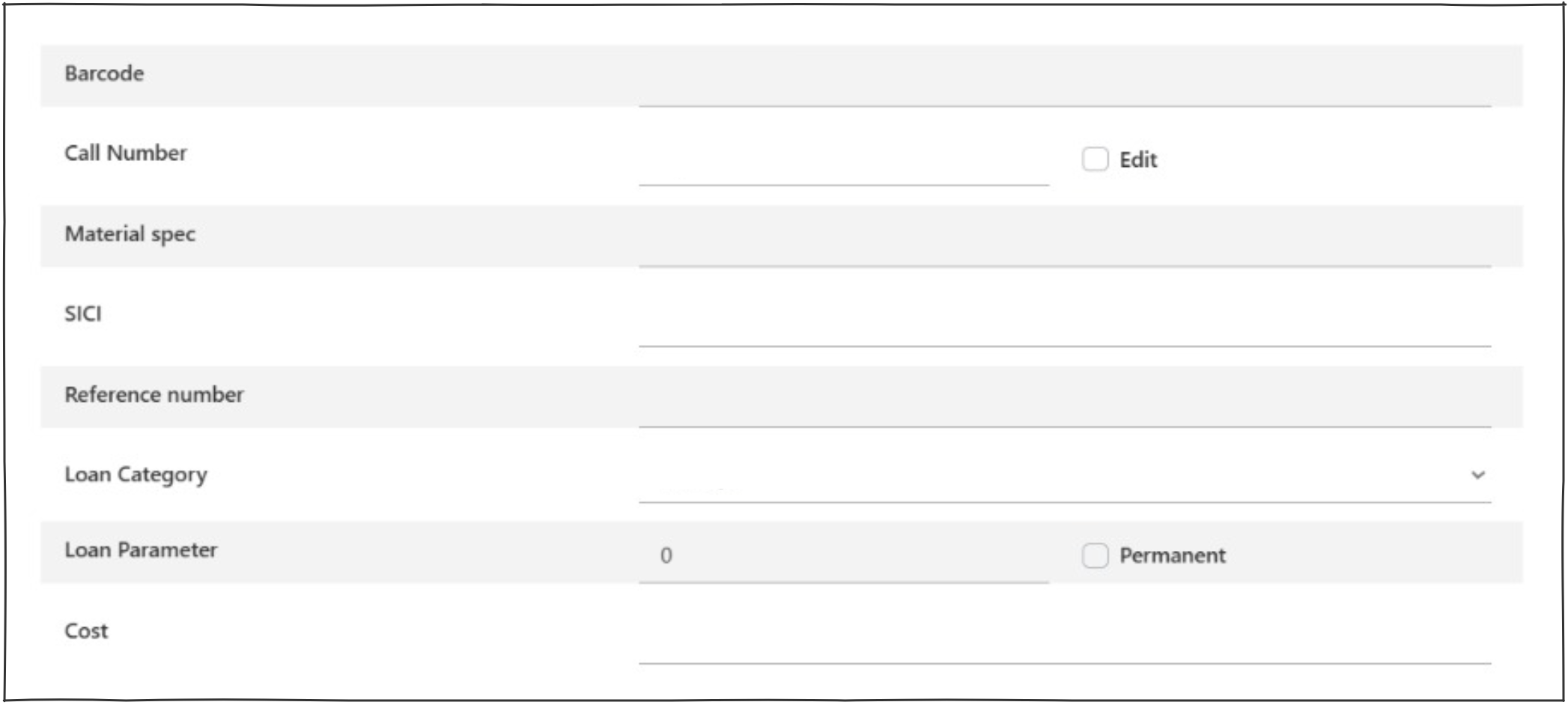
To edit any of the general fields click on edit item  . The edit items popup will display.
On-Loan Tab #
This tab will only appear when the item is on loan.
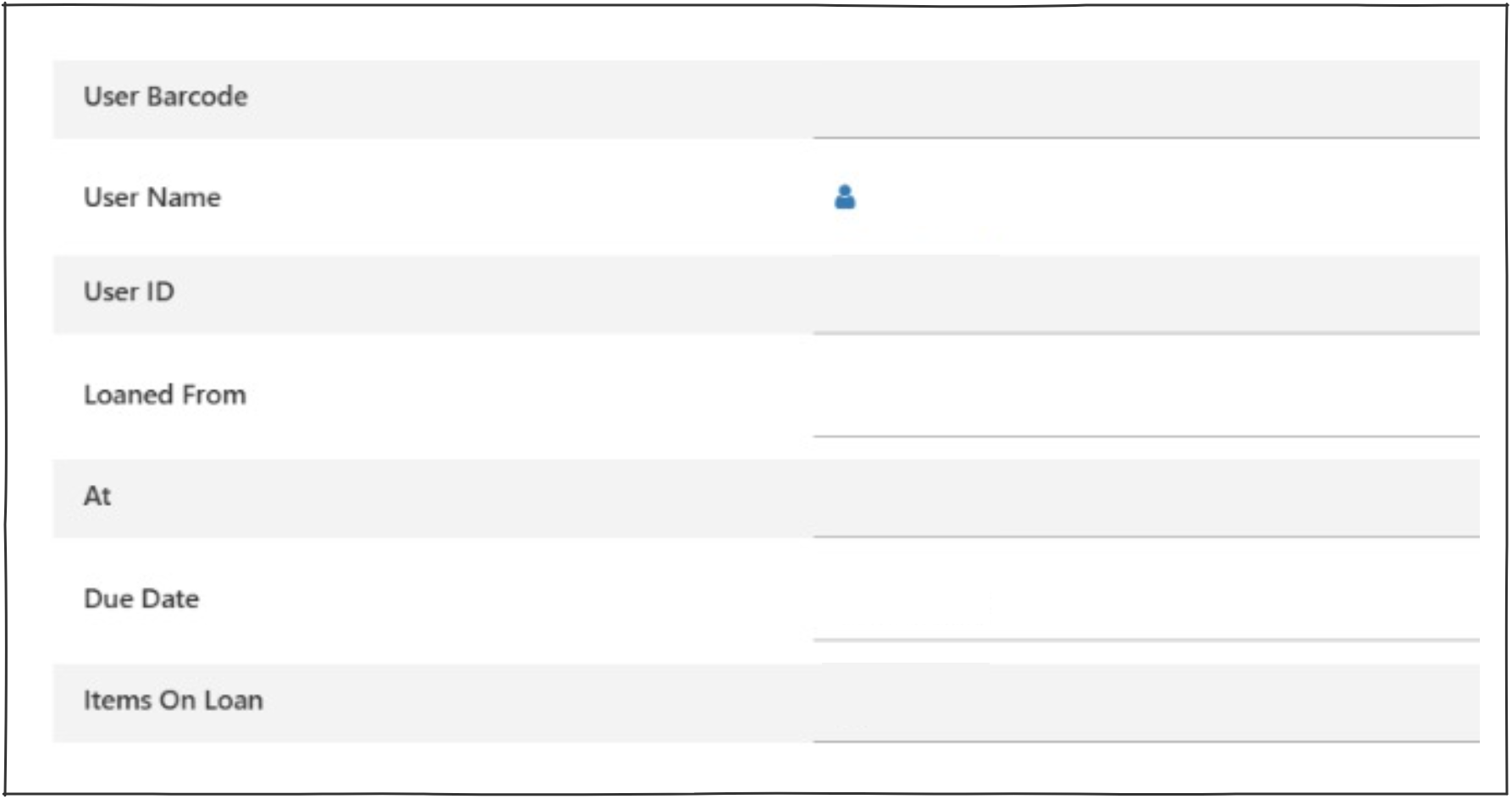
This tab identifies the user who has the item on loan.
- User Barcode
- User Name – this links to the user loans screen
- User ID
- Loaned from date
- At – Loaned at location
- Due Date
- Items on loan – Number of items the user has on loan
In-Transit Tab #
This tab displays data if an item transfer has been set.
If no item transfer is set only home logical and physical locations will display.
To clear the in-transit status click on the clear in-transit status button. 
- Home Logical Location – Always Visible.
- Home Physical Location – Always Visible.
- Temporary Location – Only visible when item has a temporary location.
- Until – give expiry day of temporary transfer – Only visible when item has a temporary location.
- In Transit To – Only visible when in transit and lists the physical location the item is going to.
- From – Only visible when in transit and lists the physical location the item has left from.
- Sent on – Only visible when in transit and lists the date the item went into in-transit.

Lost/Damaged Tab #
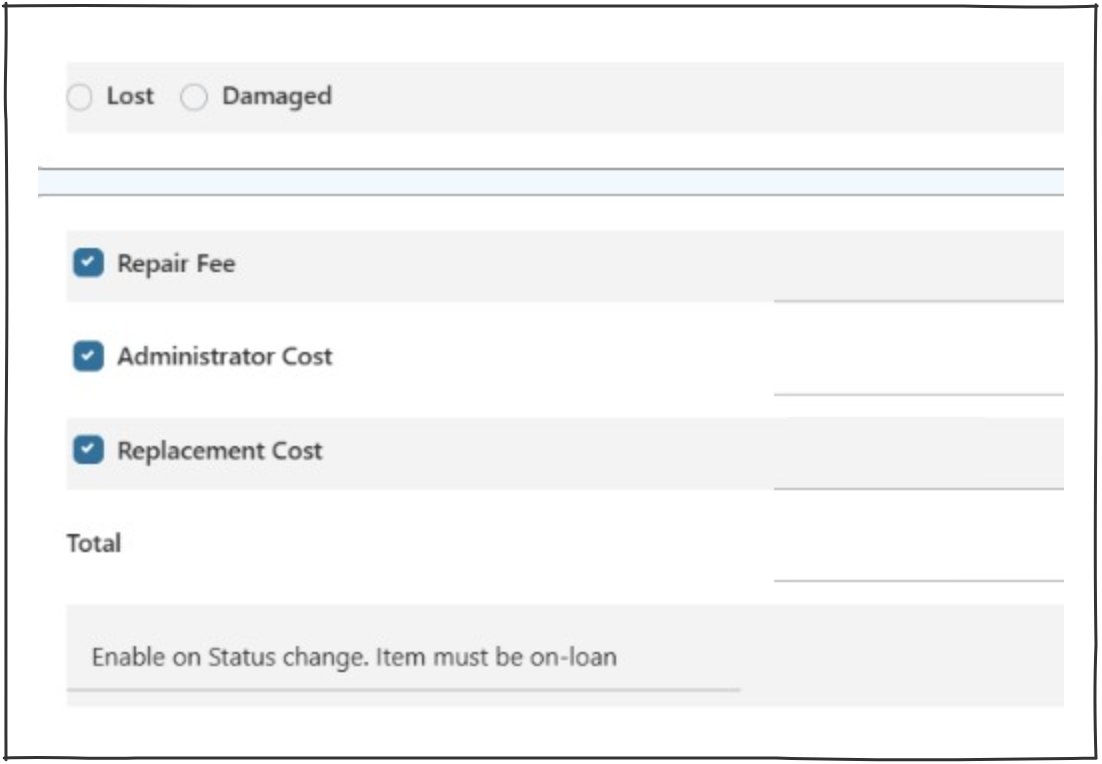
The Lost/Damaged tab provides functions for control of lost and damaged items, including facilities to record administration charges, repair fees, and a replacement cost, initiated by setting Lost or Damaged status to an item when it is still on loan. This tab will only display when the item is on loan.
Dependent on the status selected, the radio button for Lost or Damaged will be selected, and the charge amounts will be calculated appropriately:
- Repair Fee – The fee is defined by the operator and manually entered.
- Administration Charge – This charge is set in the Enterprise parameters as a general administration fee; it cannot be varied in the Lost/Damaged process, but may be completely removed, by unticking the associated checkbox.
- Replacement cost – Items may have a specific cost associated and this is shown in the General Tab of item details. If there is no specific cost, a generic cost may be used – this cost is set in the Item Formats parameters in system parameters.
- Total – The charges are totalled automatically and dynamically, changing to reflect any variation in any of the above three costs. Note that all charges include a tax element.
A message prompts the operator to save the item status change, which is recommended.
The charges are now noted against the user’s account and can be paid in the normal way. Note that the item remains on loan to the user at this stage. The item will need to be returned retaining the lost/damaged status to ensure the user does not encounter additional fees/charges.
Reserves Tab #
Reserves tab will only appear if the ITEM is reserved.
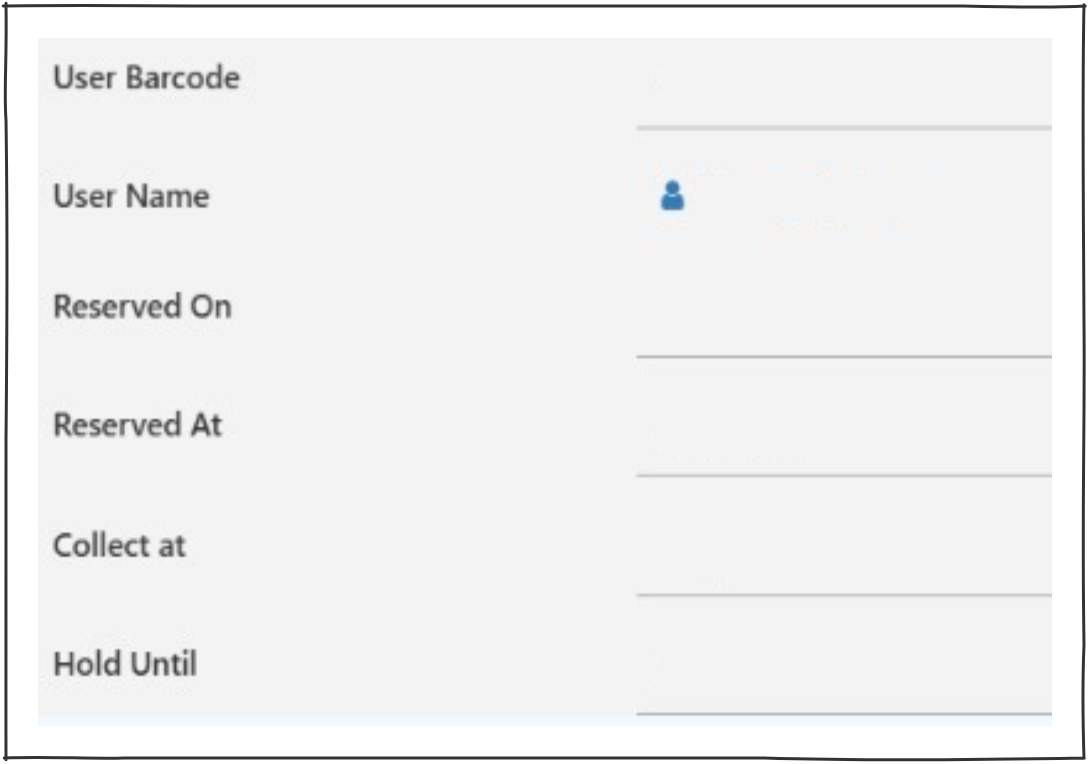
- User Barcode
- User name – clicking the User Name opens User Details page.
- Reserved on – Date work was reserved.
- Reserved at – Location work was reserved at.
- Collect at – The location where the item will be collected by the user.
- Hold Until – Date the reserve expires and can be returned through circulation.
Flags Tab #
The Flags tab identifies an item’s statistical categories, and when a flag is set for some action applicable to the item:
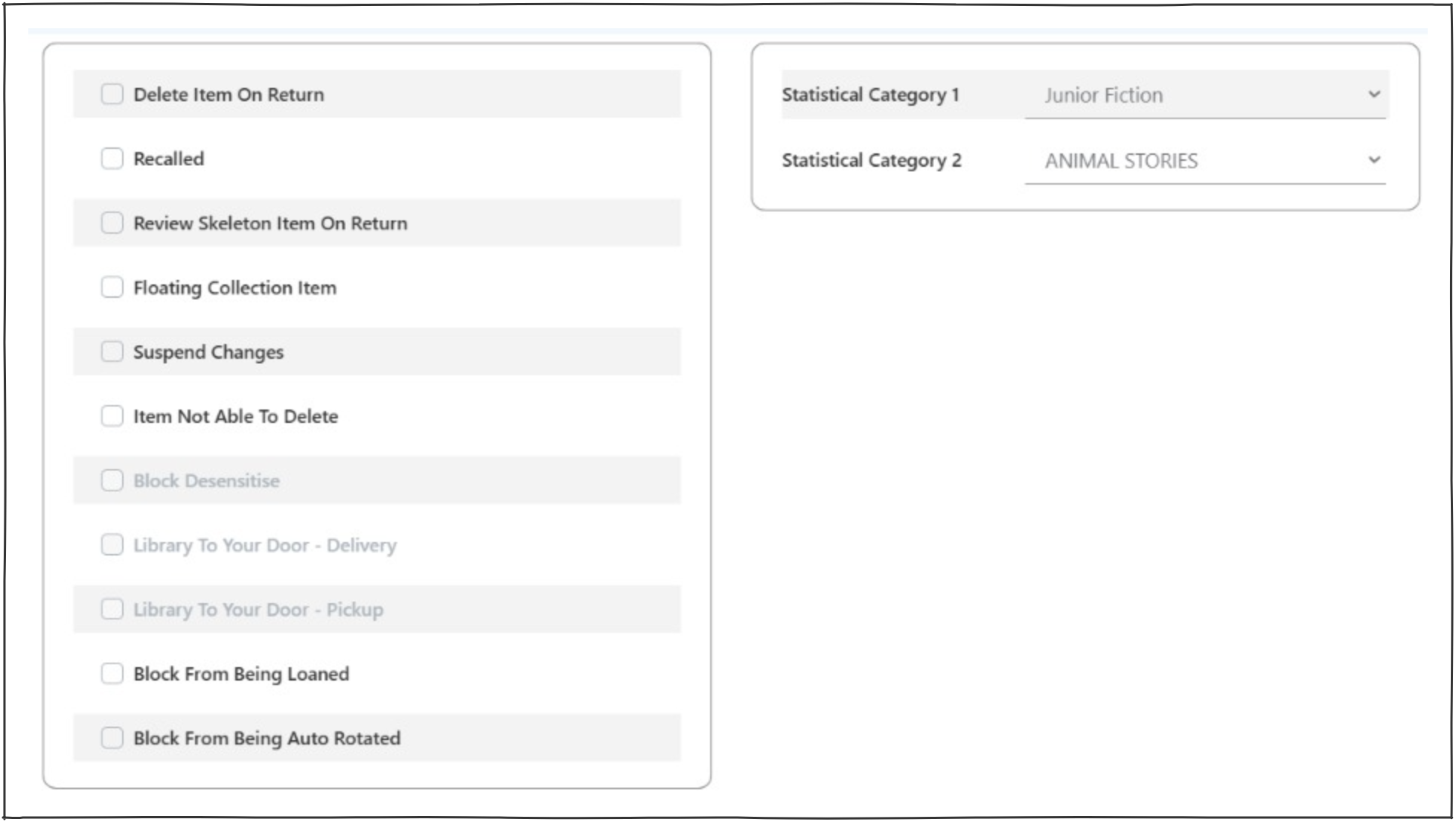
| Element | Notes |
|---|---|
| Delete item on return | This flag is determined by the loan of a magazine using the AudioMagazines process and cannot be inhibited. |
| Recalled | This flag is set when an item is recalled. |
| Review ‘skeleton’ item on Return | This flag is set when an item is created through Quick Work, so that the details can be checked later. As this mechanism implies that the item will be loaned, the flag causes an exception to be raised on return, advising the item be sent to cataloguing. |
| Floating collection item | If this is set, then the item will remain at the branch to which it is returned and will not give an operator message to be put into transit back to its original home branch. Note that the home branch information is retained. |
| Suspend charges | It is possible to suspend charges for a specific item – regardless of the user – and this is defined here. |
| Suspend fines | It is possible to suspend standard fines for a specific item – regardless of the user – and this is defined here. |
| Item not able to be Deleted | Blocks deletion of the item. |
| Block desensitise | Enables the item to be recorded as ‘not to be desensitised’ – e.g. for use in an RFID context, where the item may be or contain a magnetic element, such as Video tape, which would be harmed by the standard desensitisation process. |
| Library to your door – Delivery | If enabled |
| Library to your door – Pickup | If enabled |
| Block from Being Loaned | A popup appears warning the operator this item is blocked for loan. This can over-ridden if permissions of operator allow. |
| Block from being auto rotated | Blocks auto rotation of item. |
Message Tab #
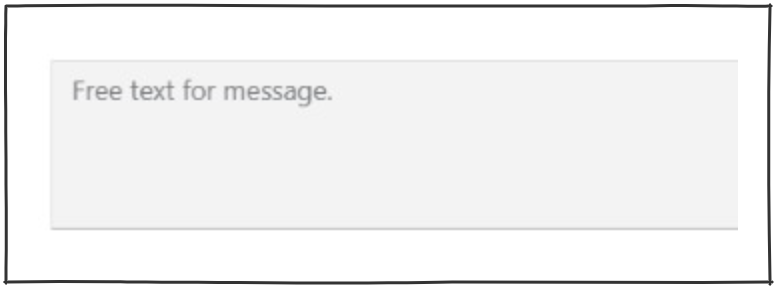
The Message tab allows the recording and display of messages related to the item – these messages are invoked when the item is loaned or returned.
A new message may be created by simply typing into the text box and saving the result – Note that only one item message is supported, and so multiple observations must be compressed into the single message.
Issues Tab #
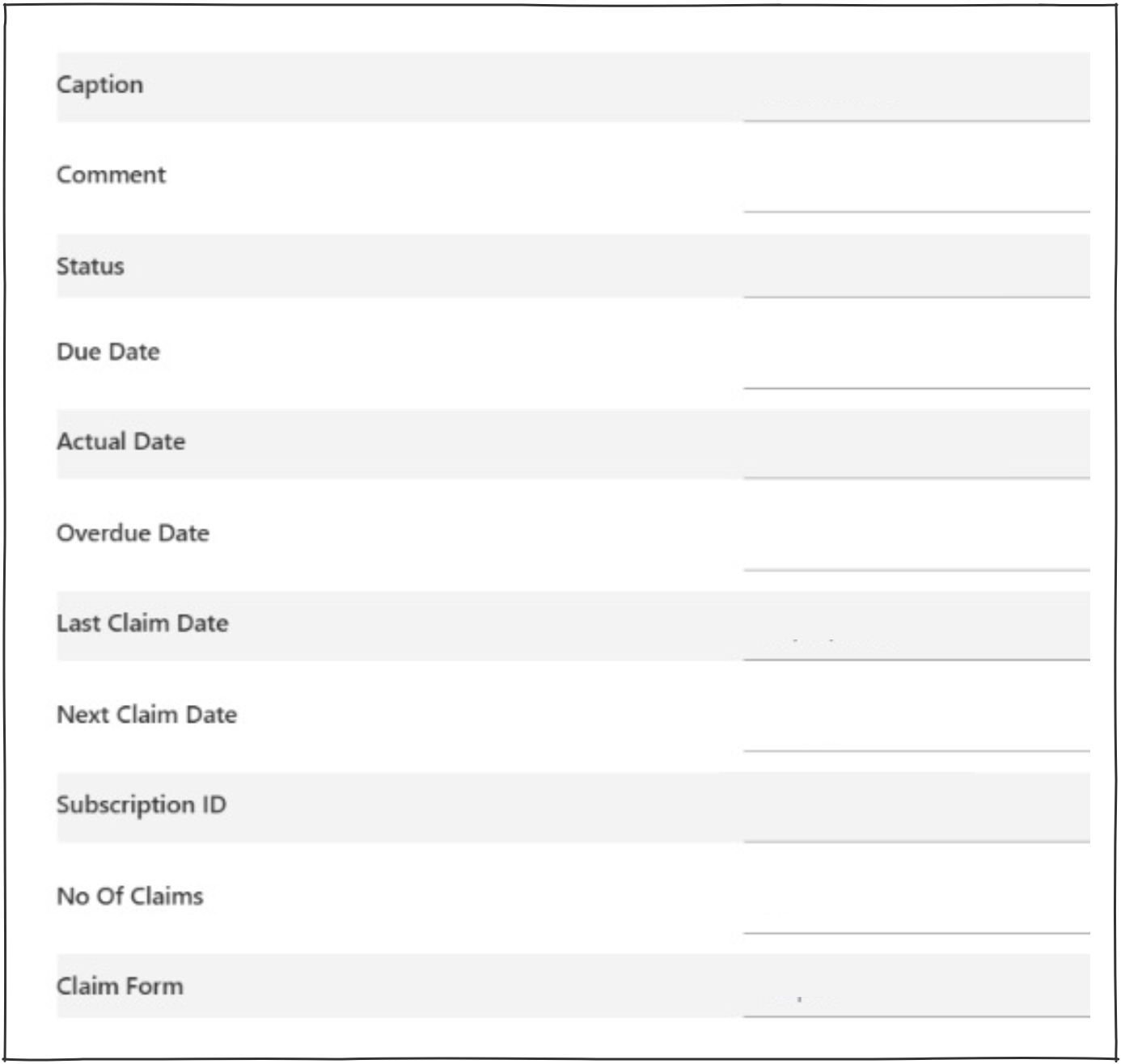
The Issue tab provides details of a serials issue, indicating the full details relating to the issue. Note that this information is provided for information only – no updating may occur here.
- Caption: this is the derived caption for the issue.
- Comment: displays any comments entered in the check-in process.
- Status: indicates the status of the issue ntered in the check-in process.
- Bind: this checkbox indicates if this issue is the one that triggers a binding alert.
- Due date: Date the magazine is due to be received.
- Actual date: Received date (if applicable).
- Overdue date: the date according to parameters when the issue becomes overdue (if not already received).
- Last claim date: the date the last claim was sent.
- Next claim date: the date the next claim is due to be generated.
- Subscription ID: this is the current subscriptionID under which the serial is purchased.
- No of claims: the number of claims sent for this issue.
- Claim form: that is the format in which the supplier will receive the claim. Note that a combo allows viewing of the possible options, but these cannot saved here.
History Tab #
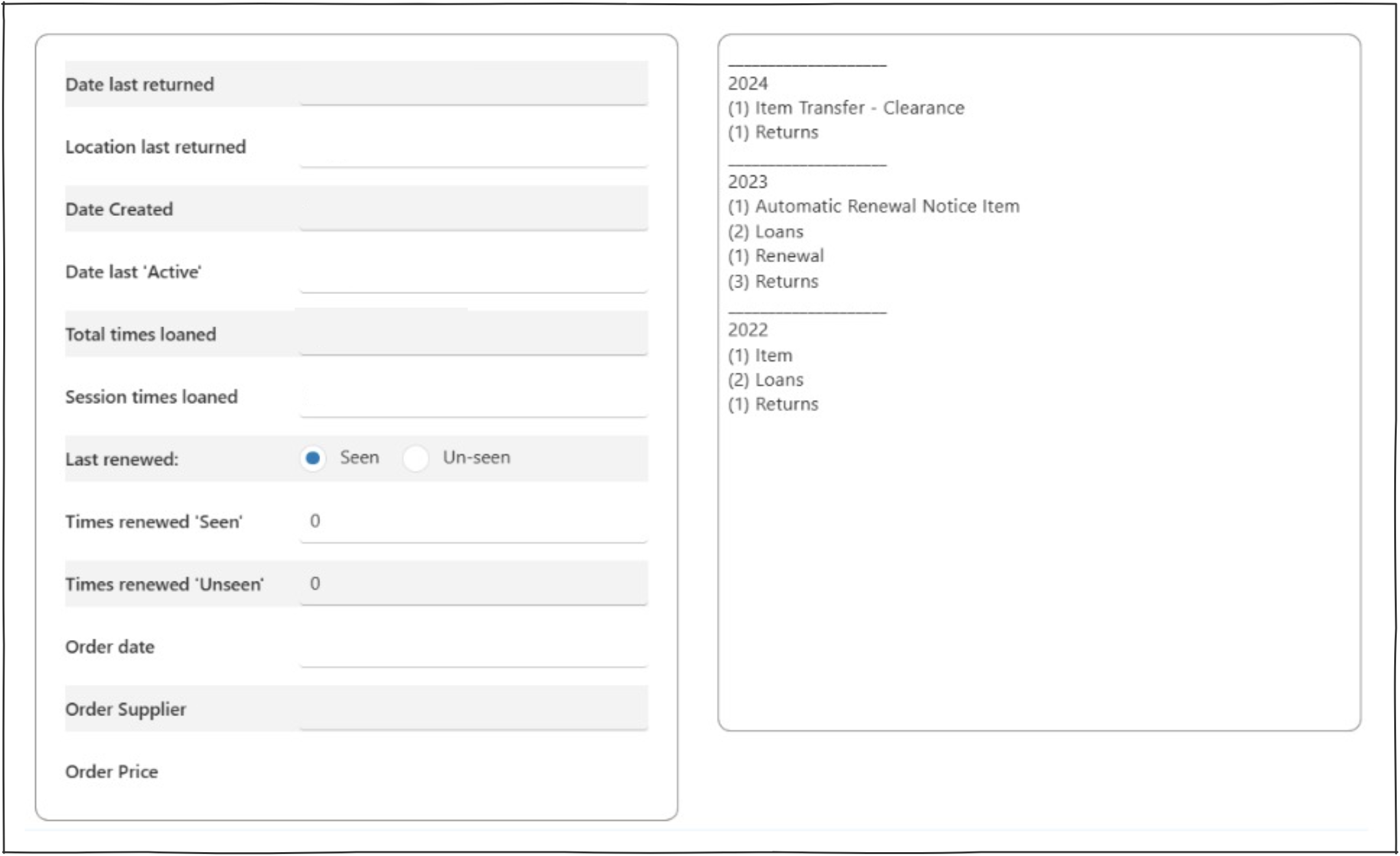
The History tab records a number of different bits of information on the current item:
- Date of last return.
- Location of last return.
- Date of item creation.
- Date last active (i.e. loaned, returned, or identified as active in stocktake).
- Total number of times the item has been loaned (overall and in the current ‘session’).
- Total number of times it has been renewed – seen, unseen, and overall total – together with an indication of the style of the last renewal.
- The date the item was ordered.
- The item’s supplier.
- The price paid on the order.
Item statistics #
The statistics column lists all transactions relating to the item, broken down into years.
Inter-Library Loan Tab #
The Inter-Library Loan tab displays all information about the item if it has been borrowed from another library.
Content Tab #
This tab provides the option to add up to 2GB of notes or text content that is searchable relating to the item.