Add images and files to the catalogue #
Adding a book cover #
Cover images can be added to works not displaying an image with syndetics. For specific instructions see How to add cover image – Aurora – Image Service Maintenance
How to add an image or files through AMC (Aurora Multimedia Cloud) #
AMC allows libraries to store files they wish to make available to the public through the catalogue (Montage) on the cloud server creating a direct URL to that specific file. This link can then be added to the 856 Tag of a work to make that file available and display attractively on Montage.
To get access to this service please contact aitsupport@ait.com.au for your user name and password.

Examples of Files added to the catalogue. #
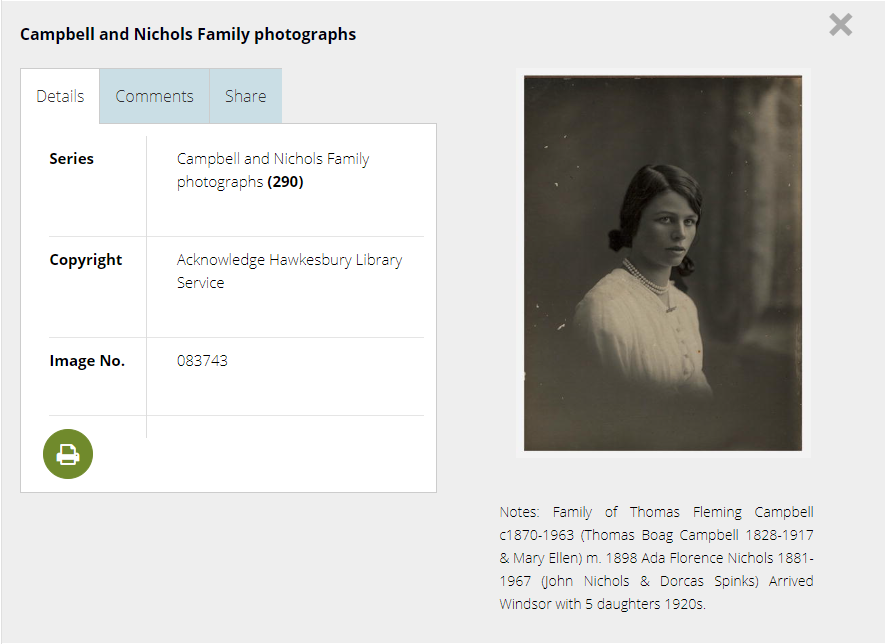
- Adding an image to a record of to a photograph held in the collection.
- Adding a sound recording to an oral history – playable on Montage/
- Adding a PDF to a eDocument record.
- Adding an image to a Map held in the collection.
- Adding an image to Plan held in the collection.
- Adding an image to Toys held in the collection.
Montage only allows specific files to be displayed based on the catalogue records for more details on this see Cataloguing for Montage.
Procedure to add files to AMC and Montage #
- Navigate to the AMC – Aurora Multimedia Cloud website – if you don’t have this please contact AIT directly.
- Login using you libraries username and password.
- Navigate to the specific folder the file is to be stored e.g for a PDF of a edocument the file must be saved in the Documents folder. Open the jpeg folder – Note AMC will automatically create a reduced file size version of the files you upload in the Jthumb folder.
- Select the upload button or right click upload navigate to the file on your pc and open.
- The URL created will begin with the URL value in enterprise parameter eLibraryServer / then the folder structure of AMC / then name of the file you uploaded
E.g. https://elibraryServer-Value/Consortia/entity/documents/jpeg/nameofthefile.pdf or
https://###.auroracloud.com.au/entity/images/jpeg/nameofthefile.jpeg - Navigate to the catalogue screen of the work you have uploaded a file for.
- Insert an 856 tag and paste the url in the catalogue work.
- Check Montage to ensure the image, link or sound file is now displaying correctly.
Note there are specific cataloguing requirements to display content on specific pages. Example
Images – 000/06 = k (2-D non projectable graphic) – 007/00 =k – 007/01 = h – 856 Must be present for an EResource
See Cataloguing for Montage for more information.