
User Details #

User details is the screen used to manage the information and preferences relating to a user. From this screen operators are able to search for, view, add, edit or delete a user. Operator access level will determine how much data editing is permitted.
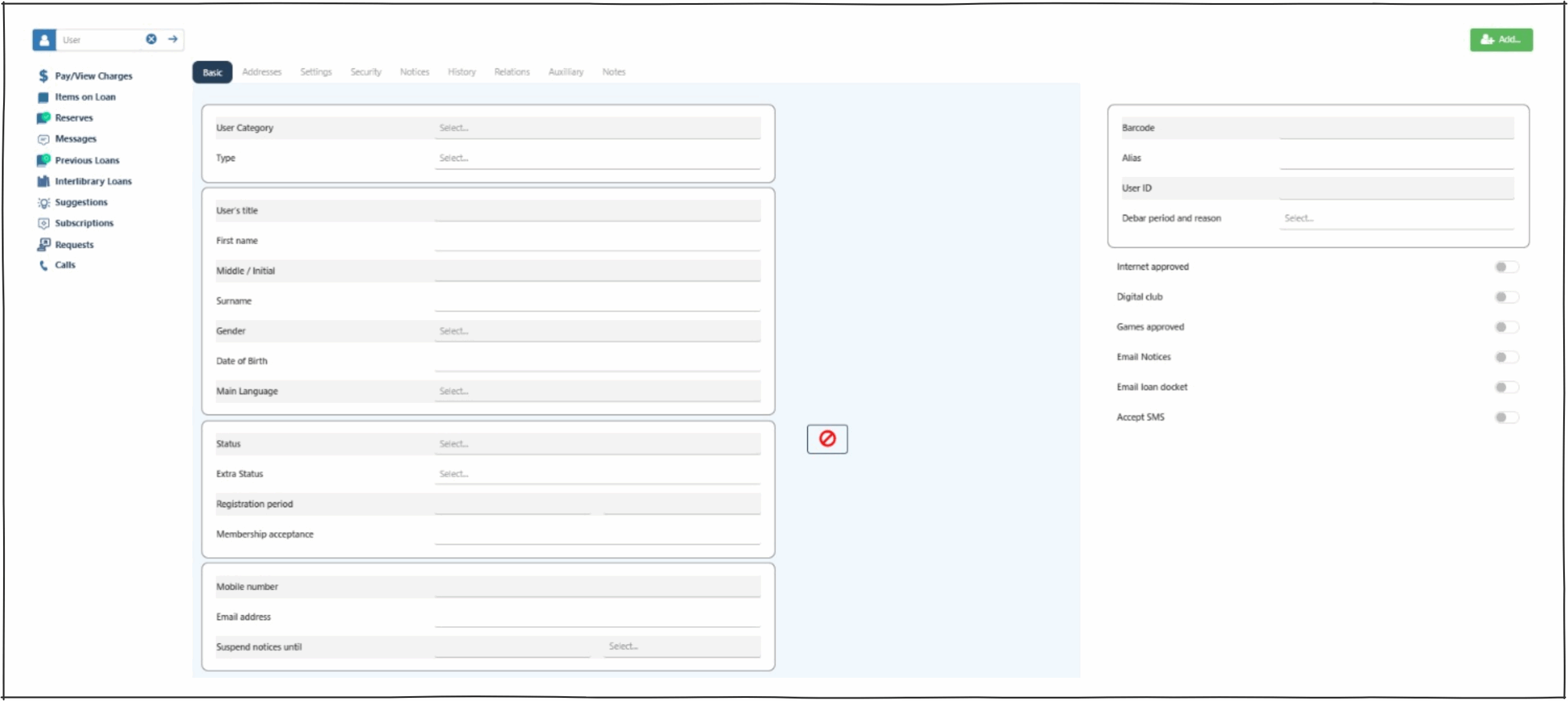
Search panel #
From this search panel operators may either enter in a user’s barcode or search for a user by typing the user’s name and selecting them from drop down list.
The panel also provides direct links to User options, clicking on any of these will open the related page.
This panel is visible across all User tabs.
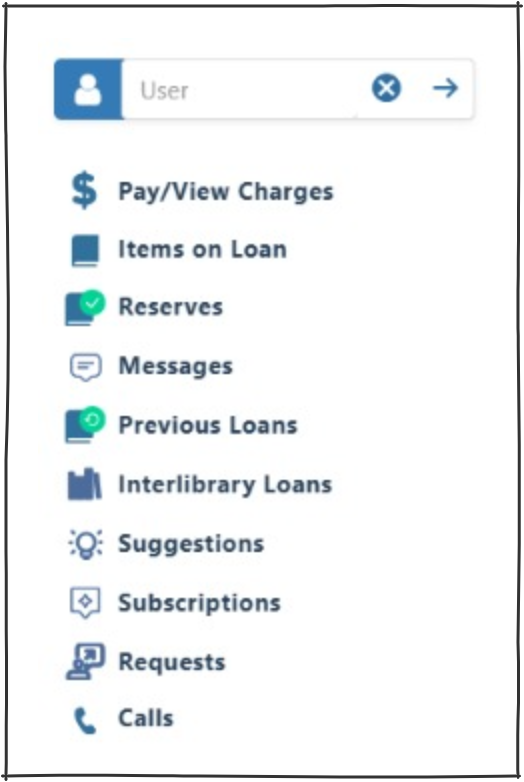
Right hand panel #
This panel is visible across all User details tabs.
- Barcode – This field is editable, data can be scanned or typed in.
- Alias – Users can have an optional self-chosen memorable ID. This field is provided to allow users to elect to have a name which may be used in public areas, such as reviews in the OPAC. This Alias may also be used to login instead of their barcode, and by staff to access user details.
- User ID – This field is automatically assigned when a user is added to the system. It is not editable.
- Debar period and reason – Debarral reasons can be selected from the drop down list, enabling the display and editing of the to and from dates. To remove a Debar change the debar reason to ‘Not Debarred’ and save.
- Internet approved – Indicates that the user has been approved as an Internet user.
- Digital Club – [Vision Australia specific] indicates the user’s membership of the club.
- Games approved – Indicates that the user has been approved as an Internet user and may use the library’s computer gaming facilities. This applies to under-18s only.
- Email Notices – Indicates that the current user is enabled for email notices. Note when the user’s email address is saved this button will be automatically switch to on.
- Email Loan Docket – This setting applies if the workstation is set up as having a docket printer. Note when the user’s email address is saved this button will be automatically switch to on. This allows details of loans to be emailed to the user’s address, rather than outputting to the docket printer.
- Accept SMS – Indicates that the user is enabled to receive SMS messages. Note that the user must have a mobile phone number to allow this to be toggled on..
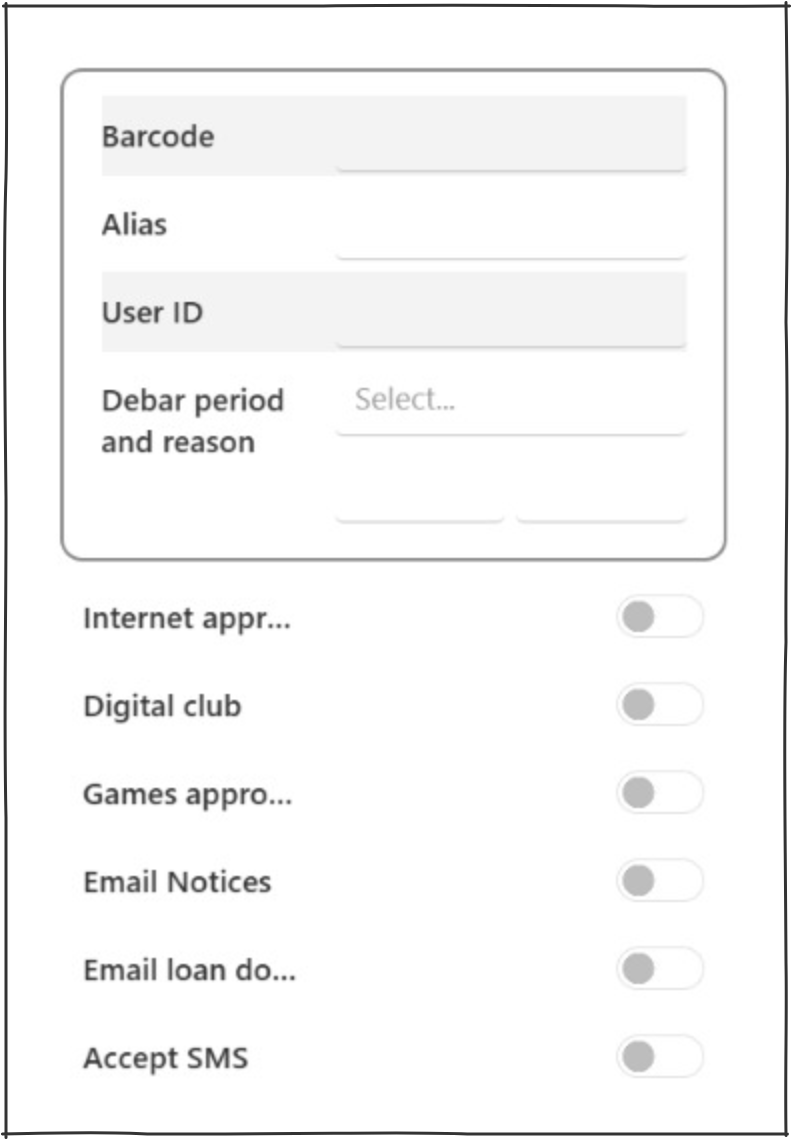
Basic Tab #
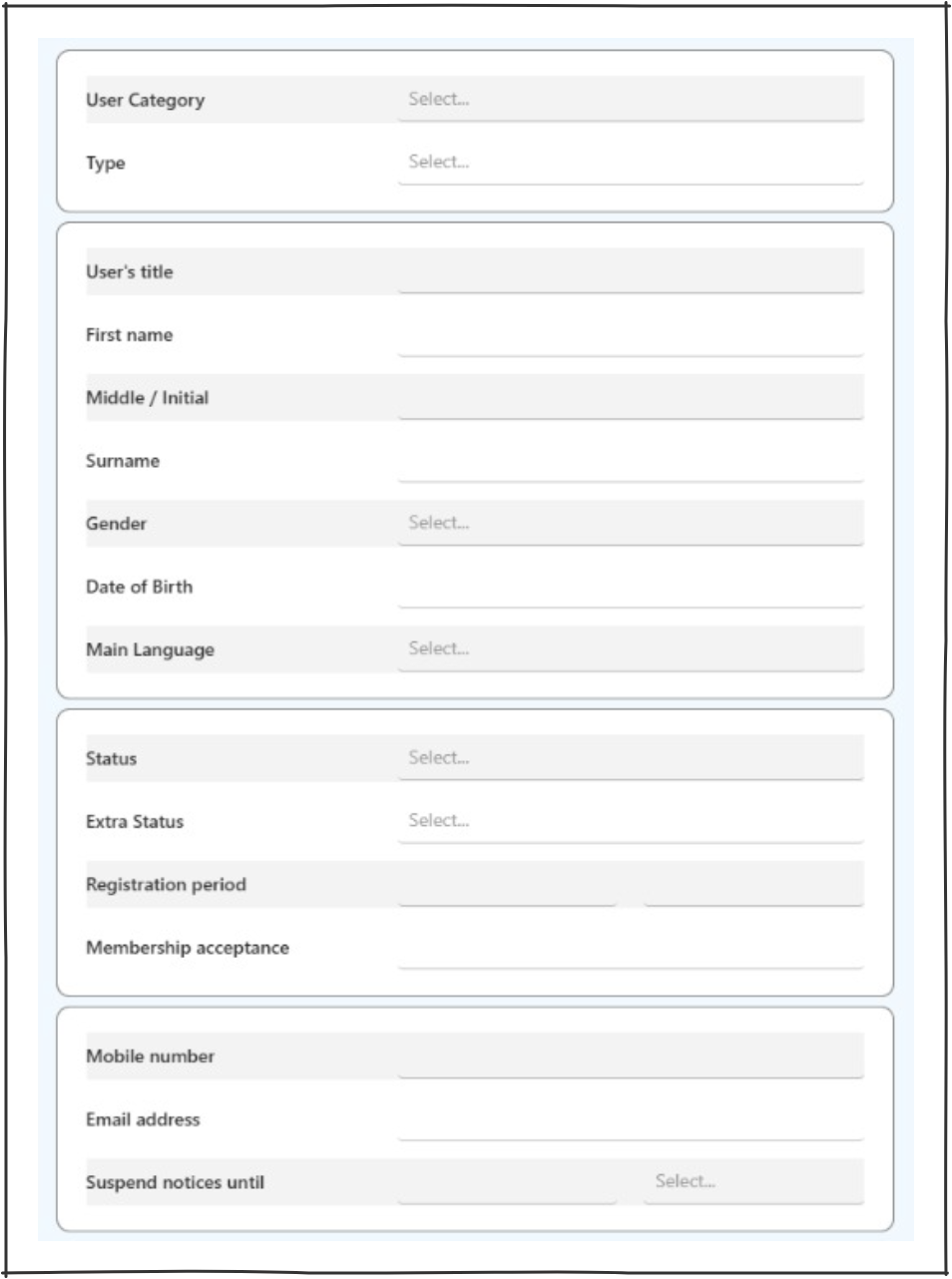
- User category – These are defined by the system (Reader, Staff, Library, Supplier or Institution). Selecting one a user category alters the available user types.
- Type – The user type is setup in System Parameters > User Types. Liraries can create their own user types eg Senior, Junior, etc. User types can be set to age ranges and if ‘allow age update’ is checked in the system parameters the user type can be updated by DOB.
- User’s Title – Free form text field.
- First Name – Free form mandatory field.
- Middle/Initial – Free form text field.
- Last Name – Free form mandatory field.
- Gender – Drop down field with male, female, other, or ‘institution’ where gender is not appropriate.
- Date of Birth – Format as DD/MM/YYYY is a mandatory field. DOB can be used to allow automated change of user type according to age. DOB is indexed and can be used in reports and statistics.
- Main Language – This option allows recording of the primary language for the user – this may be used for statistics, or for provision of language materials.
- Status – All user statuses are defined at a system level and cannot be locally redefined.
A status may be applied by selection- Archive
- Debarred by charges threshold
- Debarred by fines threshold
- Deceased
- Delete – This can be used by libraries that do not give ‘user delete permission’ to all operators. A user can be marked as ‘delete’ and they will not appear in regular user list searches.
- Normal – default
- Private
- Review
- Unsubscribed
- Extra Status – The extra status options are provided to allow the library to identify a specific user characteristic, as defined by the library, which can be used as a means to select and report on. It has no system significance. The codes are set in System Parameters > User Codes > XST.
- Registration period – The user’s registration period is detailed here. When the user’s registration is expired the user is prohibited from loans. In addition,
 the clear user status button will show to the right of the registration period. Clicking this button will re-register the user according to parameters set in the User Type parameters. If these are not set, then no action will be able to be taken.
 - Membership acceptance – Membership acceptance date is mandatory.
- Mobile Number – If the user is to receive SMS messages, their mobile number must be entered here. ‘Accept SMS’ must also be toggled on.
- Email address – If the user is to be enabled to receive email notices, their email address must be entered here. ‘Accept Email’ must also be toggled on.
- Suspend Notices Until – Libraries can suspend notices until a certain date for individuals. There is a ‘suspend until’ date field, and a combo to select a reason code for the suspension. This reason codes is held in the User_UserCodes parameter table, please contact AIT if additional reasons are to be set.
Addresses Tab #
The Addresses tab holds information on all addresses recorded for a user.
A user record may have multiple addresses, and these can be added and saved as required. However most users will only have a Main address.
Note that mobile phone number and email address are not associated with a specific address and are entered on the Basic tab.

Settings Tab #
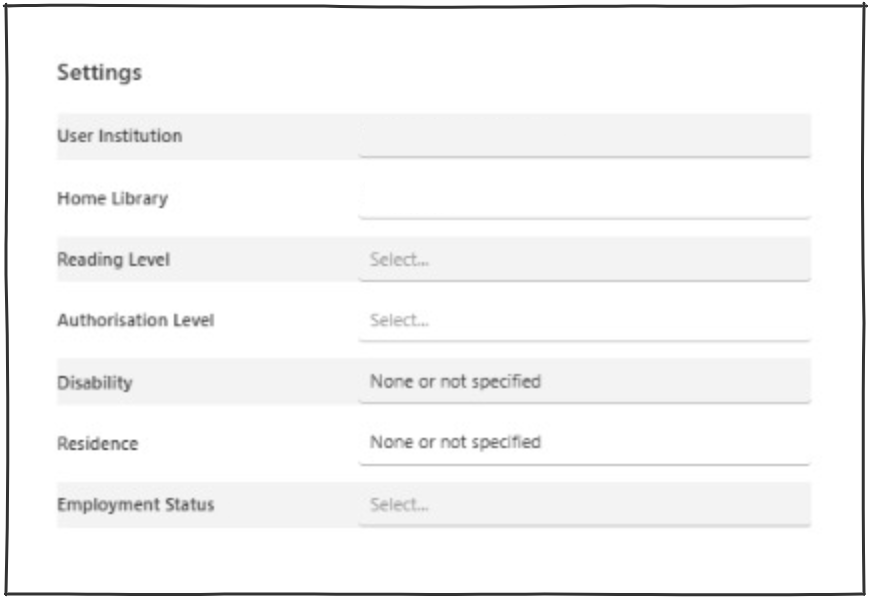
Settings #
- User Institution – The User Institution control will normally only have one choice.
- Home Library – Users always have a Home Library (Branch) with which they are associated. Any reservations will be default be collected at the home library. The choices are determined according to pre-set library parameters.
- Reading level – Each user may be associated with a reading level – broadly equivalent to the bibliographic reading levels defined in MARC21. Reading levels are used in profile matching to ensure that titles selected are of the appropriate level for the reader. Choices are pre-set in the library’s parameters; additional codes may be set – please contact AIT if this may be required.
- Authorisation level – This setting determines the user’s authorisation level, that is the privilege they have to be able to see documents, and parts of documents through the system. The levels are pre-set in parameters and may be absent.
- Disability – A special encoding allows for a user’s specific disability to be recorded (primarily for the use of Libraries for the Blind).
- Residence – The residence field is designed to hold an indication of the user’s residence characteristics, and is primarily used in Libraries for the Blind, e.g. to denote if the user is in care, hospice, etc. It may however also be used to record user residency/non-residency for statistical purposes and many user reports can be pulled using this setting.
- Employment status – An employment status indicator may optionally be set for a user. There are settings which allow indication of work area (e.g. to identify non-residents who work in library areas).
Profile #
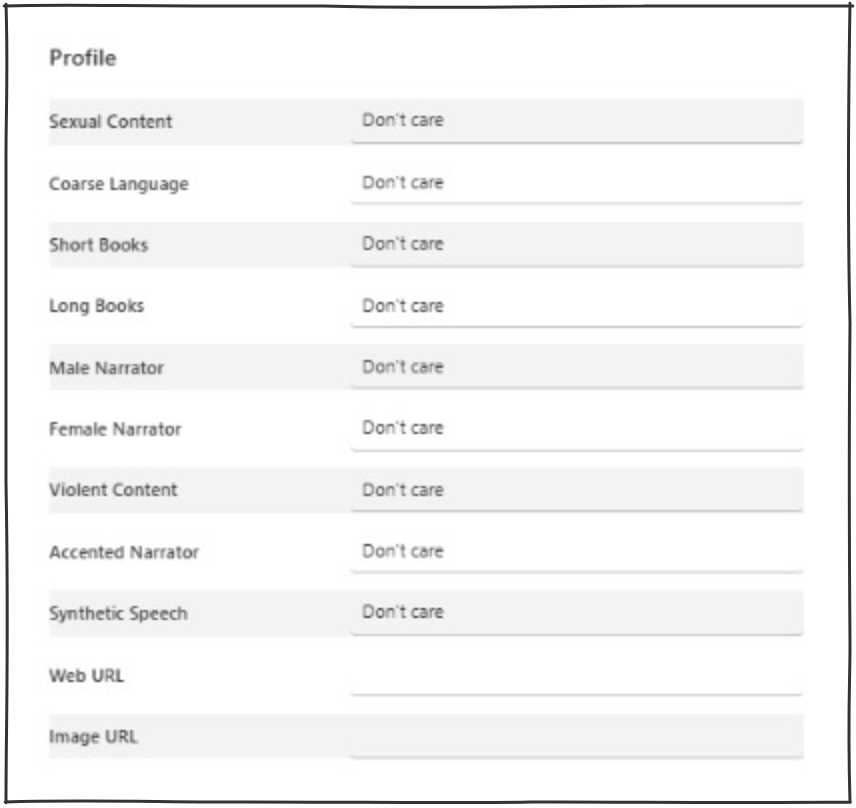
The Profile tab allows the setting of specific preferences related to works (e.g. to determine acceptability of material). These settings may be reflected in bibliographic details for works , and then used in Libraries for the Blind and Homebound operations.
All elements to do with the user’s preferences with regard to generic book types are recorded here (but note that SIC requirements are handled under Profile allocations), allowing you to record here if the user has a distinct preference FOR or AGAINST any of the prescribed settings. If they have no preference, leave the setting as ‘Don’t care’ and no action will be taken to match this preference in the automatic allocations processes.
Security Tab #
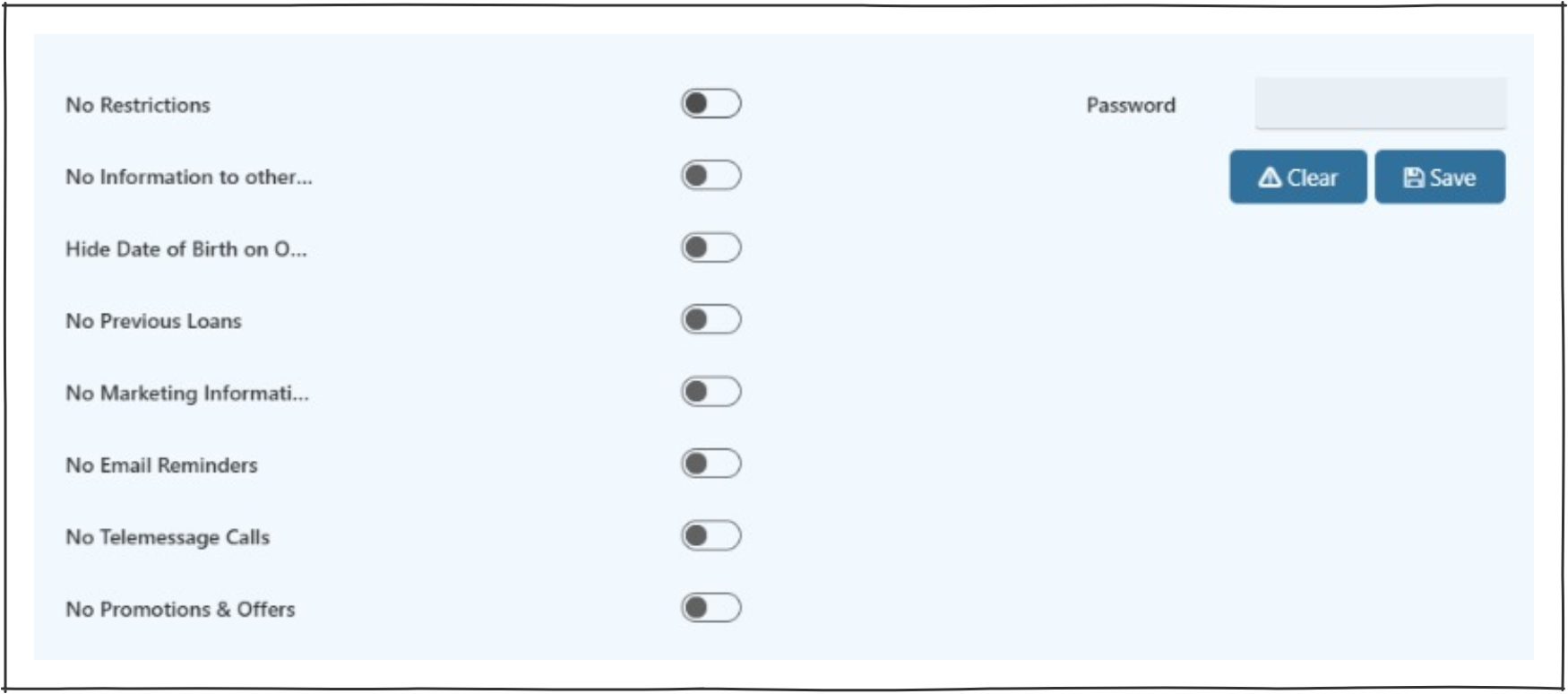
- No Restrictions – This checkbox clears the following three and removes any restrictions applied. This must be saved to have effect.
- No Marketing information – This setting indicates that the user does not want any promotional material from the library.
- No information to other organisations – This setting indicates that the user details must not be made available externally.
- No email reminders – This setting indicates that the user does not want to receive reminders that items are about to become overdue.
- Hide date of birth on OPAC – This setting indicates that the user’s birthdate will be hidden in the OPAC.
- No Telemessage calls – This indicates that no telemessage calls are allowed (e.g. if following feedback from the telemessage service).
- No Promotions & Offers – This is similar to ‘No Marketing Information’ and can be used by libraries in creating user lists based on privacy settings.
- Password – This field may be edited by operators, especially if a user has incorrectly entered their password multiple times and been blocked from accessing Montage.
Notices Tab #
The Notices tab provides options to review the notices (e.g. Overdue and Reservation notices) that have been sent to the user. This provides some verification of the process, allowing action to be taken if there are errors.
 The notices button will open the display of the ‘Notice Documents’ and ‘Notice Lines’ tables.
- Notice documents – This shows the process date and type of notice.
- Notice lines – This shows the specific detail contained in the notice.

History Tab #
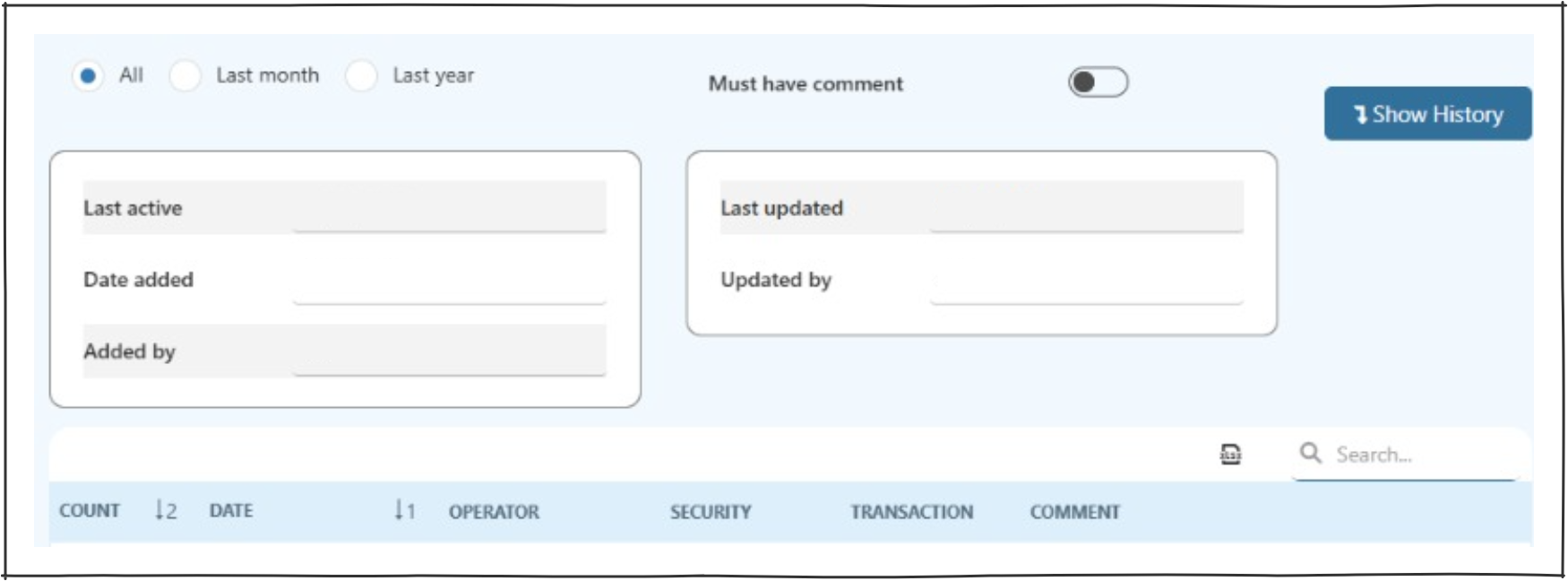
The history tab allows the viewing of specific changes related to the user details.
To view the history of the changes:
- Select one of the three date ranges with the radio buttons (e.g. All, Last month, Last year).
- Select or deselect the on/off switch to show only results that have comments.
- Click the
 button to run the search and open the results table.
Relations Tab #
The Relations tab allows the recording of any family or custodial relationship between users.
Recording a family relationship provides for a dynamic link of user records in the family, allowing loans of related users to be displayed in a single screen and thus renewed together.
- Select a user in the left search bar.
- Search the user you want to create the relationship with in the ‘Related User’ search bar.
- Select the relationship – Parent, Partner, Sibling, Child, Carer or Guarantor.
- Click the
 button to process the task.
 - The results table will populate with the relationship data.

Viewing relationships #
Relationships can be viewed on all of the ‘User’ pages:
- Add charge
- Messages
- Pay charges
- User calls
- User details
- User ILL
- User Loans
- User reserves
- User Suggestions
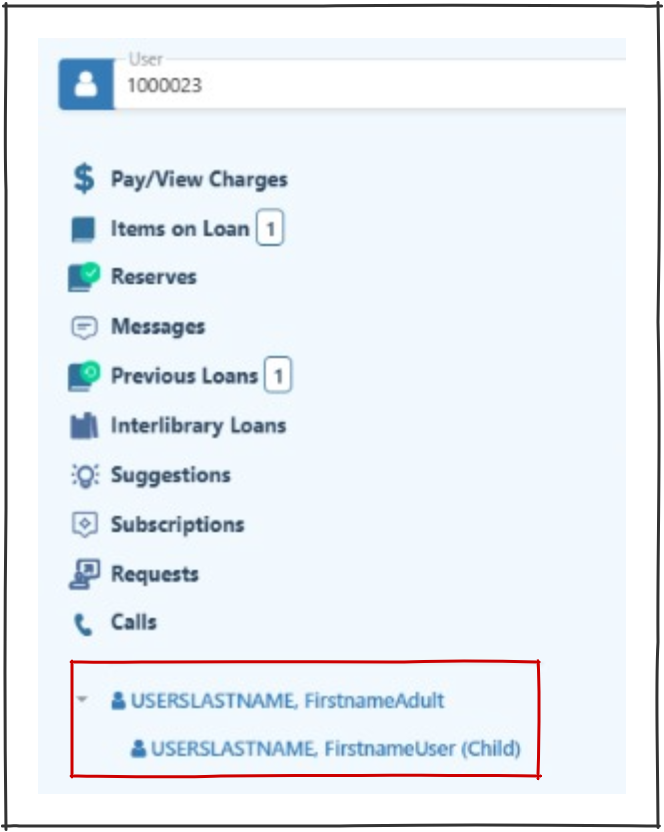
Deleting relationships #
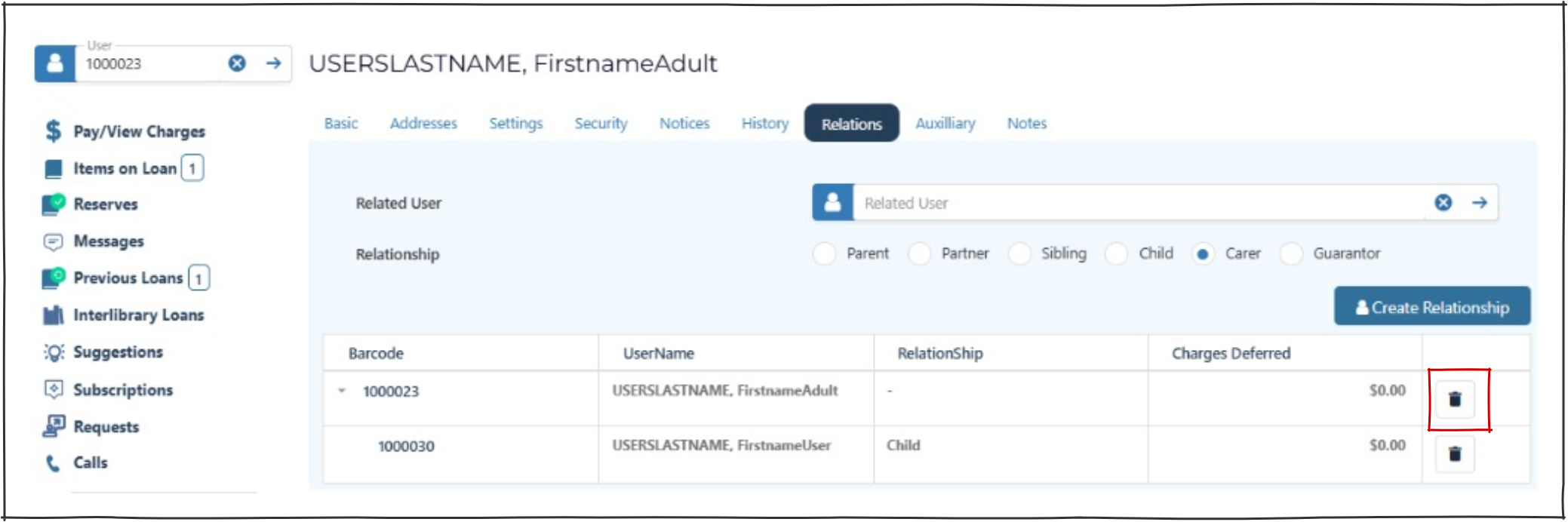
- In ‘User Details’ search any of the users belonging to the relationship.
- Select the ‘Relations’ tab.
- Click the
 bin button on the row of the user to be deleted from the relationship.
 - Confirm the deletion by clicking ‘YES’ on the popup.
Auxiliary Tab #
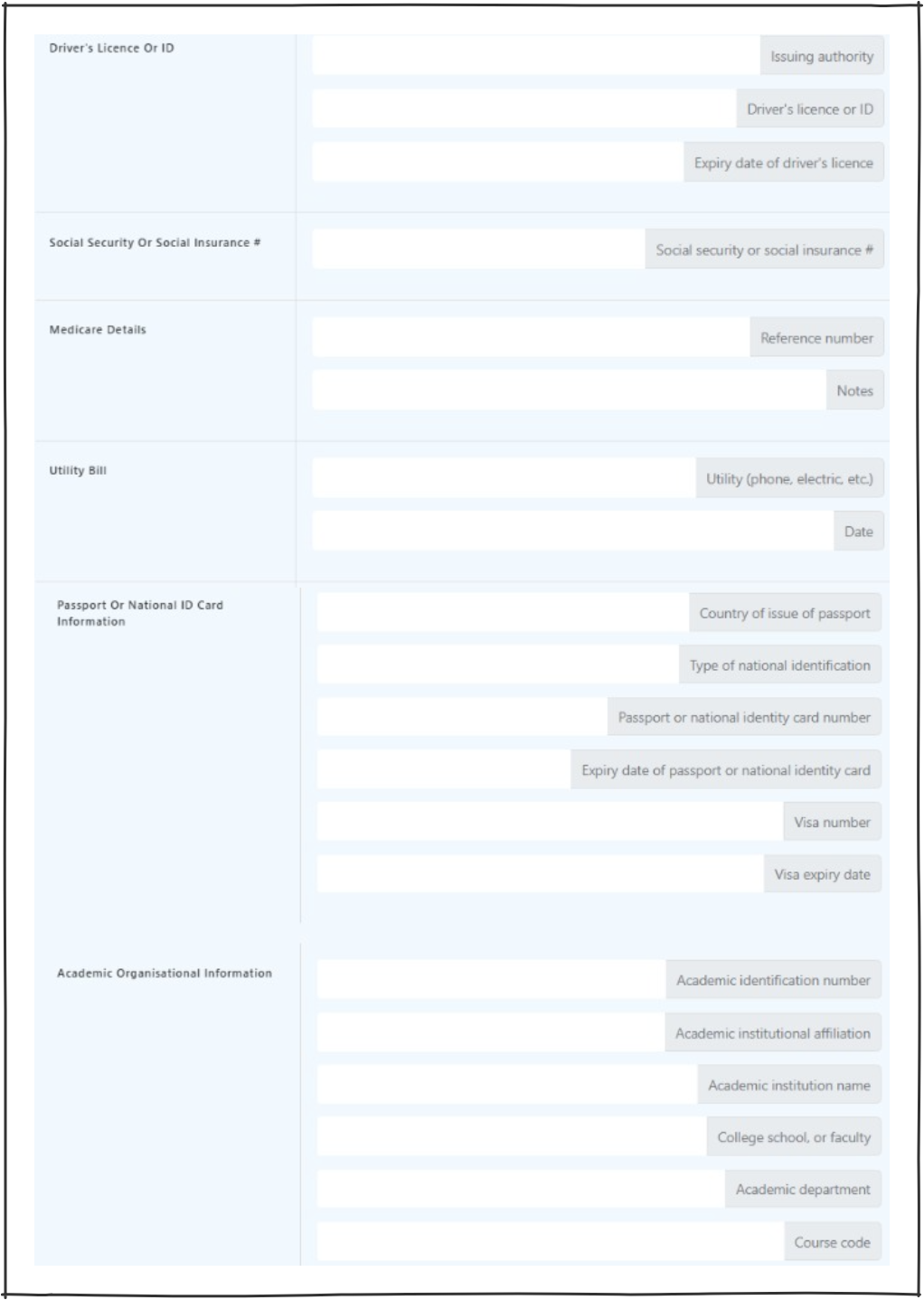
The auxiliary tab allows operators to record user data as required bby their organisation. These fields include:
- Driver’s Licence or ID
- Social Security or Social Insurance #
- Medicare Details
- Ultility Bill
- Passport or National ID Card Information
- Academic Organisational Information
Notes Tab #
The notes tab provides a free form page where operators may record user information.