
Loan #

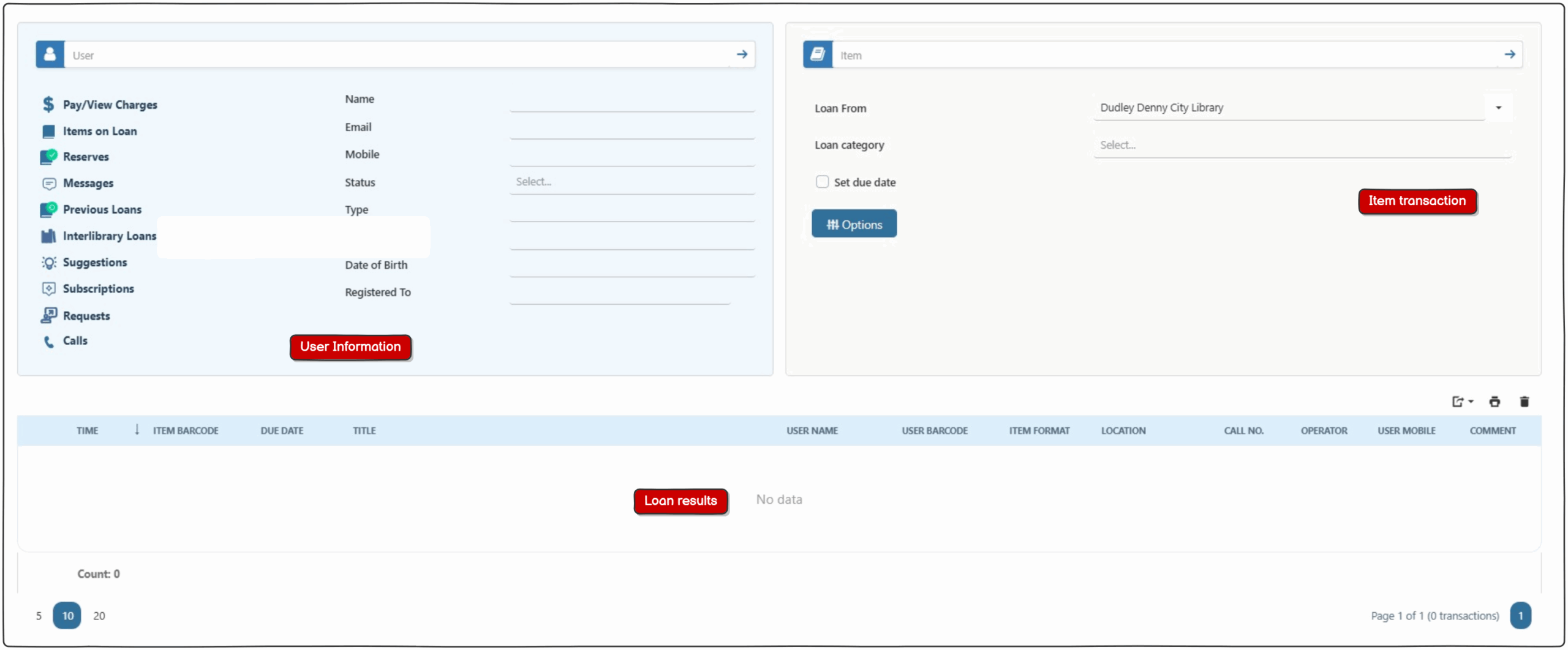
The Loan screen is divided into 3 sections:
- User information
- Item transaction
- Loan results
User information #
A user can be inputted by scanning a user barcode into the free text box or searching in the free text box by name and selecting a user from a list of suggested results.
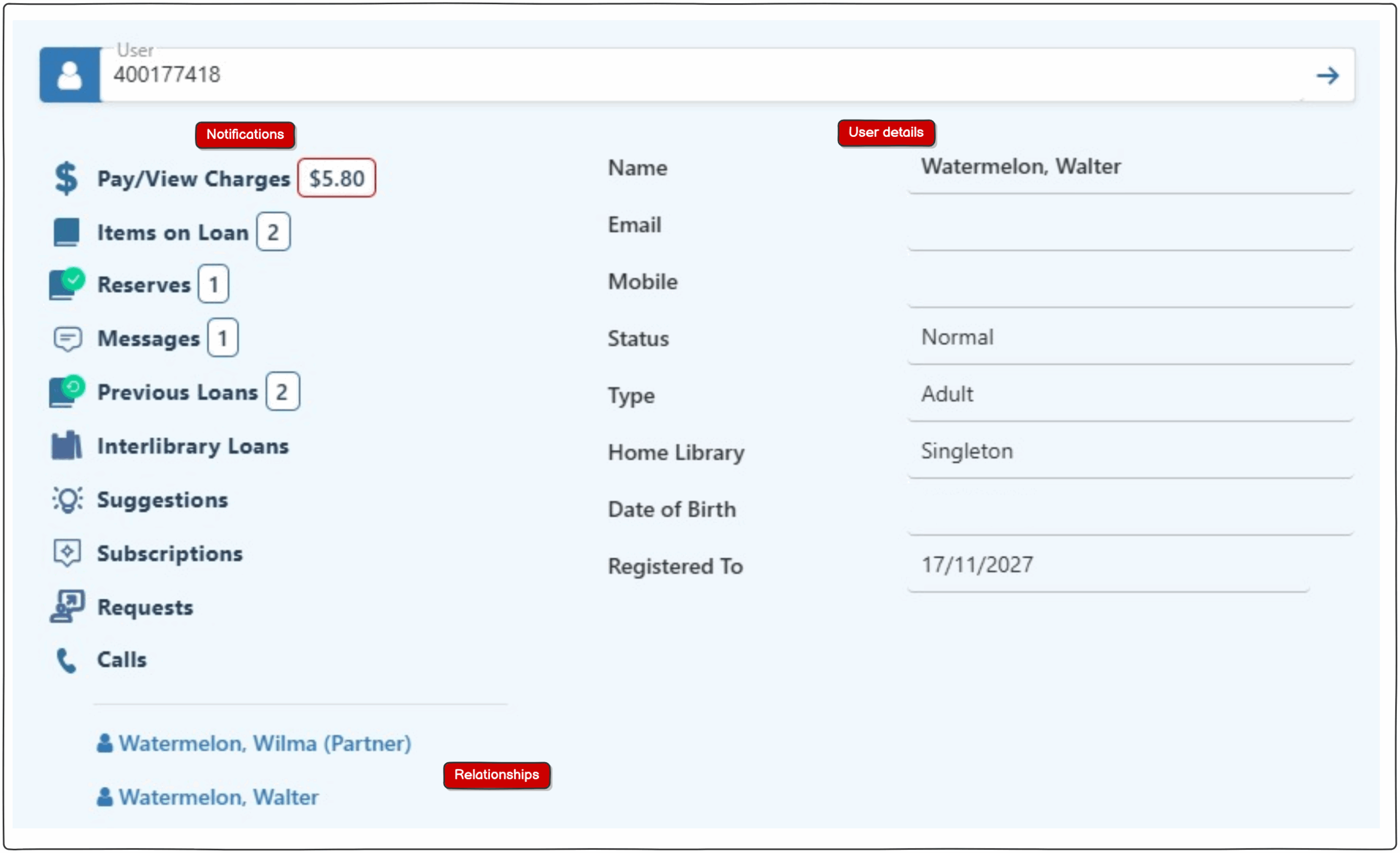
When a user is added to the loan screen, information relevant to the user account is displayed:
User details – Display of basic user information of name, email, mobile, status, type, home library, date of birth, registration expiry, and debarral reason (if present).
Notifications – Displays a fixed list of user related elements. Blue boxed numbers  indicate data is present. Red boxed numbers
  indicate action required by operator (eg Pay/View Charges). When clicked, these boxes will open the related page.
Relationships – Displays any relationships applied to the user and provides a click link to the related user.
Note – Any abnormal status or debarrals will be highlighted.
Note 2 – Expired Users – if the user registration has expired, the registered to date will be highlighted and a renew button will appear next to the date. Operators are able to renew the user expiry by clicking this button.
Item transaction input #
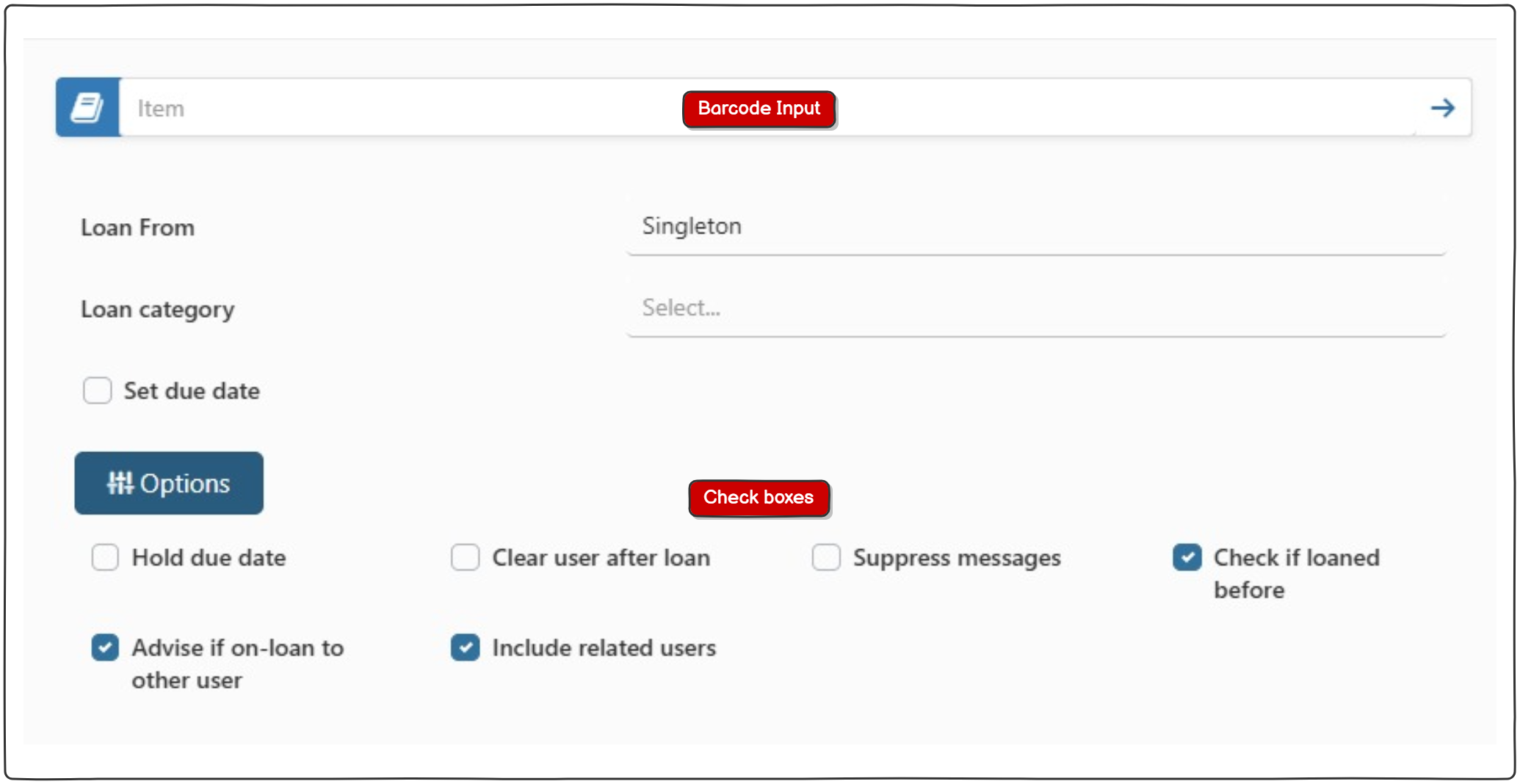
Item barcode input box – An item can be added in the item barcode input by scanning a barcode, pasting a barcode or typing a title (a list of suggested results will appear, and the operator is able to select the correct item).
Loaned from dropdown – This drop-down list enables selection of loan location. Note this may be disabled in particular libraries.
CheckBox Options
- Hold Due Date – Enables set due date to be held between users.
- Clear user after loan – Useful for situations where there is a group of users looking to borrow a single item in a group e.g. a book club group borrowing their book.
- Supress message – Prevents item messages from appearing.
- Check if loaned before – If this is selected, then if the reader has previously borrowed the title a popup message appears. NOTE this checkbox setting is persistent and will remain on until deselected.
- Advise if on-loan to other user – With this selected, if the item is recorded as already on loan to another user, the operator is alerted, and can choose to deny the loan. If allowed, then the item is first returned from the current user, and if fines have accumulated, then these are applied. NOTE this checkbox setting is persistent and will remain on until deselected.
- Include related users – notifies user it items have been loaned to related users. NOTE this checkbox setting is persistent and will remain on until deselected.
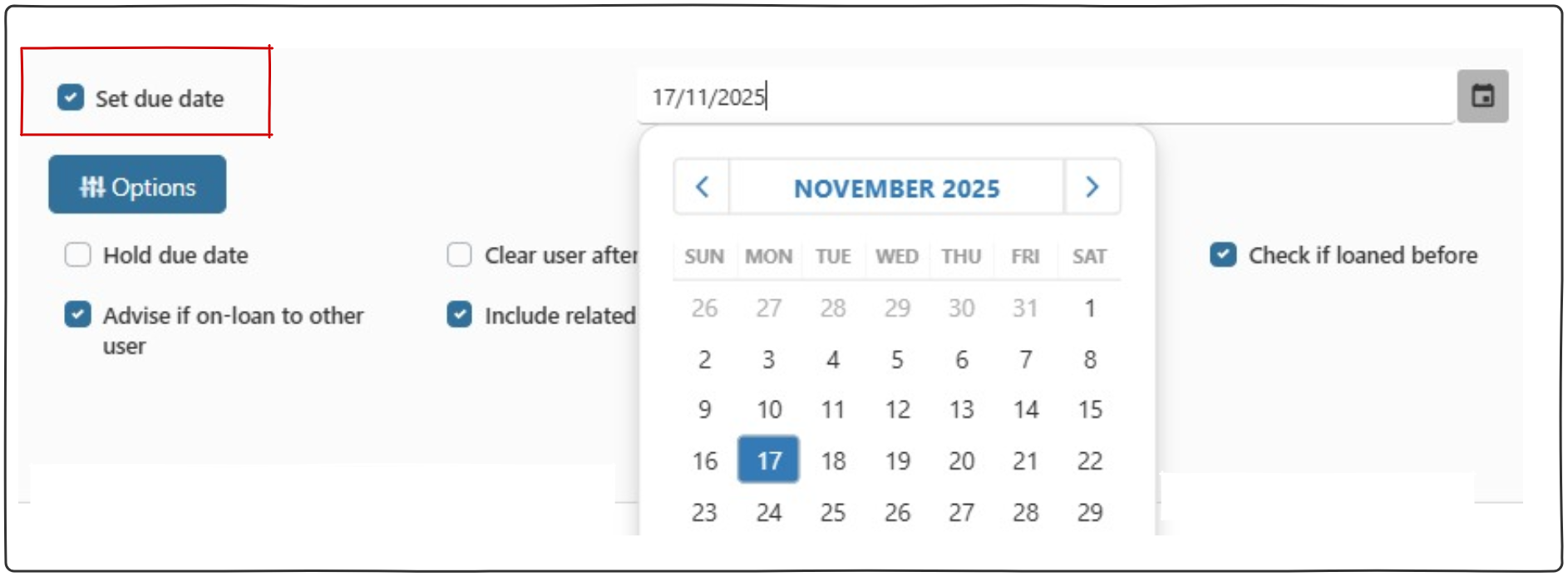
Set due date -Selecting this check box opens up the due date input box, allowing the operator to select a specific due date for the item loaned that would be different to the due date set by loan parameters.
Transaction Record #
A panel at the foot of the screen records the details of each loan transaction as it is completed. This provides a means of reviewing the activity at the workstation, recording both borrower name and work title.

Transaction record – right click menu #
The right click context menu is available when a transaction is selected.
- Select this user – Changes the user selected in the loans screen to the user who loaned the item (useful if a user returns to the counter soon after loaning).
- View ‘User Details’ – Navigates to user detail screen for the user who loaned the item.
- View ‘Item details’ – Navigates to item details screen for the selected item.
Transaction record buttons #
There are three action buttons connected to the transaction record.
- Export
- Export all data to .xlsx
- Export selected rows to .xlsx (lines ticked in the Transaction record panel)
- Print report – Prints report.
- Bin – The visible display of loaned items is cleared.
Loan Error Messages #
Occasionally loan error messages are displayed when processing a loan. These may need acknowledgement by the operator to allow the loan to continue, or they may prevent the loan (until further action is taken).
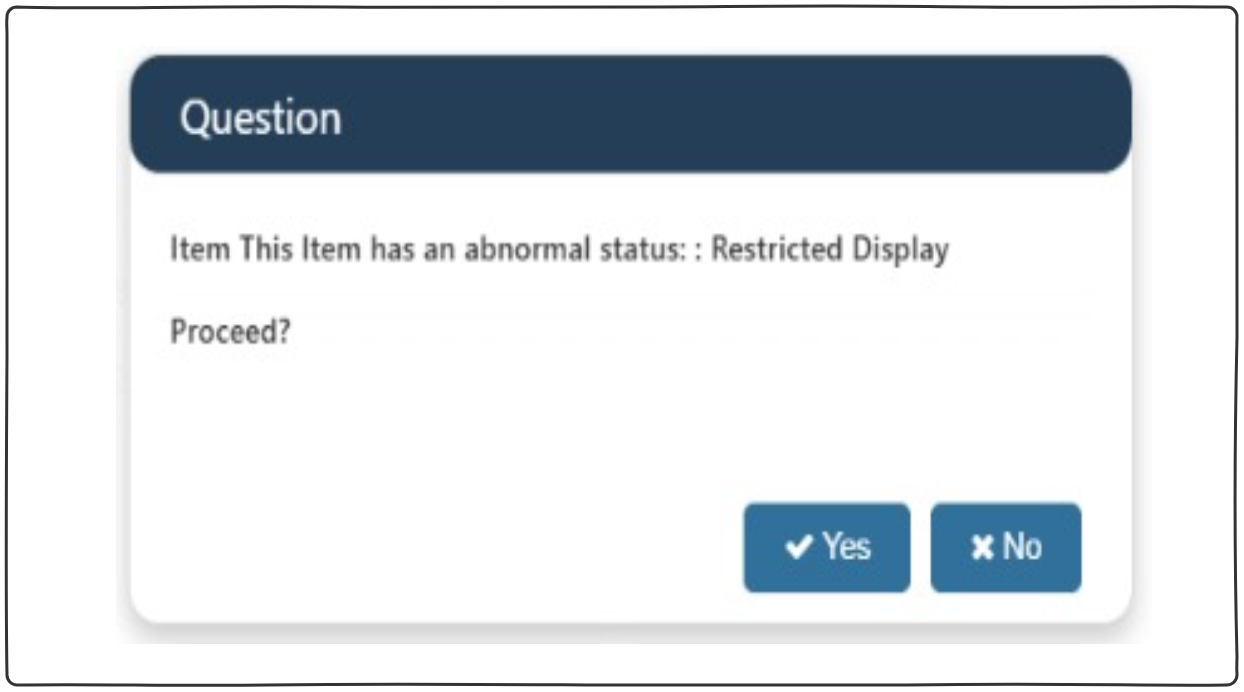
If an item has an abnormal status the operator can choose to proceed.
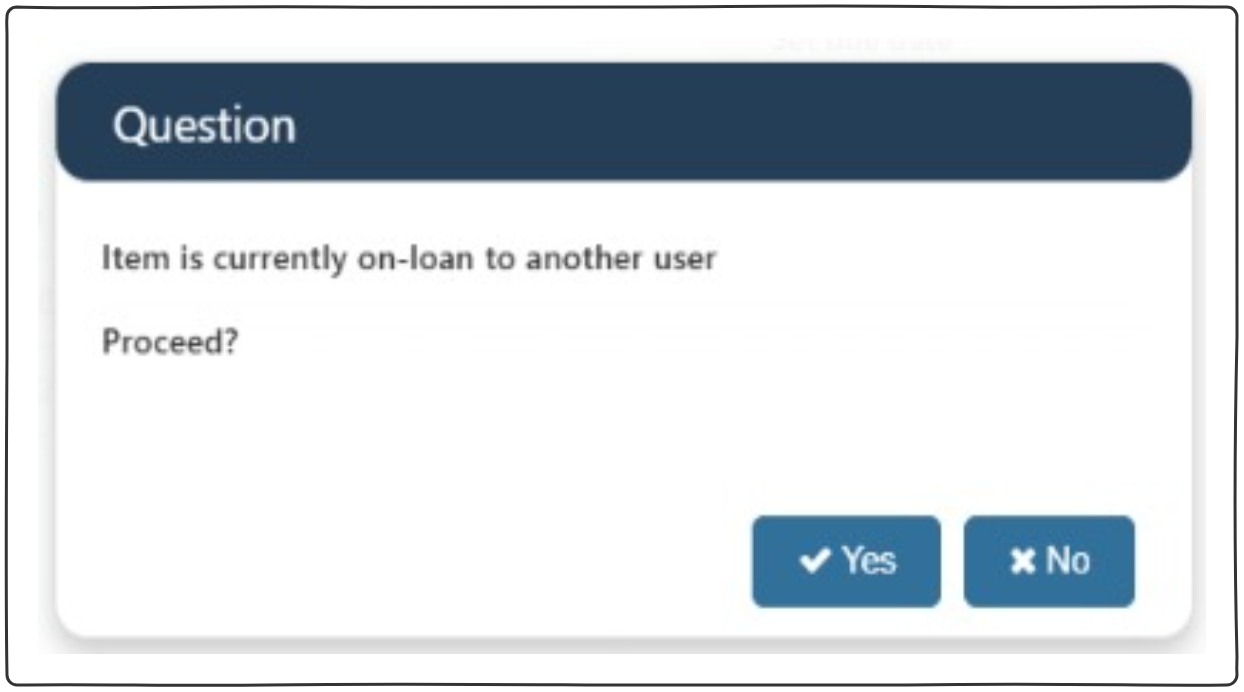
If the operator repeats a loan, a popup will report the detail and the loan can proceed, or be stopped, as the operator requires.
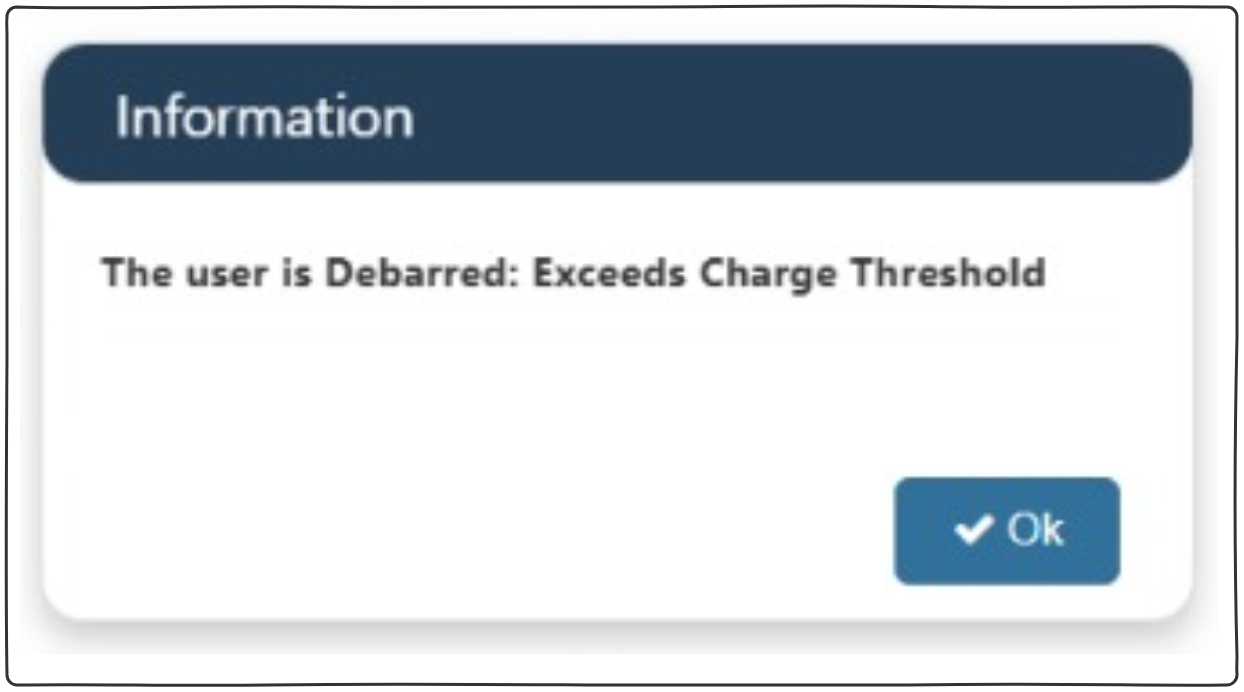
If an attempt is made to loan to a user who is debarred a message is given to the operator indicating this, and showing the reason for the debarral.