
Item Transfer #

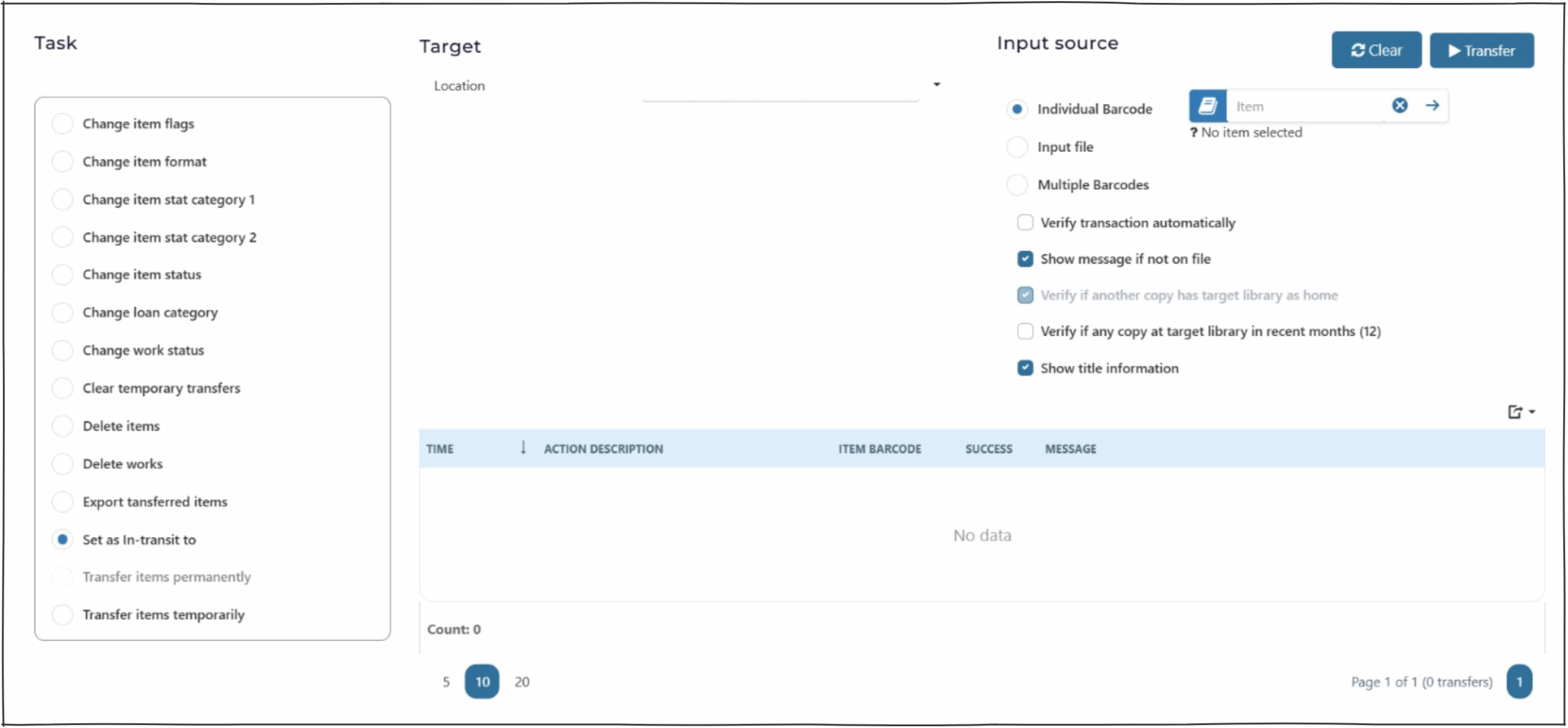
The Item Transfer page is divided into 3 sections:
- Task Panel – left hand side (type of transfer)
- Input Source Panel – right hand side
- Results Table – right hand bottom
Task panel #
This panel displays a list of Item Transfer (radio buttons):
- Change item flags
- Change item format
- Change item stat category 1
- Change item stat category 2
- Change item status
- Change loan category
- Change work status
- Clear temporary transfers
- Delete Items
- Delete works
- Export transferred items
- Set as in-transit to
- Transfer items permanently
- Transfer Items temporarily
Input source panel #
The input source options include:
- Individual barcode – scan, paste or type single barcode
- Input file – upload a file (.txt) of multiple Bibliographic IDs.
- Multiple barcodes – scan, paste or type multiple barcodes
Results Table #
The results table dislpays all actions taken in the logged in user’s session.
The table has display options at the bottom, to expand results.
At the top of the table is an export button.  This enables the operator export all results or just selected rows.
Tasks #
Change item flags #
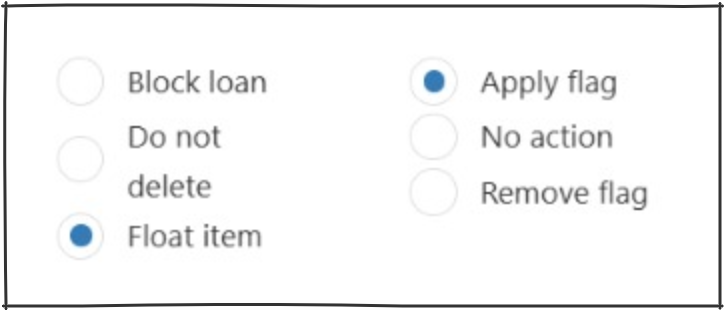
- Allows addition or removal of set flags
- Block loan – item is not able to be loaned
- Do not delete – item can not be deleted
- Float item
- Verify transaction automatically check box available.
Change item format #
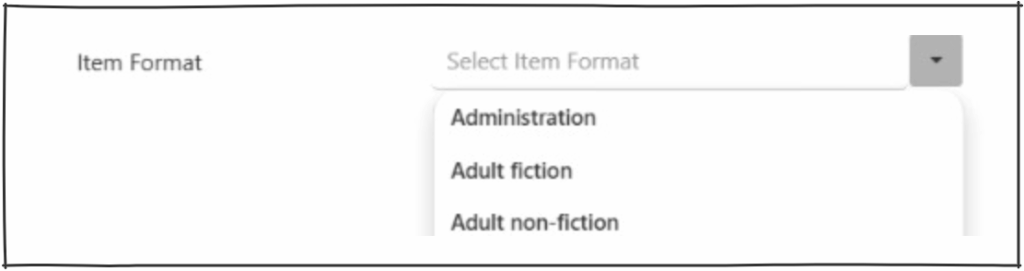
- Allows change of item format.
- Drop down selection is determined in System Parameters > Item Formats.
- Verify transaction automatically check box available.
Change item stat category 1 and 2 #
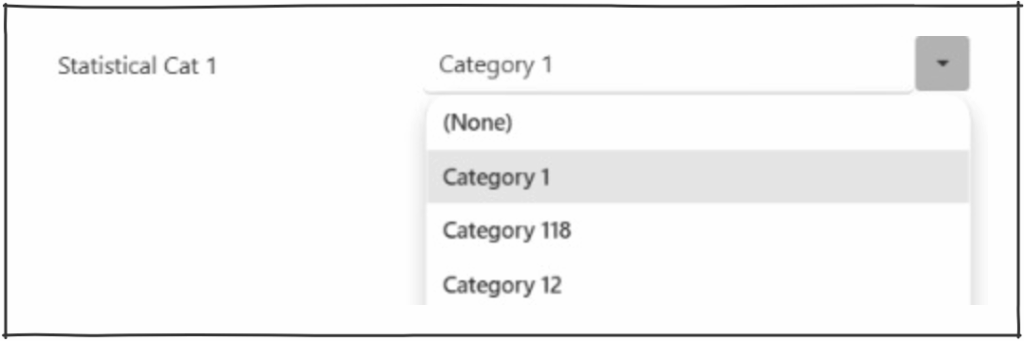
- Allows addition of statistical category 1 and/or 2.
- Drop down selection is determined in Enterprise Parameters.
Transfer Items temporarily #
Changes the item home location temporarily.
Identifier options – Item barcode
Identifier
The barcode action box is available when individual input is selected
Target
Location – A Location for the temporary transfer must be input before a transfer is undertaken
Expiry date – the expiry date of the transfer musts be input before the transfer is undertaken
Input source
- Input file –
- Individual
- Multiple
Checkboxes
- Input file –
- Individual –
- Verify Transaction
- Show message if not on file
- Verify if another copy has target Library as home
- Verify if any copy at target library in recent months ()
Number of months determined by Parameter ItemTransferRecentMonths and displays number of Returns, Item Temporary, Item-Permanant and In-Transit Transfers have been conducted to/at the target location in recent months - Show title information
- Multiple –
Clear temporary transfers #
Used to clear existing temporary transfers and returns the item location to its Permanent location,
Note if the item is a floating collection item the item will return to its first location within the system or last location it was permanently Transferred to.
Identifier options – Item barcode
Identifier
The barcode action box is available when individual input is selected
Target
None
Input source
- Input file –
- Individual
- Multiple
Checkboxes
- Input file –
- Individual –
- Verify Transaction
- Show message if not on file
- Verify if another copy has target Library as home
- Show title information
- Multiple –
Transfer items permanently #
Used to transfer item Home Location Permanently
Identifier options – Item barcode
Identifier
The barcode action box is available when individual input is selected
Target
Location – a Dropdown to select the available physical locations.
Input source
- Input file –
- Individual
- Multiple
Checkboxes
- Input file –
- Individual –
- Verify Transaction
- Show message if not on file
- Verify if another copy has target Library as home
- Verify if any copy at target library in recent months ()
Number of months determined by Parameter ItemTransferRecentMonths and displays number of Returns, Item Temporary, Item-Permanant and In-Transit Transfers have been conducted to/at the target location in recent months - Show title information
- Multiple –
Change loan category #
Used to transfer item Loan Category value to a new value
Identifier options – Item barcode
Identifier
The barcode action box is available when individual input is selected
Target
Loan Category – a Dropdown to select the Loan Category.
This list is from Loan Parameters/Loan categories
Input source
- Input file –
- Individual
- Multiple
Checkboxes
No Checkbox options
Set as In-Transit to #
Used to add an additional In-transit Location to the item.
The from In-transit location will be set as the Location the operator undertaking the transfer is logged in as.
The sent in-transit date will be set to.
Identifier options – Item barcode
Identifier
The barcode action box is available when individual input is selected
Target
Location – a Dropdown to select the available Logical Locations.
Input source
- Input file –
- Individual
- Multiple
Checkboxes
- Input file –
- Individual –
- Verify Transaction
- Show message if not on file
- Verify if another copy has target Library as home
- Verify if any copy at target library in recent months ()
Number of months determined by Parameter ItemTransferRecentMonths and displays number of Returns, Item Temporary, Item-Permanant and In-Transit Transfers have been conducted to/at the target location in recent months - Show title information
- Multiple –
Delete Items #
Used to delete Items
Identifier options – Item barcode
Identifier
The barcode action box is available when individual input is selected
Target
Location – a Dropdown to select the available Logical Locations.
Options – When Individual input selected
- Warn if last item in works to be deleted
- Delete child holding if last item holding deleted
- Delete work if last item deleted
- Bypass ‘Item status’ Prompt – If an item has an abnormal status it will not be deleted
- Bypass ‘Item Reserved’ Prompt
- Bypass ‘Work Reserved’ prompt
- Use Sub-Location in output filename – not currently in use
Input source
- Input file –
- Individual
- Multiple
Checkboxes
- Input file –
- Individual –
- Verify Transaction
- Multiple –
Delete Works #
Used to delete Works
Identifier options – Bibliographic ID or ISBN
Works can only be deleted via multiple or Input file
Input source
- Input file –
- Multiple
Checkboxes
- Input file –
- Multiple –
Change item format #
Used to change the format of an item.
Identifier options – Item barcode
Identifier
The barcode action box is available when individual input is selected
Target
Item format – Drop down box from the available formats that are in the formats table
Input source
- Input file –
- Individual
- Multiple
Checkboxes
- Input file –
- Individual –
- Verify Transaction
- Multiple –
Change item status #
Used add / remove if present and append an item status to an item
Identifier options – Item barcode
Identifier
The barcode action box is available when individual input is selected
Options
Radio buttons to select between
- Add to item status
- Remove if present
- Append checkbox
- A set of checkboxes to select one or all of the status’s in the database that are held in system parameters / System
Input source
- Input file –
- Individual
- Multiple
Checkboxes
- Input file –
- Individual –
- Verify Transaction
- Multiple –
Export Transferred Items #
Used export a list of marc files for items transferred to a specific location in a specific period.
Transferred from – Set locaion by system
Transferred to – set location by system
Physical Location – drop down list of physical locations of the transferred to
Date From – calendar to set the dates period of the transfers
Date To – calendar to set the dates period of the transfers
Checkbox options
- Permanant transfers – Select one or both
- Temporary Transfers – – Select one or both
Export File Record Count
List the total number of files exported to marc in last export
Export Button
Run the search based on the filters selected and downloads the marc file to operators downloads folder.