
Place a Reserve #
Reservations can made via the ‘Place Reserve’ popup utility. This pop up is enabled in multiple screens often via a right click context menu.
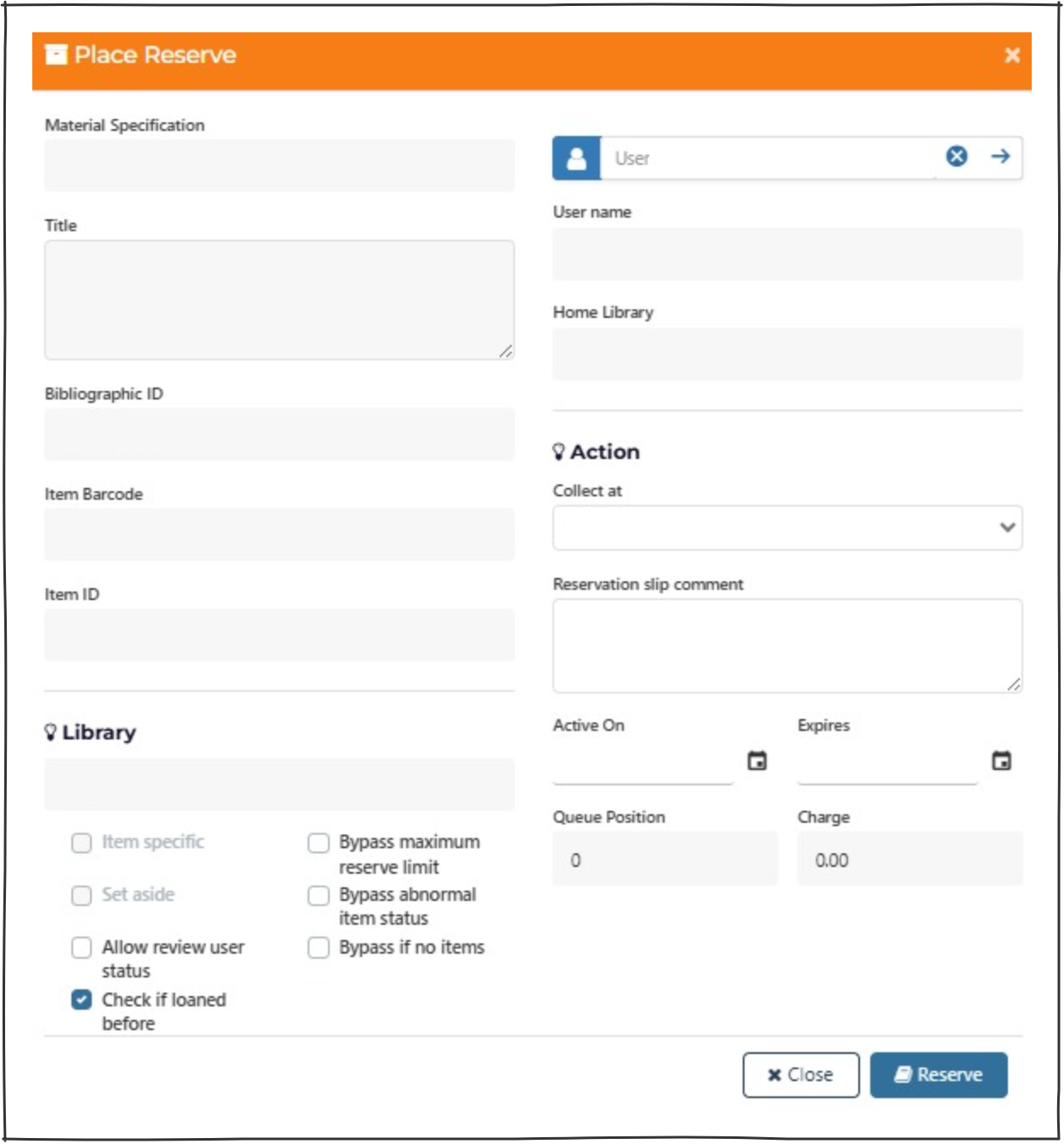
Locations of reserve utility #
- Search screen | Work Right click context menu – ‘Reserve Work (trap first incoming item)’. This will reserve the first available item of a work.
- Search screen | Item Right click context menu – ‘Reserve Item’. This will reserve a specific item.
- Search screen | Item Right click context menu – ‘Set aside (trap item immediately)’. This will reserve a specific item.
- Return | Return results grid Right click context menu – ‘Reserve this item’. This will reserve a specific item.
- User Previous Loans | result grid Right click context menu – ‘Reserve this work’. This will reserve the work.
Place Reserve popup sections and effects #
Material Specification
Only has content when an Item is reserved.
Title
The name of the title will be displayed.
Bibliographic ID
The Bib Ref will be displayed.
Item Barcode
The Item Barcode will be displayed here, if conducting an item specific reserve.
Item ID
The Item ID will be displayed here, if conducting an item specific reserve.
Library
Displays the home location of the Item.
User Search
Enable search and selection of user for the reserve.
User Name
Populates the username from user search or user in memory.
Home library
Populates with users home library from user search or user in memory.
Collect at
Drop down of ‘collect at’ locations available will default to the logged in location of operator.
NOTE if the user’s home location is different to the ‘collect at location’, a highlighted section will state ‘ Click to switch to user’s home location’ if clicked the collect at location will be updated.
Reserve Slip Comment
Free text field to include information with reserve.
Note the size of the box can be extended by dragging the bottom corner of the free text box.
Active on
Defaults to the date created (not visible), operator’s can override this by selecting a date from the calendar popup.
Expires
Defaults to expiration date set in Loan Parameters (not visible), operator’s can override this by selecting a date from the calendar popup.
Queue Position
List the level in the queue of the reserve.
Charge
Lists the cost of the reserve based on library parameters.
Reserve Buttons
Place the reserve by clicking the ‘Reserve’ button.
If the reserve is successful message will appear.
If something prevents a reserve being placed an error will be displayed in the top right corner with the reason for error.

Close Buttons
Click Close to cancel the reserve request.
Check boxes #
Item specific – Removing the tick from this checkbox will place the reserve on the work instead. It will be greyed out if a work reserve is placed.
Set aside – Depending on enterprise parameters this hold can be placed on an item currently on shelf at no charge.
ChargesForHolds = Charges for ‘Holds/Set asides’ if turned on.
Is SetAsideBlocked = Allows the Reservation Set Aside/Hold function to be disabled
Note that a set aside hold cannot be applied if the item is on loan, currently reserved, or an Inter-Library Loan.
Allow review user status – allows reserves if user has ‘review status’.
Bypass maximum reserve limit – allows the maximum limit set by user type and location to be bypassed.
Bypass abnormal item status – The status block e.g. missing, lost, may optionally be overridden using this bypass checkbox.
Bypass if no items – This may be because the item is in a special collection, such as images, where holdings are not recorded, or it may be that all items have been withdrawn, but the parent bibliographic record has not yet been purged.
Bypass reserve charge – Allows the operator to bypass the reserve charge.
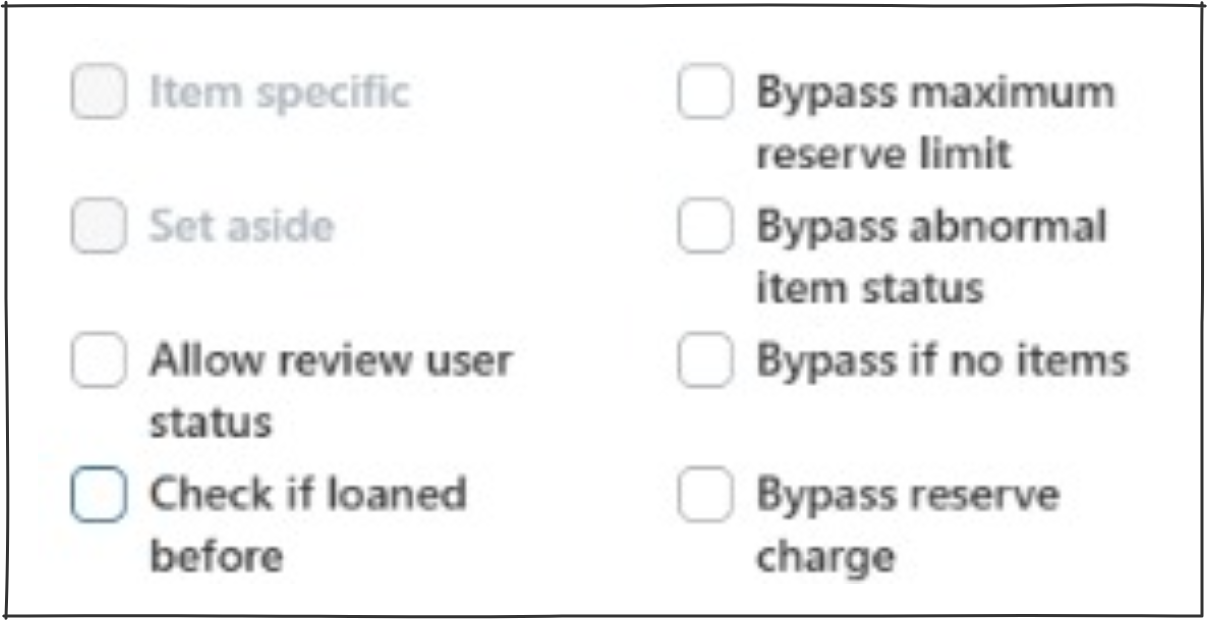
Conditions affecting a reservation #
There are multiple factors which can affect if and how reservations are successful these include:
- User type setting
- Item status and flags
- Reservation enterprise parameters
- Loan and Reserve parameters
- Location is reservable (set in System Parameters > Locations – enable ‘Reserve Location’.
If a reservation is blocked a message will appear at the top right of the screen saying ‘an error occurred …’ and include the reason e.g. User is Debarred.
Task Levels required to make reservation #
To have full capabilities regarding creating, editing and deleting reservations, operators must have:
- Their Operator Security Levels for Reserve Delete and Reserve Modify set as on.
- Their Operator Task Level must also have place a reservation set.