
Add an Item #
An Item specifically refers to the adding of a barcode to a work. Sometimes referred to as holdings or copies, in Astria we use the term ‘Item’.
- Add an Item via Quick Work | The quick work screen allows operators to create quick simple works
- Add an Item via Cataloguing – Quick Holdings | is a method of adding multiple holding to a single work at once. This method can be utilise by operators with access to cataloguing when a adding a holding was not possible via a bulk loading or via acquisitions.
- Add an Item via Upload Marc | | This method can only be utilised when the records contain the correct holding tag information and the records are loaded to a stored to an approved supplier prior to being loaded. This method is the most commonly used by libraries utilise shelf ready records.
- Add an Item Via Serial Control | The serial control page allows operators to add holdings for serials via a pattern on a subscription e.g. Monthly for a year these holding are added with issue not yet received and allow the item to be received throughout the year as new issues arrived
Add an Item via search #
Adding an item via the search screen is a method often used by operators who do not have sufficient permissions to access cataloguing but are still required to add an item to existing works.
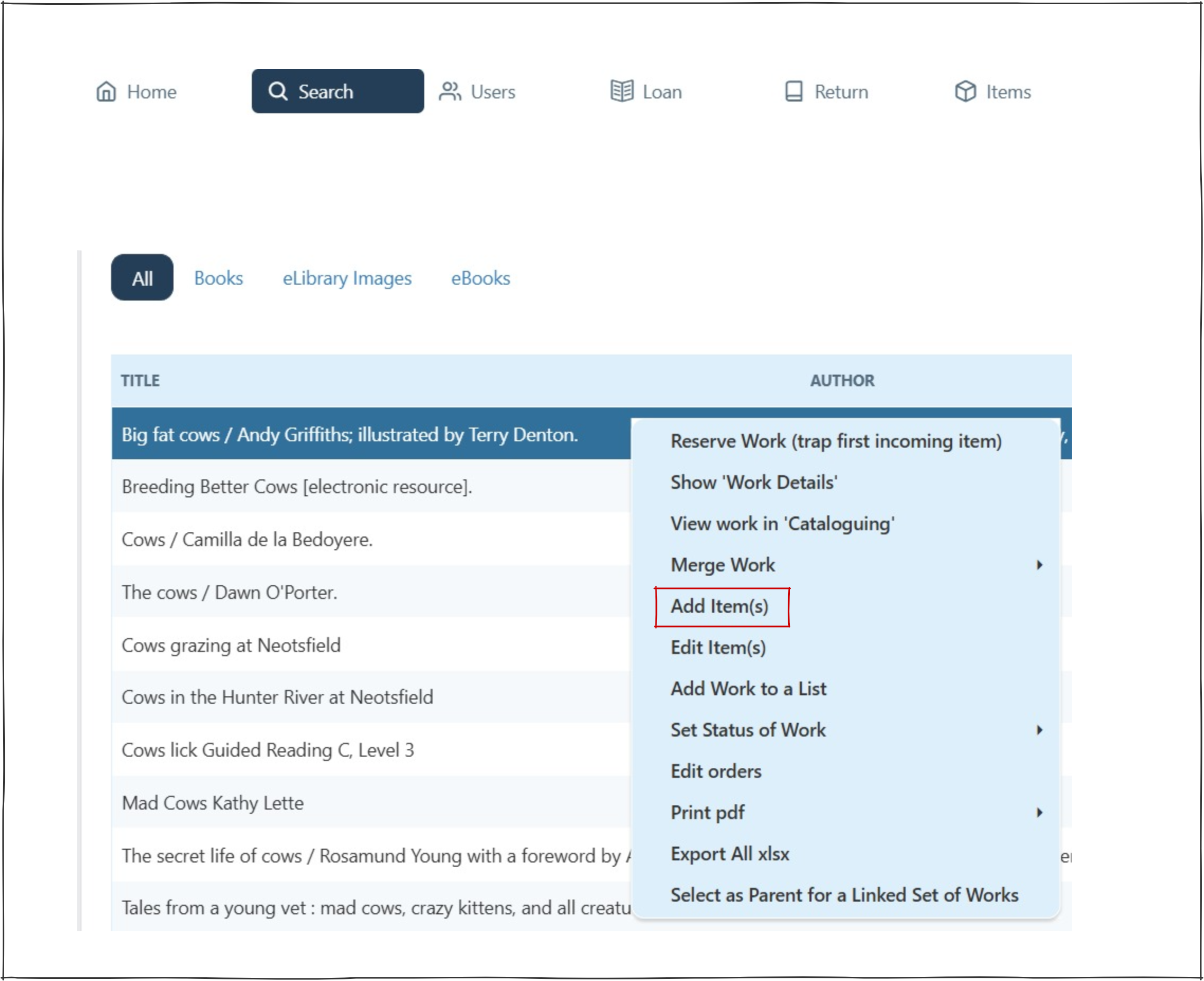
- Search for a work.
- Right click – ‘Add Item(s)
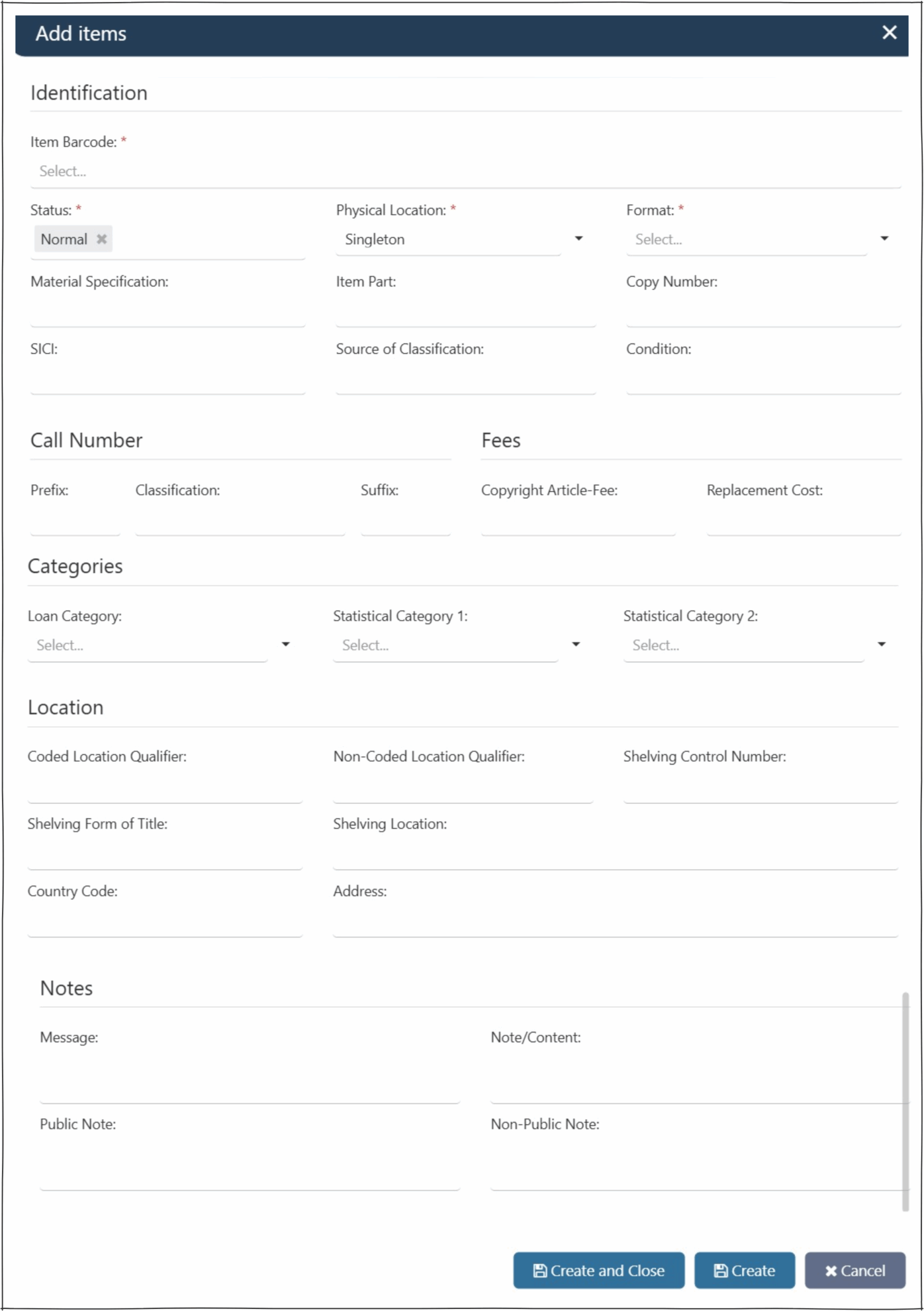
- Complete the ‘Add items’ popup.
- There are some mandatory fields on this popup:
- Item Barcode
- Status (defaults to ‘Normal’)
- Physical Location (defaults to logged in location)
- Format
- All other fields are optional
- NOTE 1: Operators can add more than 1 item in this popup (scan or type the barcodes into the ‘Item Barcode’ field).
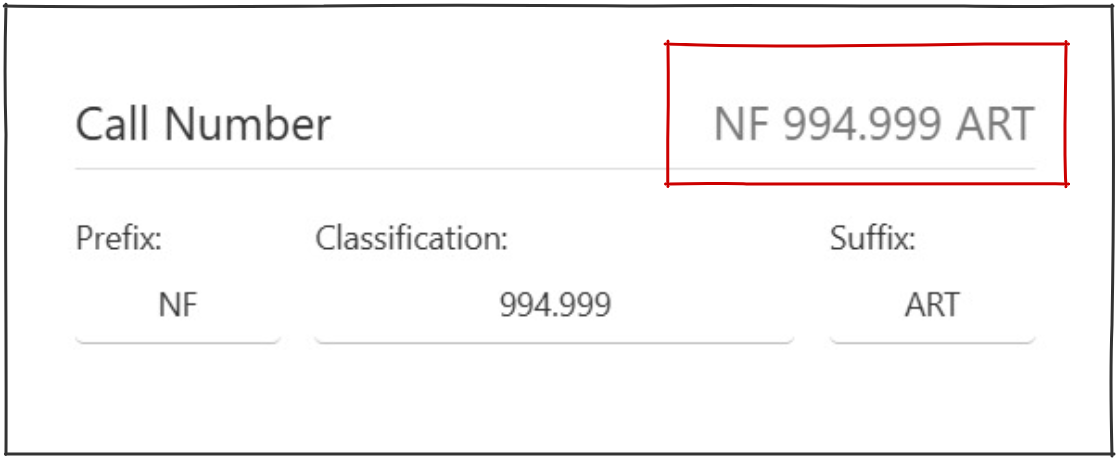
- NOTE 2 : The call number will auto populate as data is entered into the Prefix, Classification, Suffix and Part.
Barcode messages #
 If the item has been added successfully a message ‘Item created successfully’ will appear in the top right corner.
 If a barcode has already been assigned to an item the message ‘This barcode is already in use’ will appear in the top right corner.
Add an Item via Cataloguing #
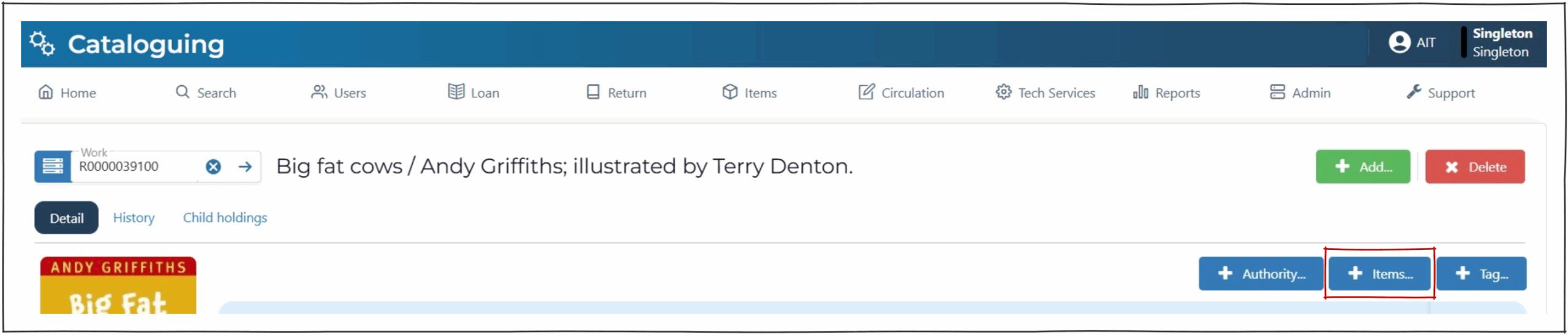
On the cataloguing page select ‘+Items’ button.
This will display the ‘add item’ screen.
Items are created in tag 852.
Add an Item via Quick Work #
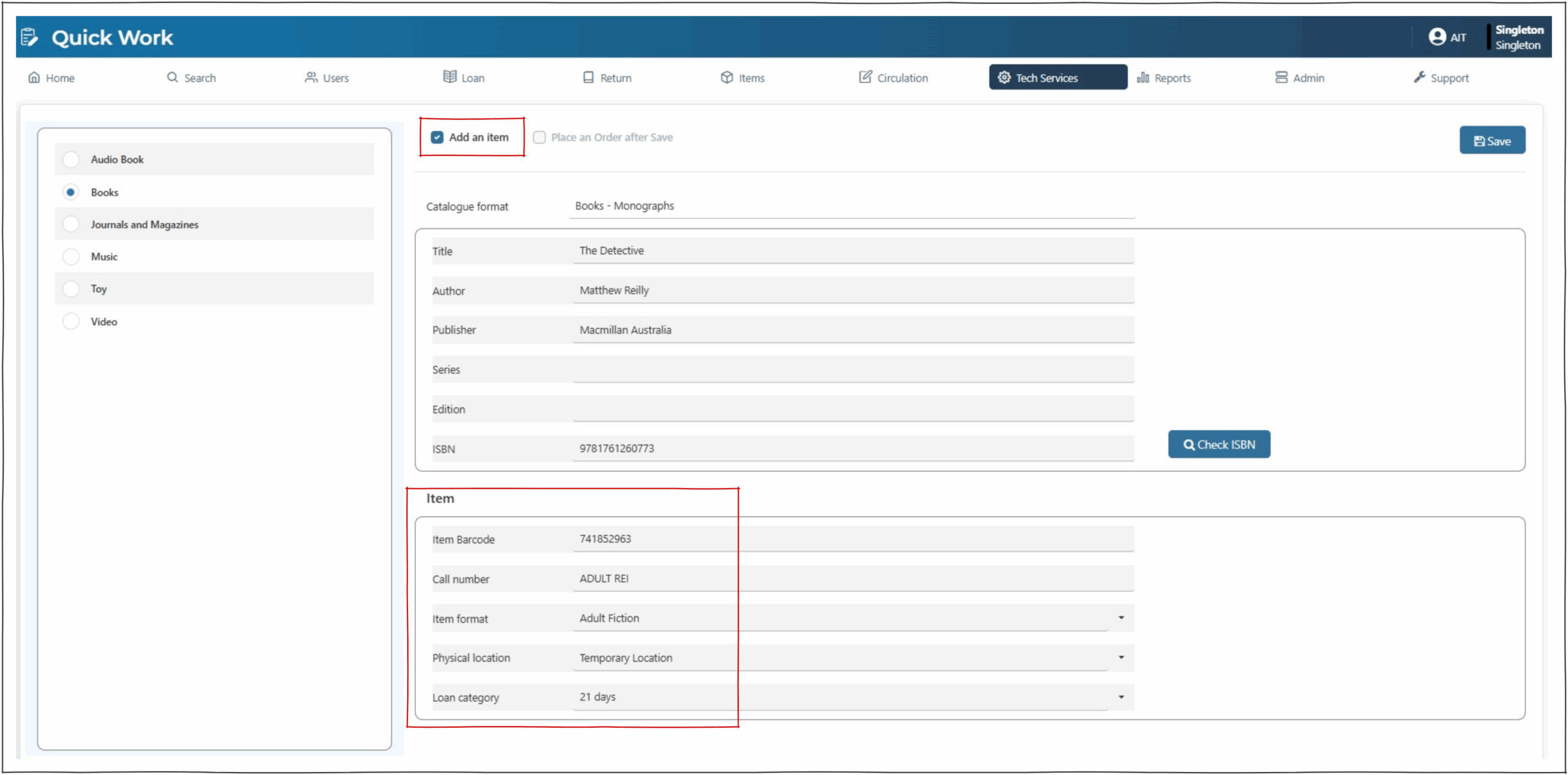
On the Quick Work page select the ‘Add an item’ check box when adding a work.
In the Item panel in the lower section of the page complete the fields as required.
The ‘Item Barcode’ field is the only mandatory field.
Barcode messages #
 This popup displays if no barcode has been entered, or if a duplicate barcode is entered.
 This popup displays when the Quick Work has saved successfully.