
Reserves #

The reserves page allows operators to view all reserves and add a reserve for a user.

The reserves results page displays results in a fully configurable table.
Each column can be filtered and/or sorted as required.
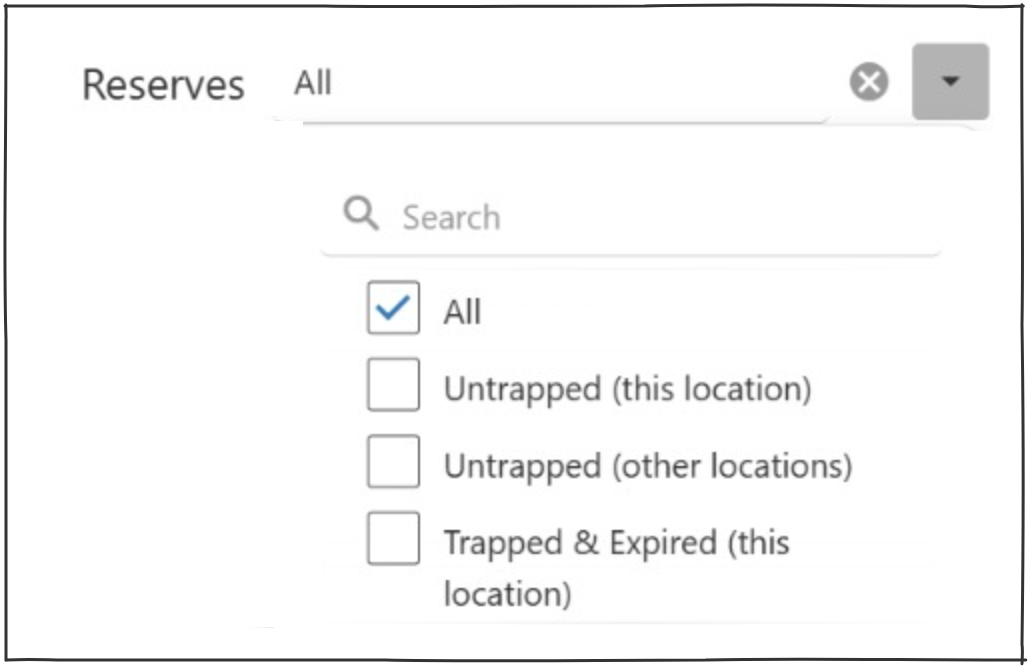
‘Reserves’ drop down options:
- All – Lists all reserves everywhere.
- Untrapped (this location) – Lists untrapped reserves whose items are at this location (to be fulfilled here or elsewhere).
- Untrapped (other locations) – Lists untrapped reserves that are to be collected here but whose items are elsewhere.
- Trapped & Expired (this location) – Lists trapped reserves that have expired (or whose users have been deleted) and need to be removed from the reserve shelf.
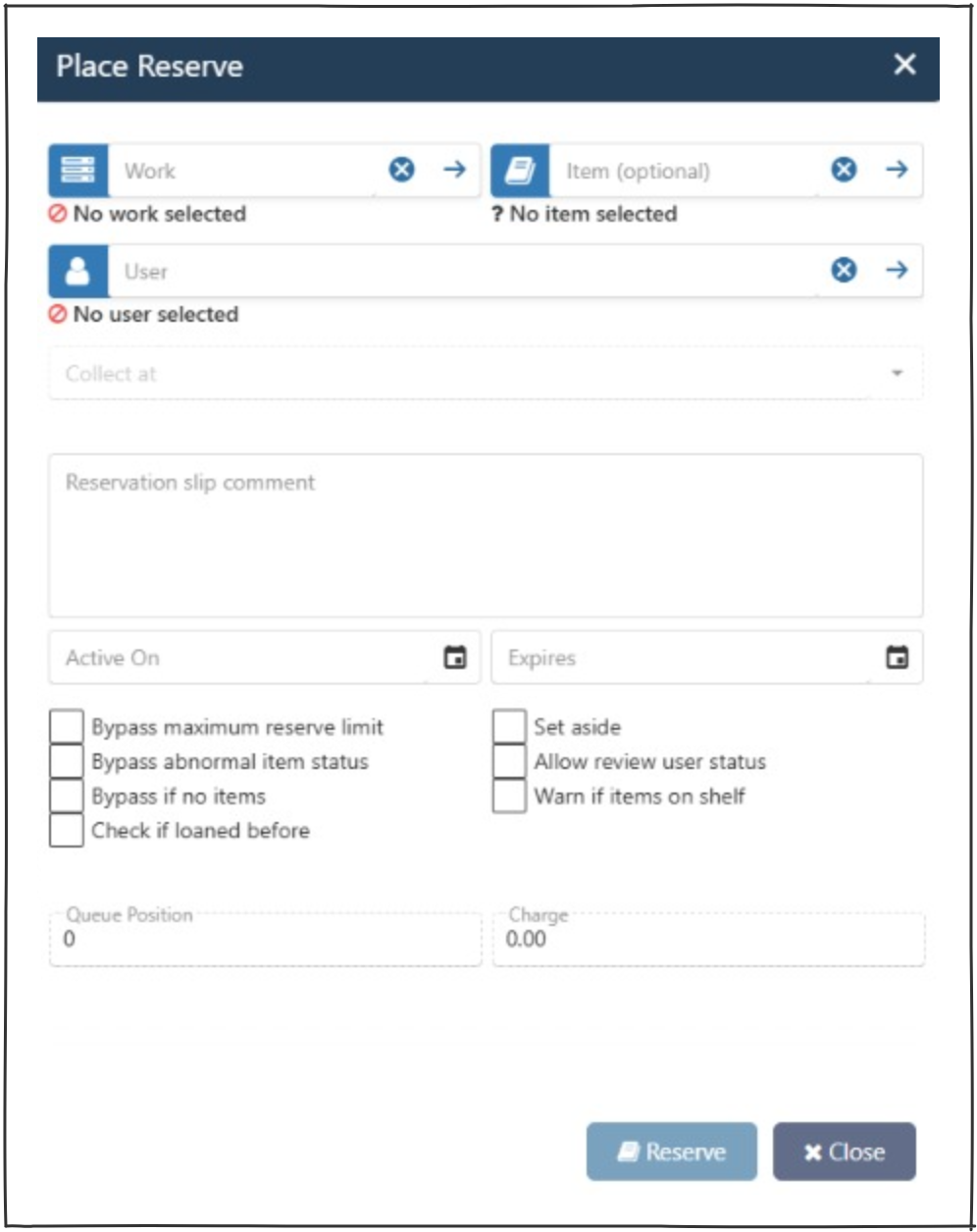
Clicking on the ‘add’  button will open the ‘place reserve’ popup.
- Work – can be prefilled from memory or searched by key term.
- Item (optional) – can be prefilled from memory, scanned or typed. This field is left blank if the reserve is not item specific.
- User – can be prefilled from memory, scanned or searched.
- Collect at – will be prefilled from user’s details, this can be changed to have the work collected from another location.
- Reservation slip comment – allows operators to make notes (to be included on the reservation slip).
- Active on – is automatically set to the current date (but can be changed by the operator).
- Expires – this is configured in system parameters.
Check boxes #
- Bypass maximum reserve limit – If a user has exceeded their reserve limit this check box will allow the reservation to be placed.
- Bypass abnormal item status – If an item has a status other than ‘normal’ this check box will allow the reservation to be placed.
- Bypass if no items – If a work has no items attached this check box will allow the reservation to be placed.
- Check if loaned before – This will automatically check if the user has loaned the work.
- Set aside – If ticked this check box will remind the operator to set the item aside.
- Allow review user status – If a user has a status other than ‘normal’ this check box will allow the reservation to be placed.
- Warn if item on shelf – Under development.
Page icons #
 Allows operators to search any part of any field in the table.
 Toggles the table search boxes on/off.
 Displays page information.
 This icon clears all filters.
 Column chooser allows the operator to change displayed columns.
- This icon clears all filters.
 This icon opens the ‘edit review’ popup.
 This icon will export all data to Excel.
System Parameters to consider #
- IsSetAsideBlocked – Allows the Reservation Set Aside/Hold function to be disabled. If ‘set aside’ is not displayed as a check box on the ‘place reserve’ popup this parameter will need to be changed.
- Collect at location not available – If the user’s location is not appearing in the ‘collect at’ drop down, ensure the ‘Locations’ logical location is ticked as ‘Reserve Location’.
- ReserveMonthsToExpire – Sets the number of months until new reservation expires.
- User Maximum Reserves – Set in ‘User types’ for each separate type in the field ‘Reserve Max’.