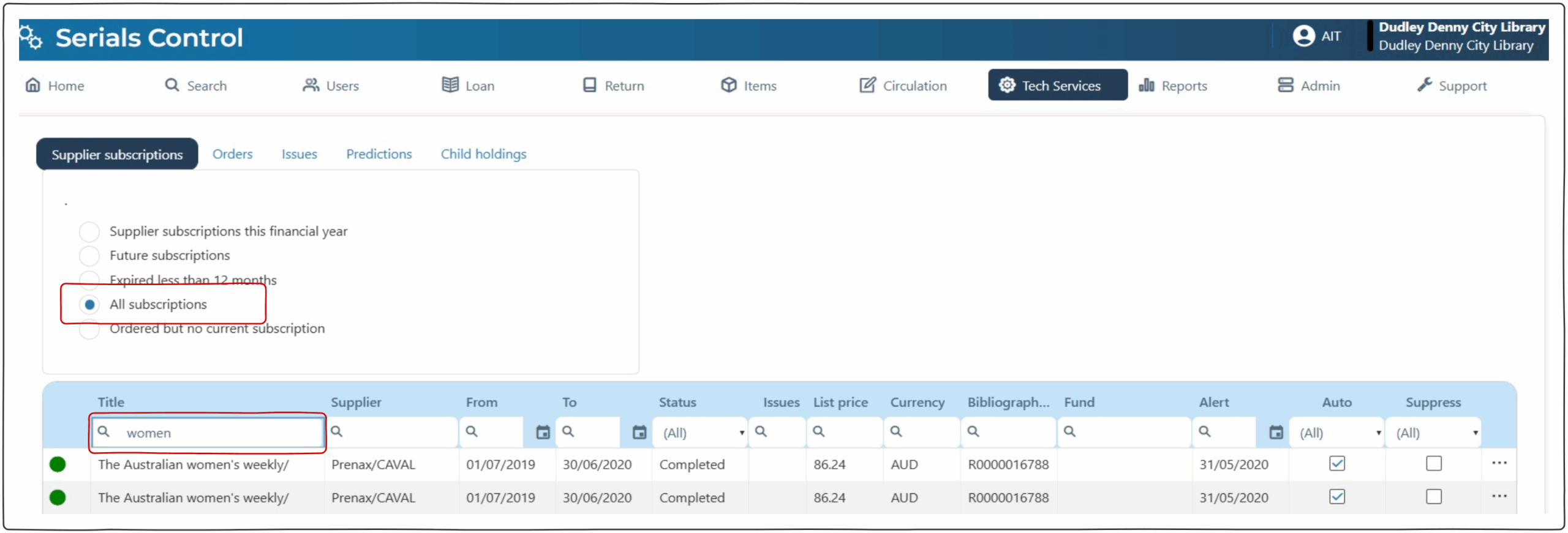
Serials Control #

Serials are managed through Serials Control. Issues are also predicted within this module.
Adding a new serial #
Create a quick work #
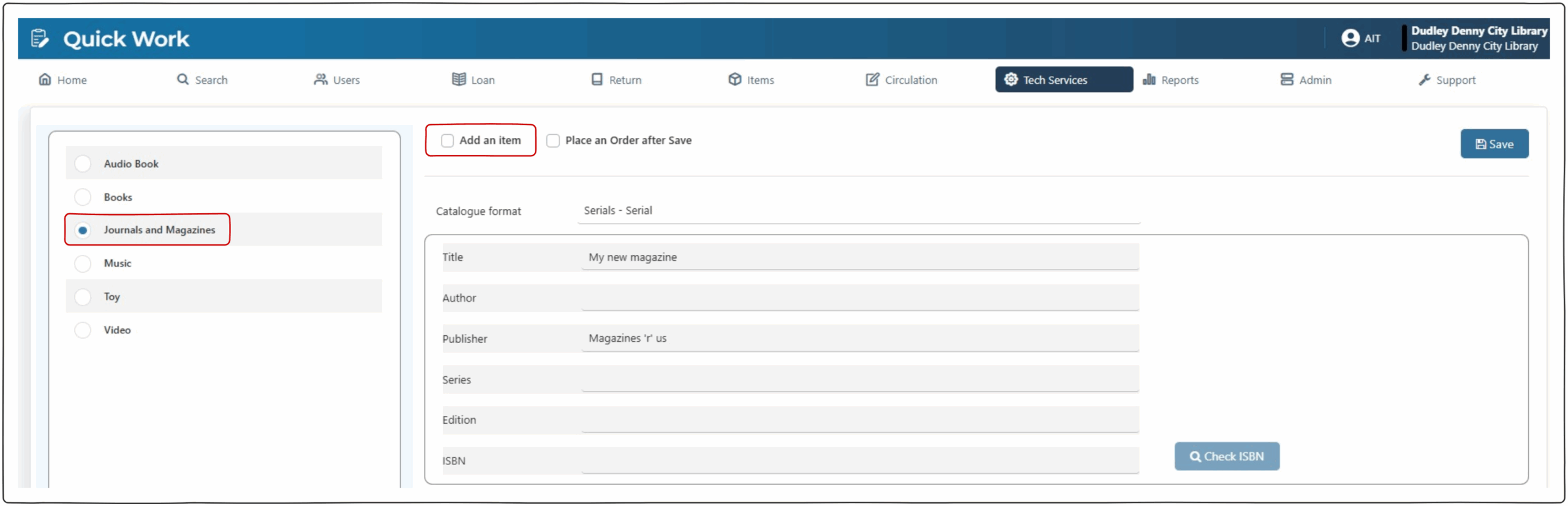
- Add the work to the catalogue using ‘Quick Work‘.
- Select ‘Journals and Magazines’ from the left panel.
- Untick ‘Add an item’.
- Add the known details to the fields in the table.
- Save.
- NOTE – The check box for ‘Place an order after save’ will be available in the next release.
Place an order #
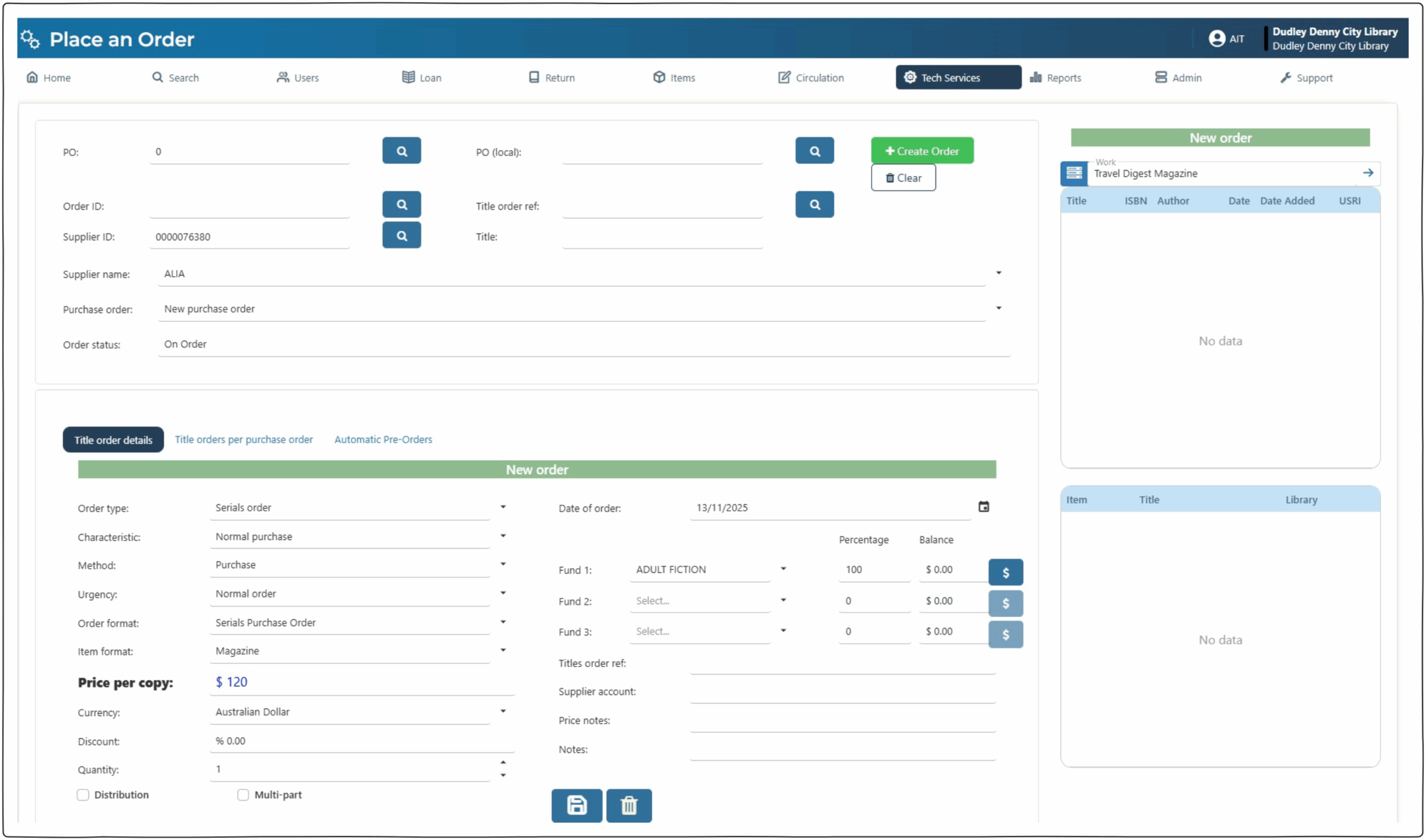
- Place an order for this work (see Place an Order page).
Add subscription #
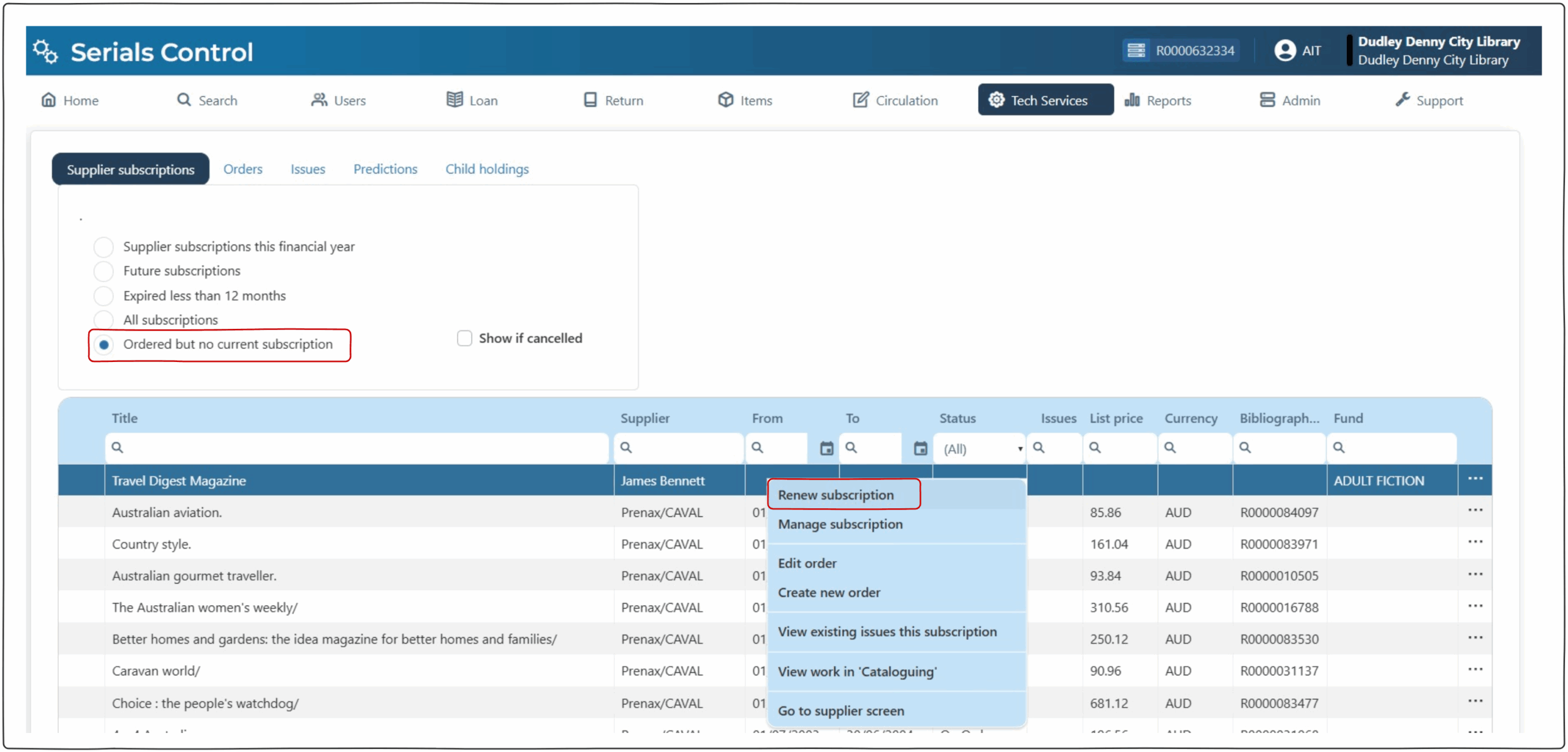
- Go to Tech Services > Serials Control
- ‘Supplier subscriptions’ – select ‘Ordered but no current subscription’.
- Locate the work.
- Right click.
- Select ‘Renew subscription’.
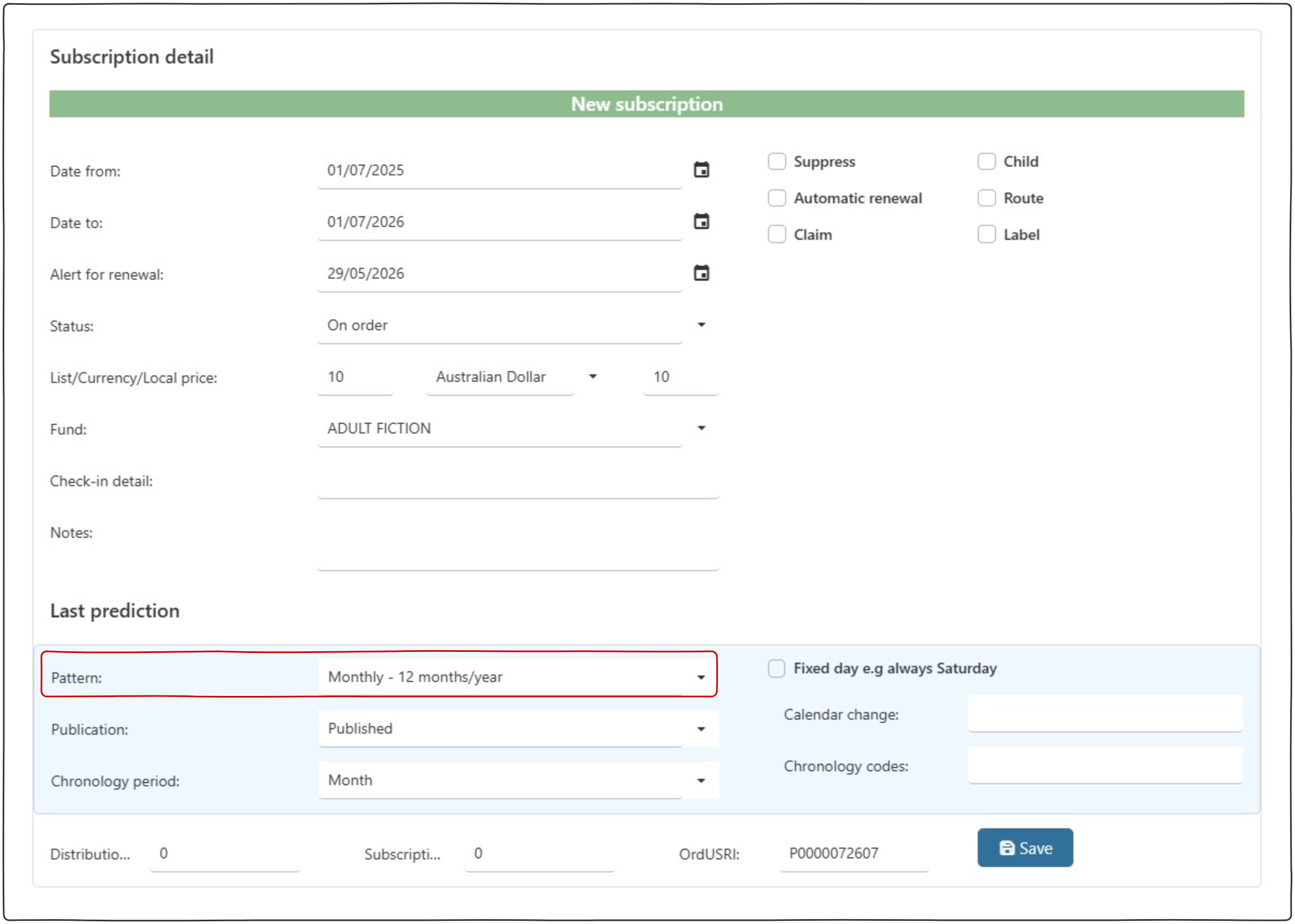
- Complete the subscription detail at the bottom of the screen.
- Add dates ‘from’ and ‘to’.
- Add List price (total value for this order)
- Complete ‘Last prediction’, ensure ‘Pattern’ is filled (this is the only mandatory field).
- Save.
Predict issues #
- The top table will populate with the details of the subscription.
- Right click.
- Select ‘Predict issues this subscription’.
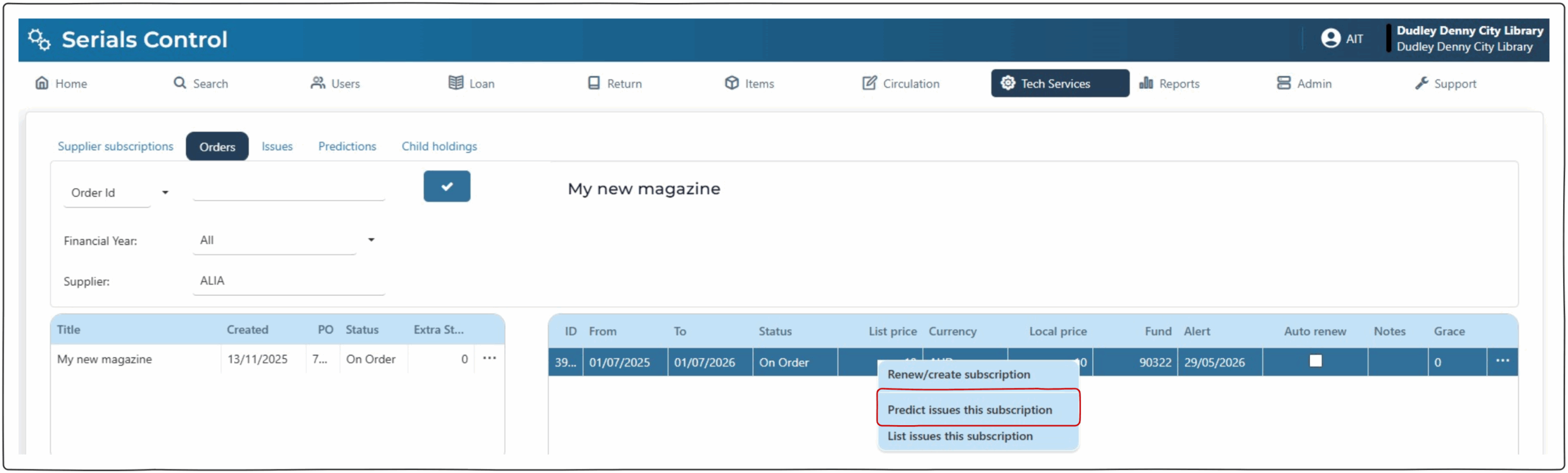
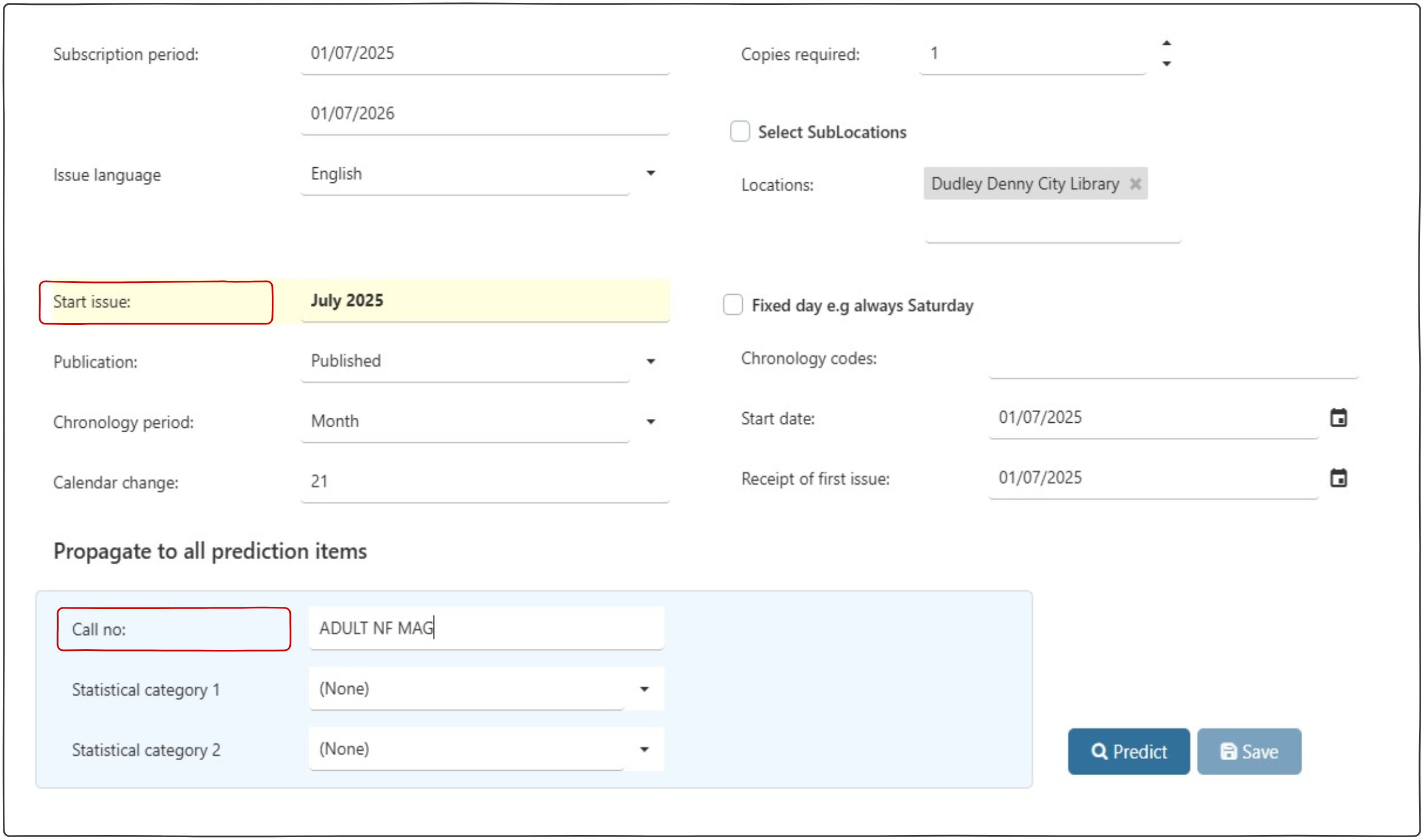
- Predictions will load with data from previous page.
- Complete ‘Start issue’ with the required display.
- Predict.
- Issues table will populate, at the top of the page.
- Save.
- Pop up ‘Accept and save the issues of this pattern. Proceed?”.
- Yes.
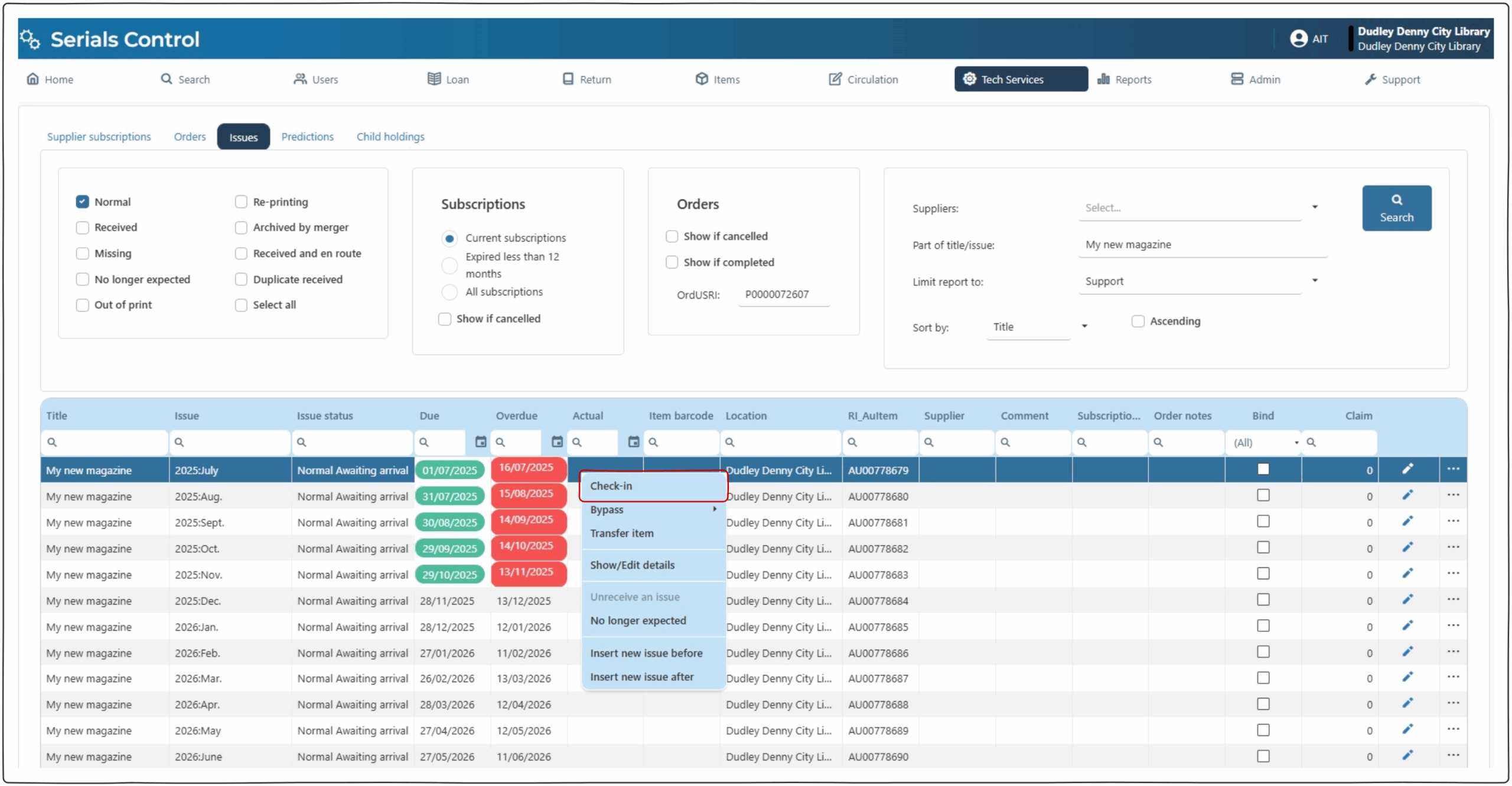
- Select the first issue.
- Right click.
- Select ‘Check-in’.
- Pop up, add comment (if required).
- Add Item Barcode.
- Save.
- This issue will be removed from the list.
- Continue check-in as required.
Searching serial & issues #
- Go to search page.
- Search the serial title.
- Items will populate for all issues.
- Items with barcodes will have status ‘On-shelf (Received).
- Future issues will have status ‘Issue not yet received’.

Checking in remaining issues #
When subsequent issues of a serial arrive in the library they can be checked into the catalogue.
- Tech Services > Serials Control.
- Select ‘Supplier subscriptions this financial year’.
- Select the required serial.
- Right click.
- Select “View existing issues this subscription’.
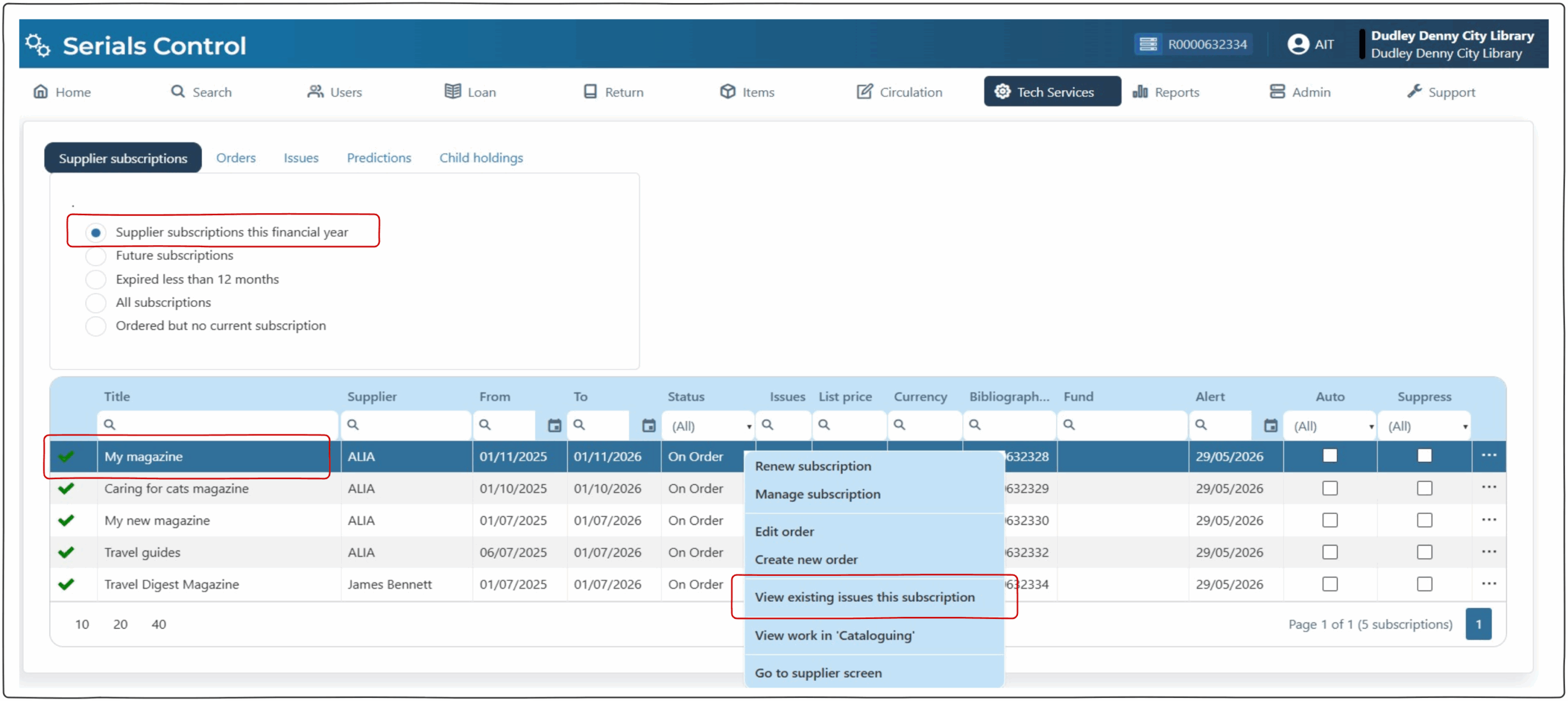
- Select the required issue.
- Right click.
- Select ‘Check-in’.
- Pop up, add comment (if required).
- Add Item Barcode.
- Save.
- This issue will be removed from the list.
- Continue check-in as required.

From this screen above operators can also:
- Insert new issue before : add an issue which has a preceding issue number.
- Insert new issue after : add an issue which has a future issue number that is not listed.
- No longer expected : will delete the predicted issue
Managing an existing serial #
When a serial already exists in the catalogue, operators can add a subscription and predict future issues.
- Tech Services > Serials Control
- Search for the serial.
- Select the required serial.
- Right click.
- Renew subscription
- Follow directions for ‘add subscriptions’.