FTP Upload #
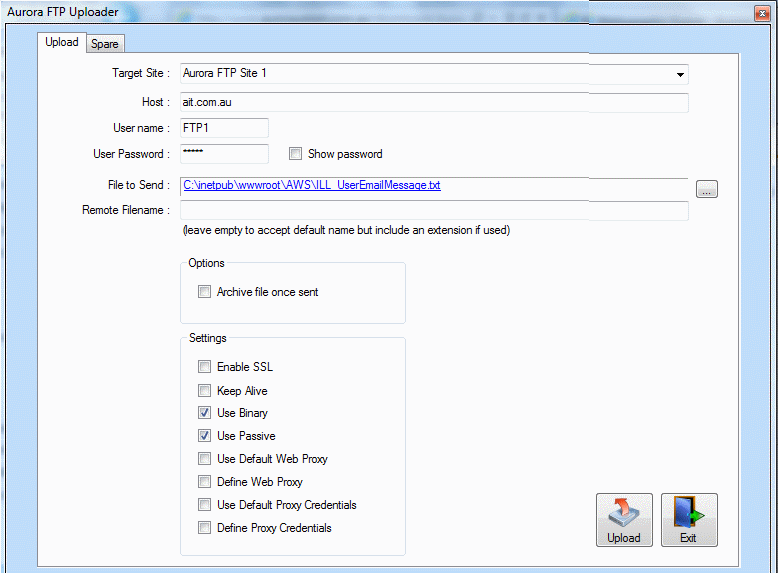
Aurora FTP Uploader is a separate program and can be invoked directly from the toolbar, and from Export functions, once a candidate export file has been created. The screen is an small overlay window:
Target details #
The details of the target site are shown at the top of the form. Connection parameters can be entered here for a one-off transfer – but the information is not saved, and is better held in the formal connection file, allowing it to be selected from the pull-down combo of defined targets. The connection file is named FTPInfo_<InstID>.xml and is held in /Program Files/Aurora Information Technology, or /Program Files (x86)/Aurora Information Technology (if a 64-bit system); it may be edited using Microsoft XML Notepad or standard Notepad, if familiar with the XML coding. For each target site, there must be a host (in DNS or IP format), a username and password:

In case of possible error in the password, a checkbox allows the password to be revealed in plain text.
FTPInfo #
FTPinfo file information: FTPInfo_<InstID>.xml used in FTP Upload
This file is held in /Program Files/Aurora Information Technology, or /Program Files (x86)/Aurora Information Technology (if a 64-bit system); it may be edited using Microsoft XML Notepad or standard Notepad, if familiar with the XML coding. The example here initially uses Notepad, but the presentation format is expanded to make the fields easier to read:
As an XML file, each element has a pair of tags to open, e.g. <Table1>, and close, e.g. </Table1>:
| Element | Notes |
|---|---|
| <NewDataSet> | Opens the dataset definition |
| <Table1> | Opens the table definition |
| <Site>Aurora FTP Site 1</Site> | Defines the description of the target site |
| <Host>ait.com.au</Host> | Gives the URL of the target site |
| <UserName>FTPxxx</UserName> | Gives the ftp upload username (must be agreed with the target) |
| <Password>xxxxxx</Password> | Gives the password agreed with the target for access |
| </Table1> | Closes the table definition |
| </NewDataSet> | Closes the dataset definition |
File to send #
The file to be sent can be selected manually using the Windows Explore function via the […] button. If the upload is invoked from Exporter, using the Upload button, then the filename is automatically taken from the file nominated in the Export options. Note that the file will normally be shown as a hyperlinked file:

following the hyperlink will open the export file in Notepad.
Remote filename #
Dependent on the upload requirements, the export file may retain its local name on the remote server, or a separate filename can be set for the remote transfer, using the Remote Filename textbox.
Options #
An option is provided allowing the transmitted file to be archived once sent.
Settings #
A number of checkboxes are provided, which allow additional settings for the ftp connection. You may need to seek guidance from your network administrator and/or AIT if connections are not being made.
- Enable SSL – If a secure connection becomes mandatory in the future.
- Keep alive – For very long file transfers to avoid disconnection.
- Use binary – For binary files – this is usually a default setting.
- Use passive – This setting attempts to circumnavigate firewall issues which affect active FTP connections.
- Use Default web proxy – Use the proxy specified in Internet Explorer as your default.
- Define web proxy – Define a custom web proxy URL.
- Use default proxy credentials – Use the proxy authentication details from Internet Explorer.
- Define proxy credentials – Define custom proxy authentication details.
#
Two command buttons are provided:
 Uploads the file, by connecting to the target site and performing the transfer. A success indication is given.
 Exits the utility
Upload #
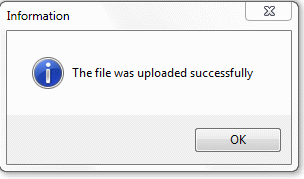
When the file is successfully uploaded, Aurora will inform the operator of this: