
Page Setup #
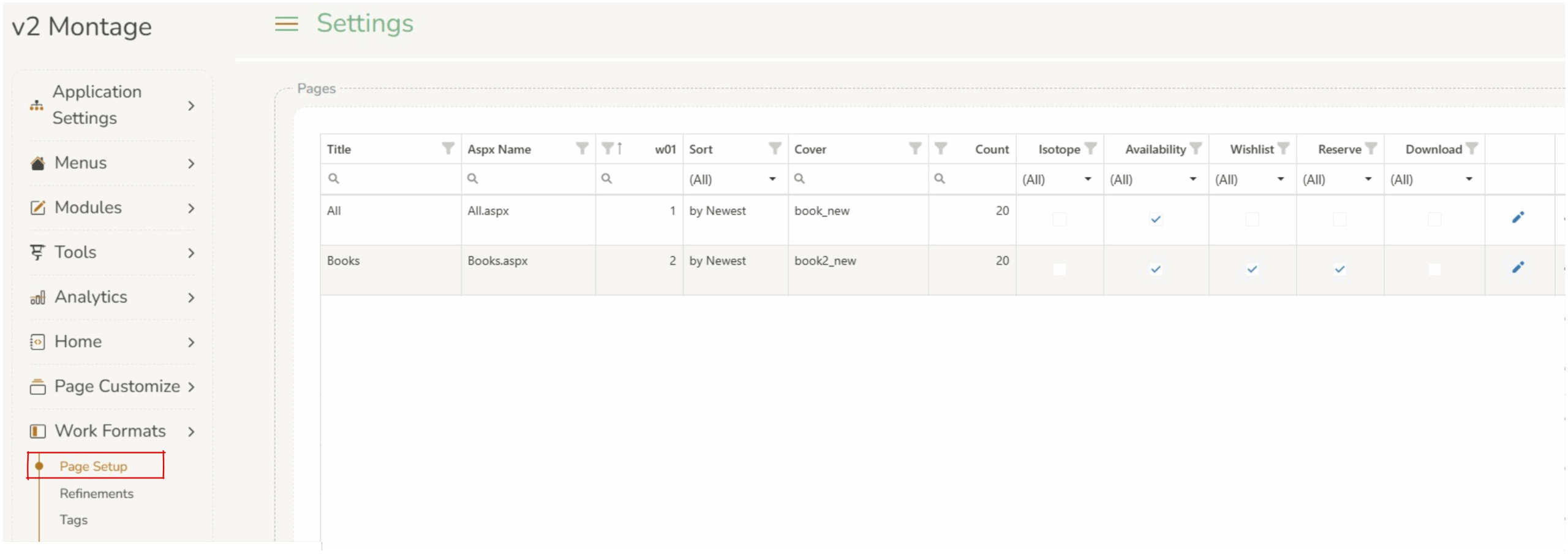
The function of the ‘Page Setup’ page is to allow operators to adjust the display of each work type page in Montage.
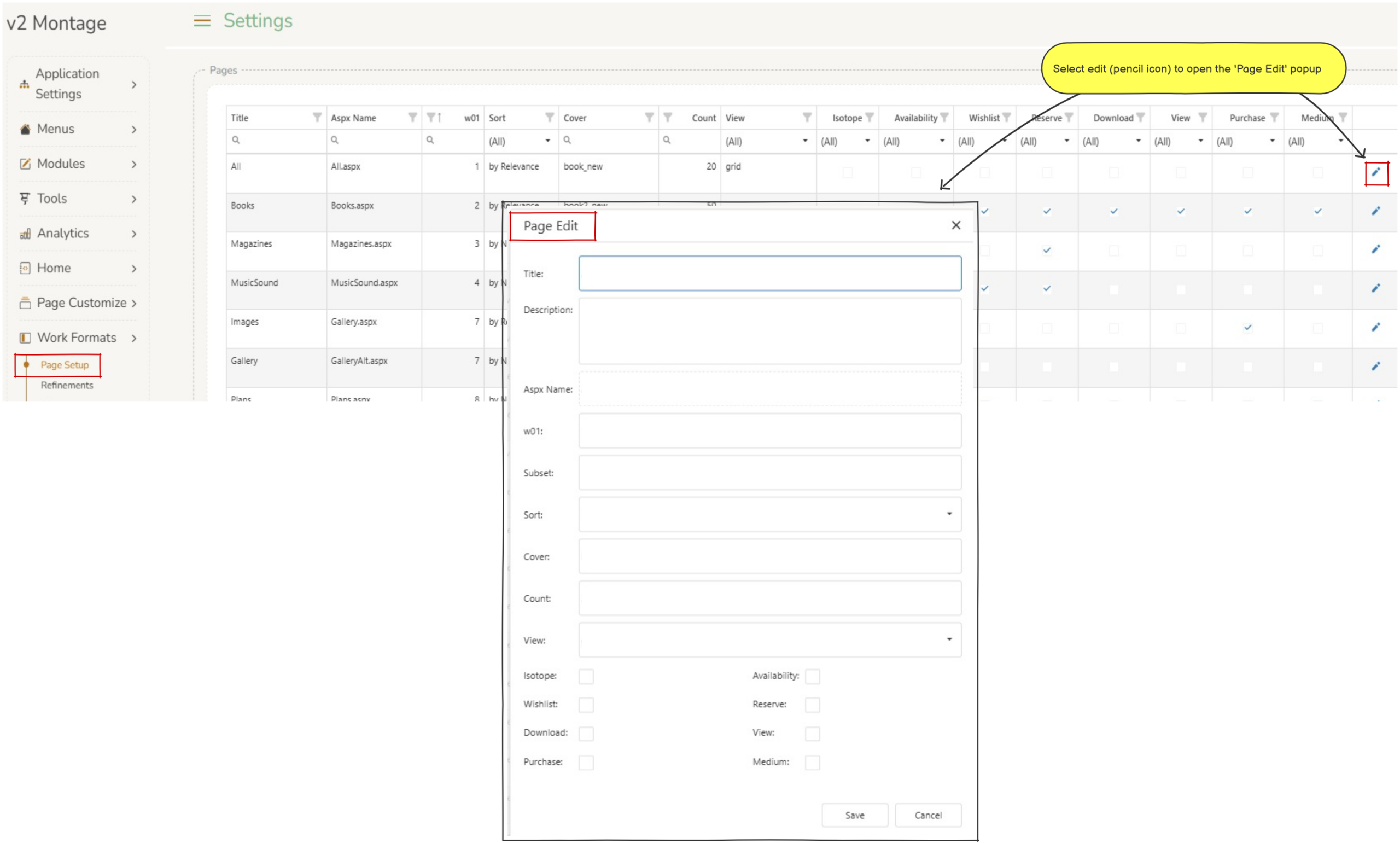
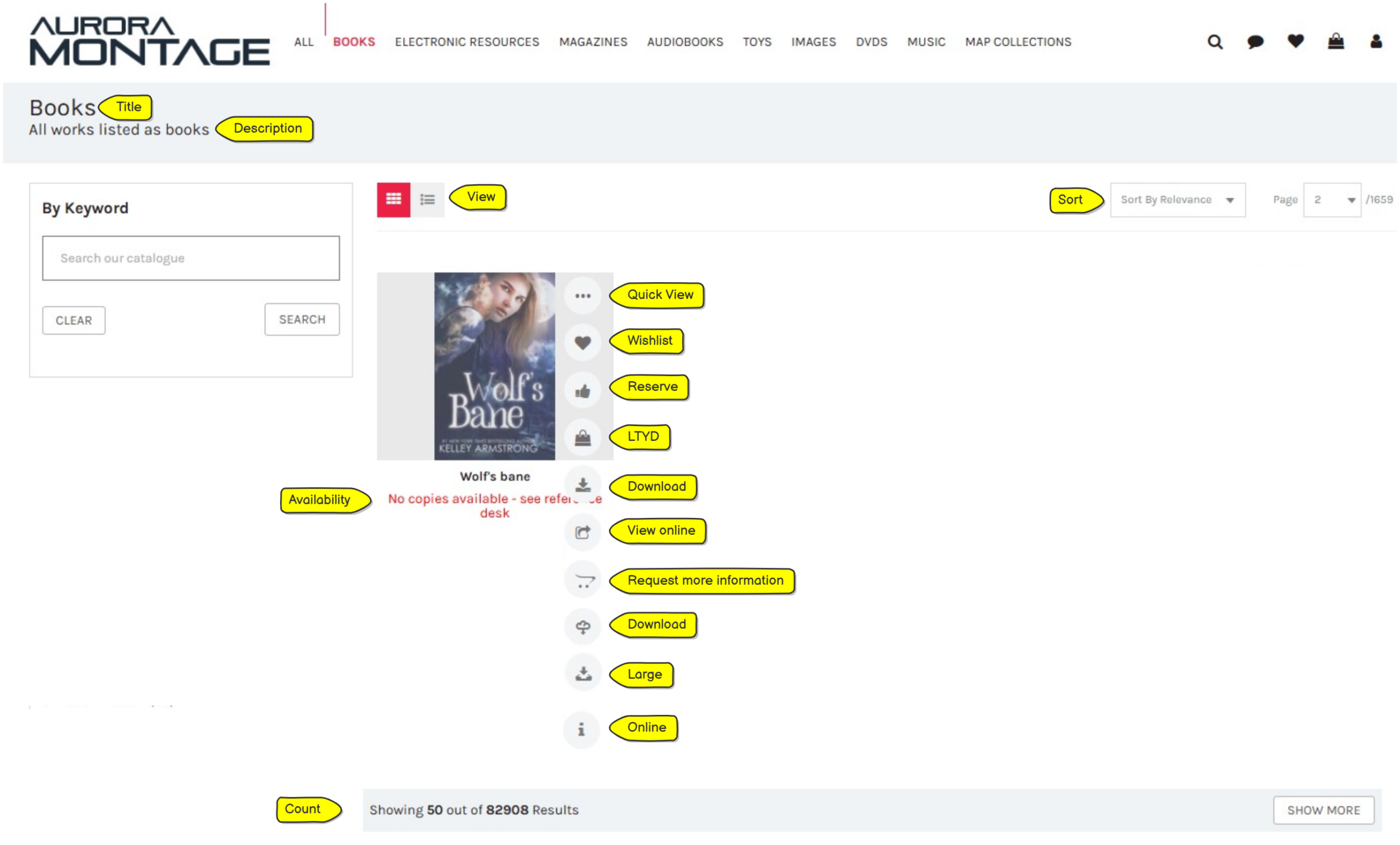
Title : This is displayed at the top of the page when that specific page is selected.
Description : This is displayed under the title when that specific page is selected.
Aspx Name : An ASPX file is a type of web page – it is advisable not to change this.
w01 : This is the Aurora material type code. It is an integer that comes directly from the Aurora Bibliographic database and identifies what type of material a record belongs to. Montage uses this number to look up which page settings apply to a given catalogue record. See below for a list of reference codes. It is recommended operators do not edit this field.
Subset : This is an optional override mechanism. Some pages share the same w01 code but need different button configurations for a specific sub-grouping. The Subset value comes from the Aurora DDS_ODS field on a record (eg Streaming / VideoAlt.aspx has Subset B,S, this means it can behave differently from the regular Video page for records that carry that subset code). It is recommended operators do not edit this field.
Sort : Changes the default sort for works on the specific page. Users can adjust this by selecting from the drop down box. Sort options include: by Title, by Name, by Newest or by Relevance.
Cover : This is the default cover/icon image name shown when a catalog record has no cover image. Values like book_new, mag_new, video_new, kit_new etc, each correspond to a placeholder icon appropriate for the material type. Operators can change this if they want a different default icon for a page, for example, switching a page from a generic image placeholder to a more relevant one. The value must match one of the available icon file names in the system.
Count : Sets the default number of works displayed.
View : The default view can be set to list or grid. Users can change this by selecting the view buttons on the results page.
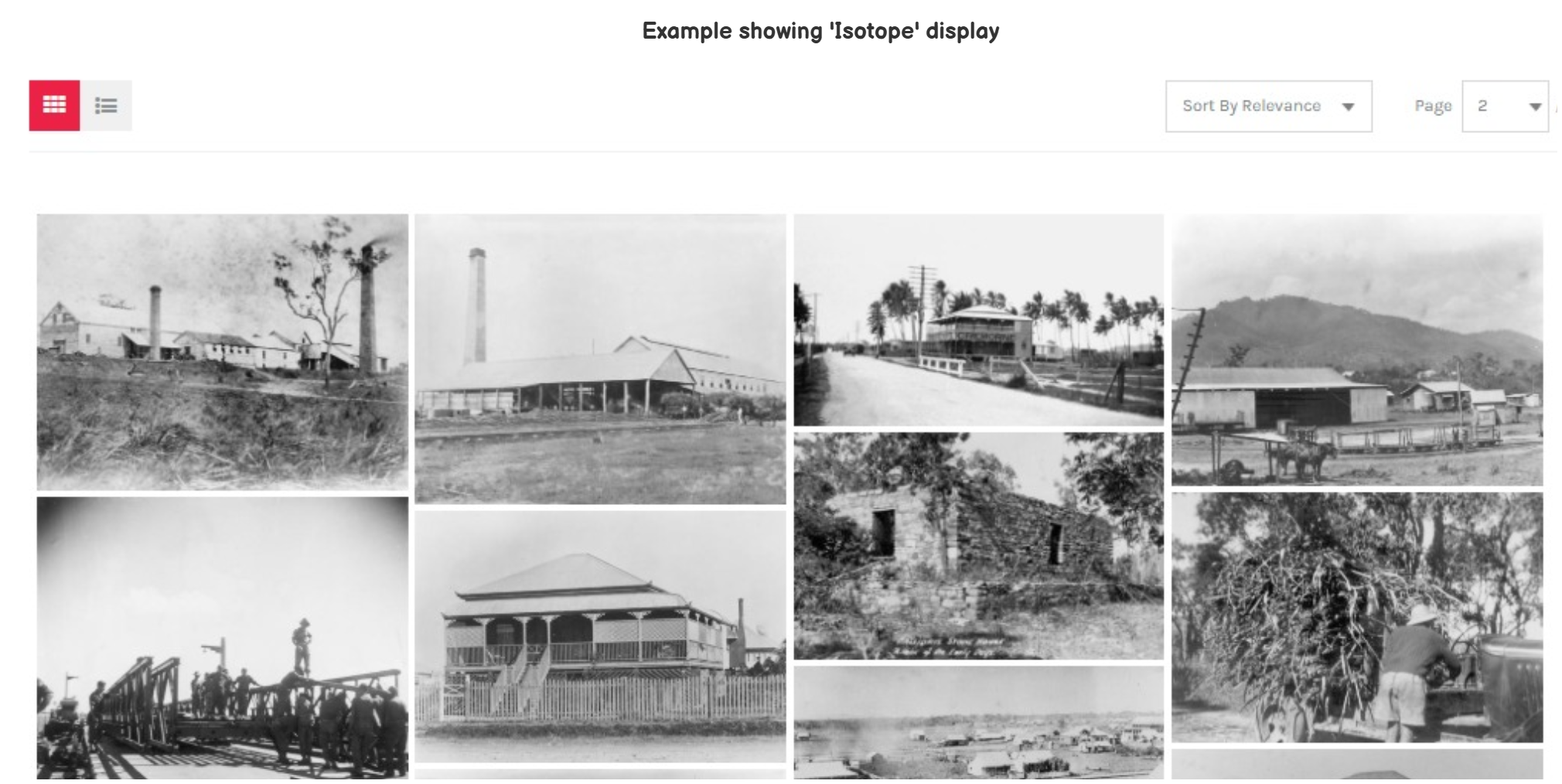
Isotope : Checking this will change the display layout so each work fits into the best available space, creating a visually pleasing “Pinterest‑style” layout (see below). Users can select to view as a list if required.
Wishlist :  Icon appears on the work to allow user to add to wishlist.
Download :  Icon appears to allow download of an electronic resource (used for e-resources).
Purchase :  Icon appears to allow a logged-in user to request a resource. Clicking it opens a popup which allows a user to send an email requesting more information or asking the library to consider purchasing the item. The text displayed on this popup can be edited in Admin > Appearance > Blurbs, where there are two dedicated fields: “Purchase Blurb” (the descriptive text shown in the popup) and “Purchase Button” (the label on the submit/action button).
Large :  Icon appears to allow download of a large image (used for image files).
LTYD :  Icon appears to allow request for Library To Your Door (when applicable).
Availability : Displays an items availability status.
Reserve :  Icon appears to allow user to reserve.
View :  Icon appears which when clicked opens the URL stored in the catalog record’s hyperlink field. It’s designed for pages where records typically have an associated external URL, for instance a digital document, an online resource, or a web page. It is distinct from the “Access Online” button (which handles specific domain-based access control). If a record has no URL attached in Aurora, the button will appear but do nothing useful, so it’s best enabled only on pages where records are expected to carry URLs.
Medium :  Icon appears to allow download of an image. Clicking it lets a logged-in user download the medium-resolution version of an item’s image directly to their device. This is primarily useful for pages like Gallery or Image Collections where patrons may want the actual image file.
Online :  Icon allows user to access an electronic resource online.
Some of these status message can be changed in Page Customize > Work Buttons & Captions > Work Captions.
Aurora w01 reference codes #
| Code W01 | Material Type | Default Page |
|---|---|---|
| 1 | All | All.aspx |
| 2 | Books | Books.aspx |
| 3 | Journals / Magazines | Magazines.aspx |
| 4 | Music Sound | MusicSound.aspx |
| 5 | Photos / Images | Gallery.aspx |
| 7 | eLibrary Local History | LocalHistory.aspx |
| 8 | eLibrary Plans | Plans.aspx |
| 9 | eLibrary Maps | — |
| 12 | eLibrary Toys | — |
| 13 | eBooks | eBooks.aspx |
| 14 | eMagazines | eMags.aspx |
| 15 | eLibrary Books (In-house) | eBooksInHouse.aspx |
| 16 | eLibrary Documents | eDocuments.aspx |
| 17 | eAudiobooks | eAudiobook.aspx |
| 18 | eOther | eOther.aspx |
| 19 | Video | Video.aspx / VideoAlt.aspx |
| 20 | Audiobooks | AudioBooks.aspx |
| 21 | Sound / Music | Music.aspx |
| 22 | Toys | ToyCollections.aspx |
| 23 | Kits / Games | Kits.aspx / Games.aspx |
| 24 | Newspapers | Newspapers.aspx |
| 25 | Braille | Braille.aspx |
| 26 | Archive | Archive.aspx |
| 27 | Maps | Maps.aspx |
| 28 | Plays | Plays.aspx |
| 29 | Scores | Scores.aspx |
| 31 | Electronics | Electronics.aspx |
| 32 | 3D Objects | Objects.aspx |
| 35 | Microforms | Microform.aspx |
| 36 | eMusic | eMusic.aspx |
| 37 | eVideo | eVideo.aspx |
| 40 | Artefacts | Artefacts.aspx |
| 41 | Casts | Casts.aspx |
| 42 | Sets | Sets.aspx |
| 43 | Models | Models.aspx |
| 44 | Activities | Activities.aspx |
| 45 | Specimens | Specimens.aspx |
| 46 | Covers | Covers.aspx |
| 47 | Skins | Skins.aspx |