
Color Customize #
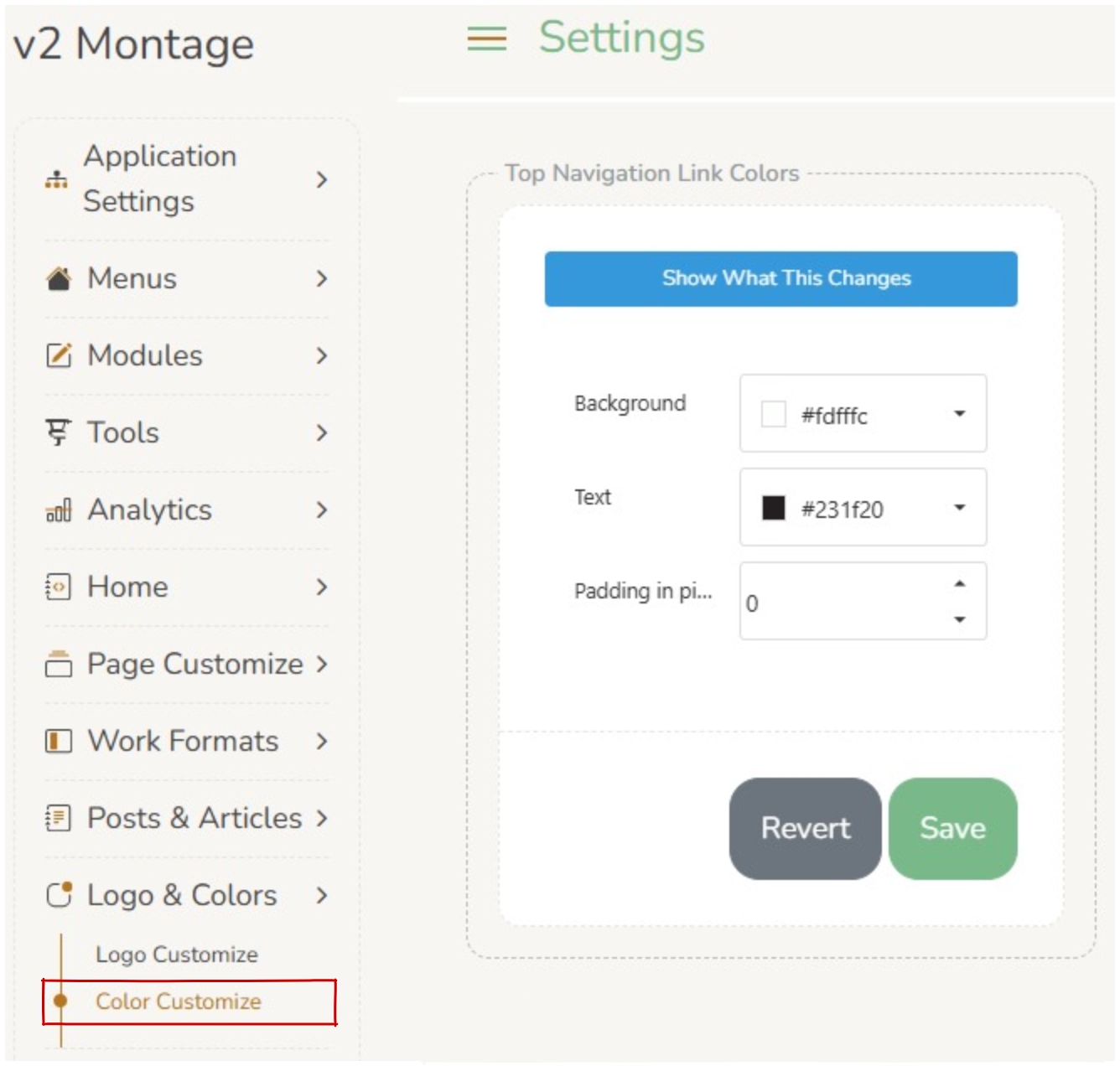
Operators can customize the color of many different areas of the home page.
Colors are configured within Logos & Colors > Color Customize.
Key Terms #
- Background color – refers to the space indicated within the red dashed box for each area. Operators can select from a color picker or paste the Hex code for a specific color.
- Text Color – The color of any text indicated within the red dashed box for each area.
- Active Links – The color displayed when an active link is hovered over or clicked on.
- Padding – This refers to the space between the content and the box’s border. Can be set to a maximum of 20 pixels.
Customizable Color Areas #
Top Navigation Link Colors #

NOTE – In this example the ‘Aurora Montage’ is not text, it is the logo. See Logo Customize to change this.
Operators can edit the Top Navigation background, text and padding.
Main Menu & Link Colors #

Operators can edit the Main Menu background, active links and text.
Breadcrumb Colors #

Operators can edit the Breadcrumb background, text and active text.
Footer Colors #

Operators can edit the Footer background and text.
The color of the acknowledgement is set in Modules > Acknowledgement.
Link Hover Colors #

Operators can edit the Link Hover text.
Home Banner Colors #

Operators can edit the Home Banner background and accent color. Accent color appears on hover of text.
Modern Box Colors #

Operators can edit the background color of the News Section text box color. These boxes can be set to transparent by typing in transparent to the color selection field.