
Collections Section #
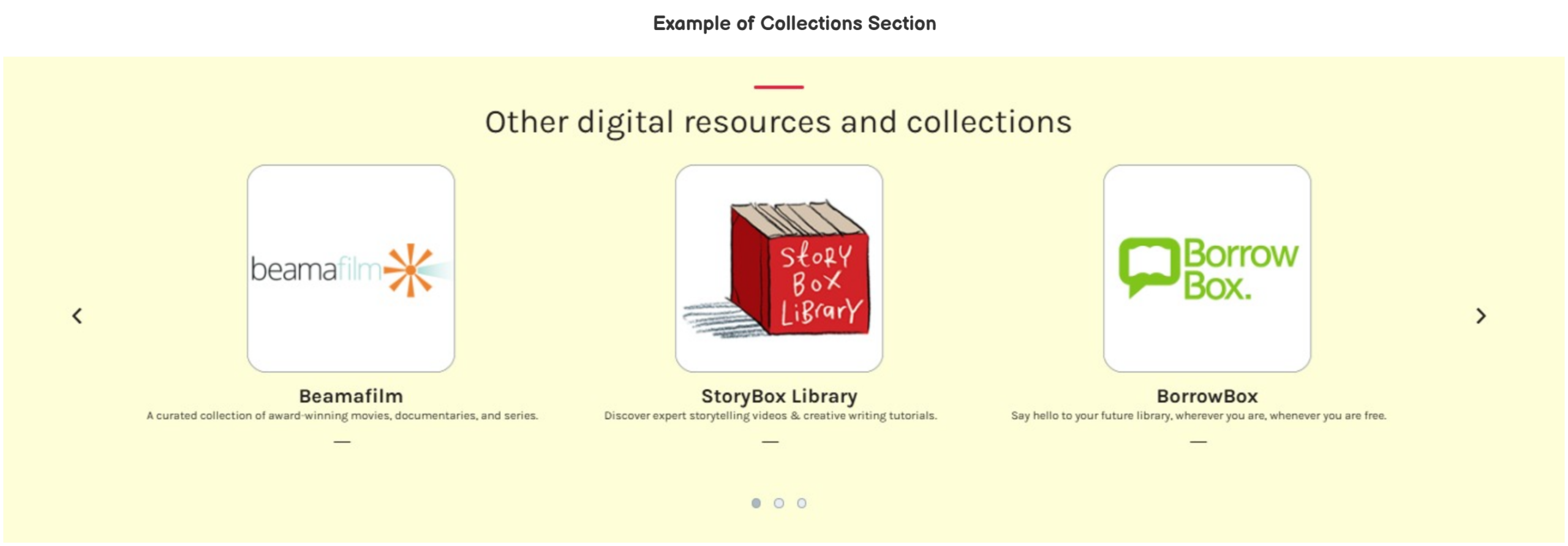
Multiple items can be displayed in the Collections section.
This section can be customized in Home > Collections Section.
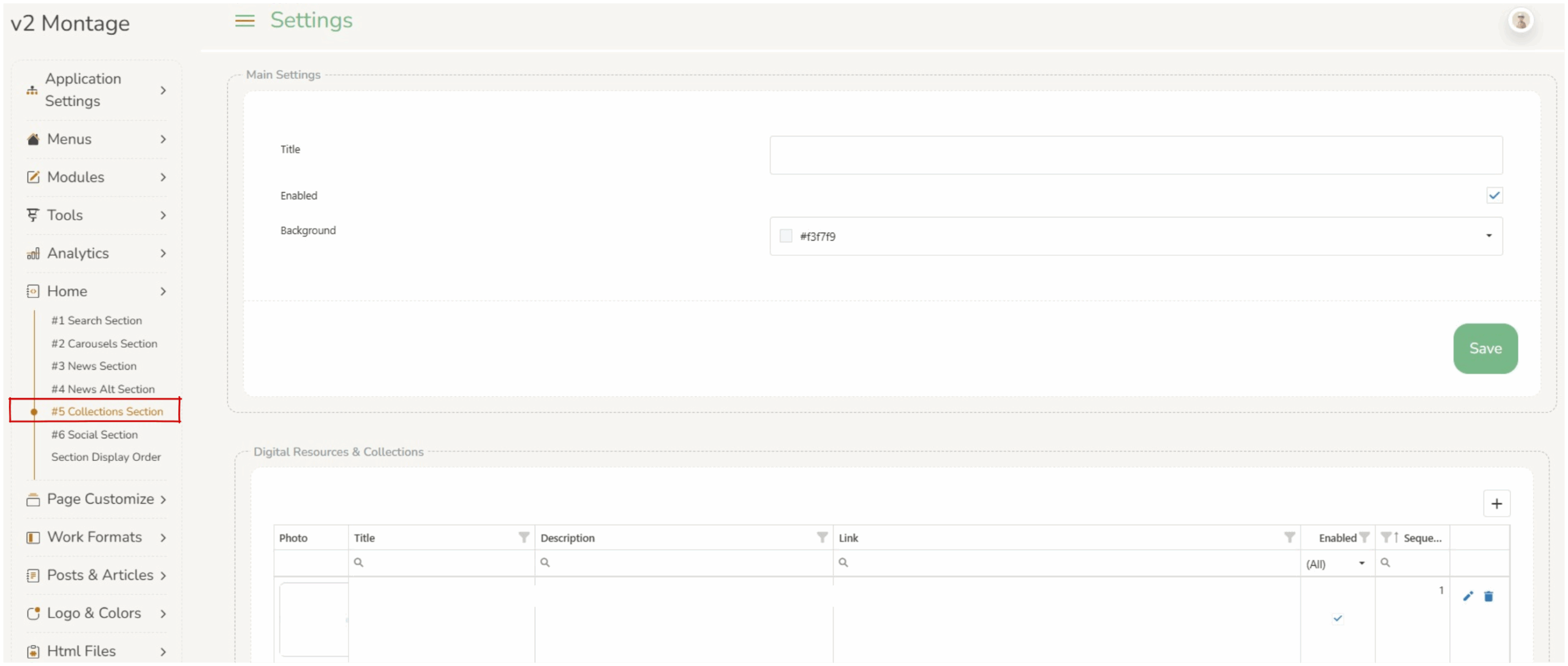
There are three main settings which control the overall display of the Collections section.
- Title – displays at the top of the section as a heading.
- Enabled – if the
 checkbox is selected the entire Collections section will display on the home screen. If this is not selected the Collections section will not display.
 - Background – changes the background color of the entire Collections section.
Collections Section Elements #
- Add New – Operators can add a collection by clicking on the
 add button in the top right corner of the ”Digital Resources & Collections” box.
 - Edit Existing – Operators can edit existing collections by clicking on the
 edit icon in the row of the required feature.
 - Delete Existing – Operators can delete existing collections by clicking on the
 delete icon in the row of the required feature.
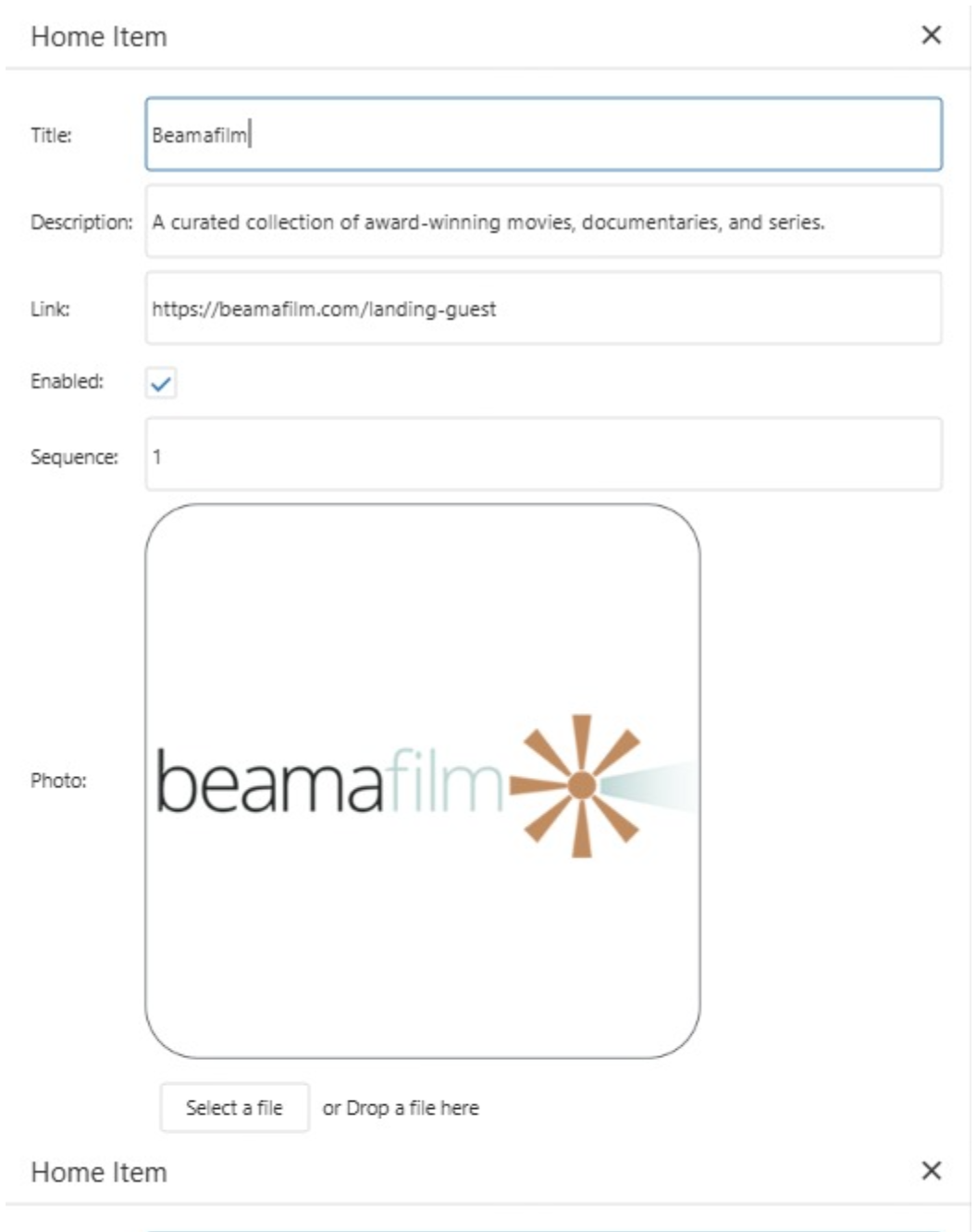
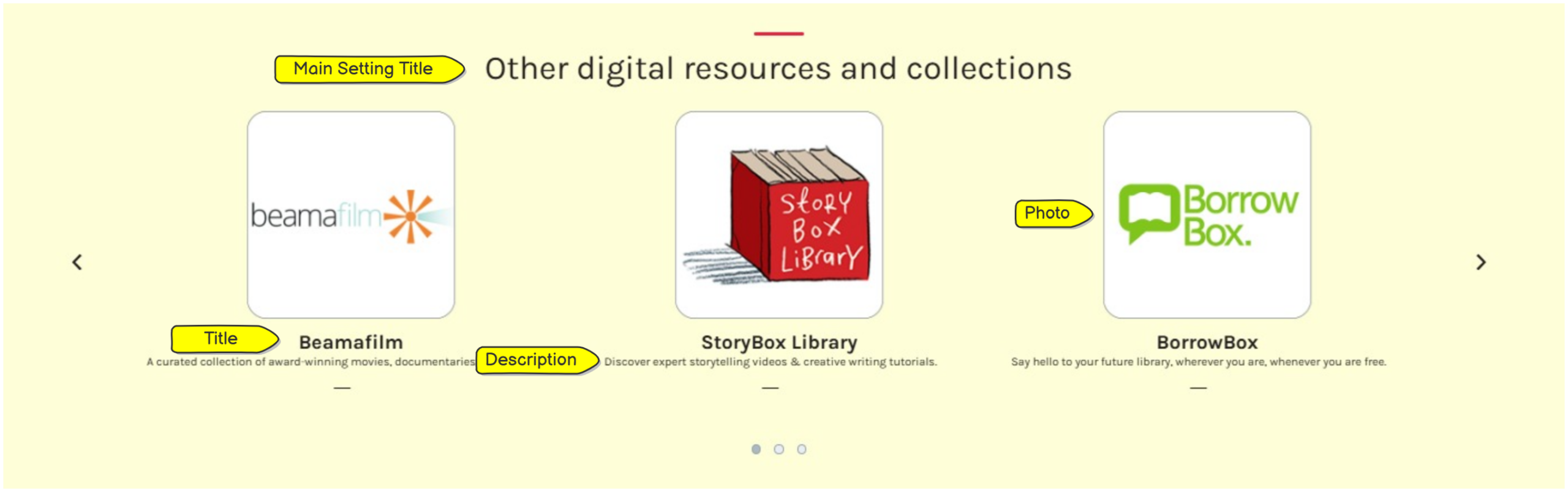
- Title – displays below the image as a heading (can be left blank).
- Description – displays below the title and provides brief details of the collection (can be left blank).
- Link – a url can be added here, this will hyperlink the image of this collection (can be left blank).
- Enabled – if thecheckbox is selected the collection will display on the home screen. If this is not selected the collection will not display.
- Sequence – this determines the order of the collections in the collections section (1 is top left and subsequent numbers flow across and down the page).
- Photo – any images can be uploaded using the ‘select a file’ button. Operators should consider copyright when sourcing images. Extremely large files will not upload.
Saving Changes #
When any changes are made to the section, operators must press save at the bottom of the screen. 
Changing the order of the sections #
The order in which the sections display can be customized, refer to Section Display Order.