
Add New Post #
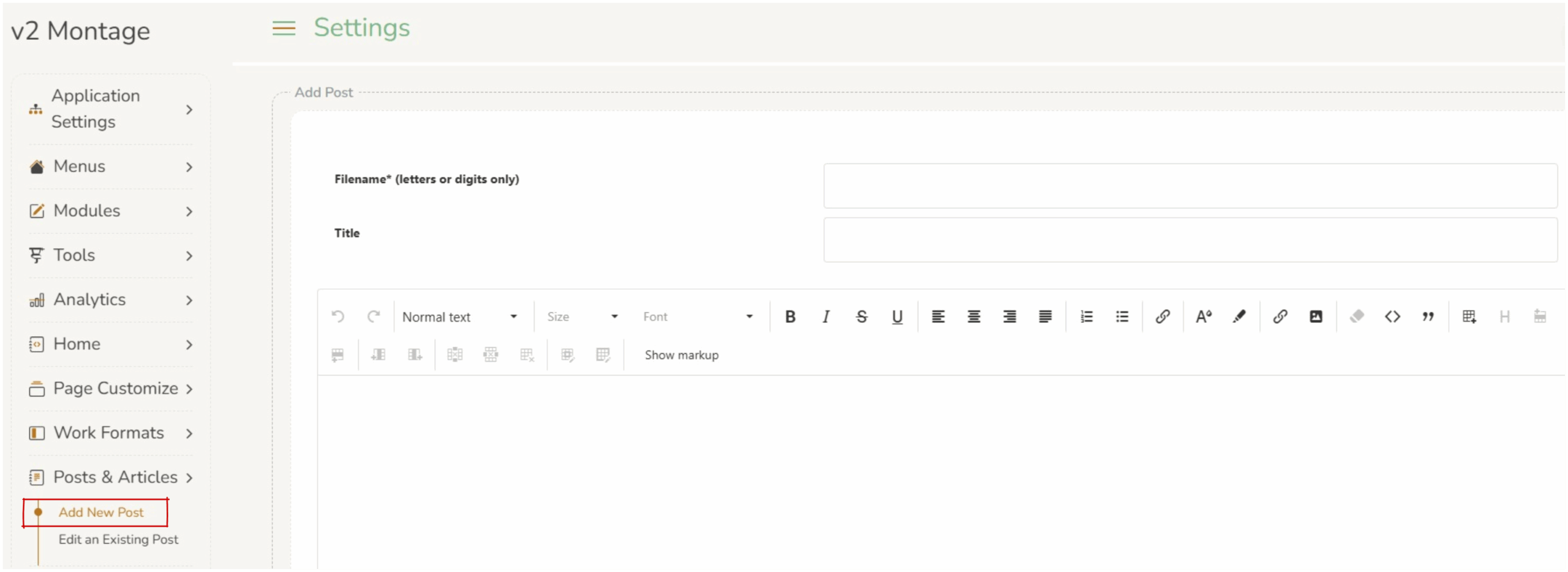
Posts and articles can be used to create news articles for your library. These can be used as a newsletter or editorial blog and can be distributed electronically (emailed, linked on the library home page, etc).
There are three parts to this screen:
- Filename – this is the name the file will be saved as. It can only contain letters or digits and should be a logical name.
- Title – this is the displayed heading of the post.
- Content – this is a rich text editor. Operators can add formatted content, links, images and tables. This is an easy to use editor, where ‘what you see is what you get’ (WYSIWYG).
Using the rich text editor #
The rich text editor is a tool that lets you write and format text, such as making words bold, adding headings, creating lists, inserting hyperlinks, and adding images.
Some key features which can be implemented include:
- Inserting images : use the
 ‘insert/edit image button or simply paste a copied image anywhere on the page
 - Inserting hyperlinks : highlight the text to link and click on the
 ‘insert/edit link’ button. In the popup paste the url; you can change how the link opens by changing ‘Open link in..’
 - Adding text anchors:
- Choose the section you want to link to
Pick the heading or part of the page where you want readers to land.
Example: Contact Us - Give that section a short name
Create a simple name for the section that the link will jump to.
When writing this name:- use lowercase lettersdo not use spacesuse dashes (-) instead of spaceskeep it short and clearmake sure it is unique on the page
Contact Us becomescontact-us
How to Apply becomeshow-to-apply - Choose the text you want people to click
Highlight the words that will become the link.
Example: Go to Contact Us - Add the link
Click the link button in the editor and enter#followed by the section name.
Example:#contact-us - Save and test it
Save the page and click the link to make sure it jumps to the correct section. - Example
- Section heading: Contact Us
- Section name:
contact-us - Link text: Go to Contact Us
- Link you enter:
#contact-us - When someone clicks Go to Contact Us, they will jump straight to that section of the page.
- Choose the section you want to link to
When any changes are made to the section, operators must press save at the bottom of the screen. 
What to do with a post/article #
Once a post or article has been saved operators can share the link (via email, linked to home page, etc).
How to share a post:
- View the post – click on the
 view post button.
 - Select the full url from the address bar at the top of the page.
- This can be sent to users via email or linked on the Top Nav Menu, News Section, or News Alt Section (click on any of these for more instructions0).
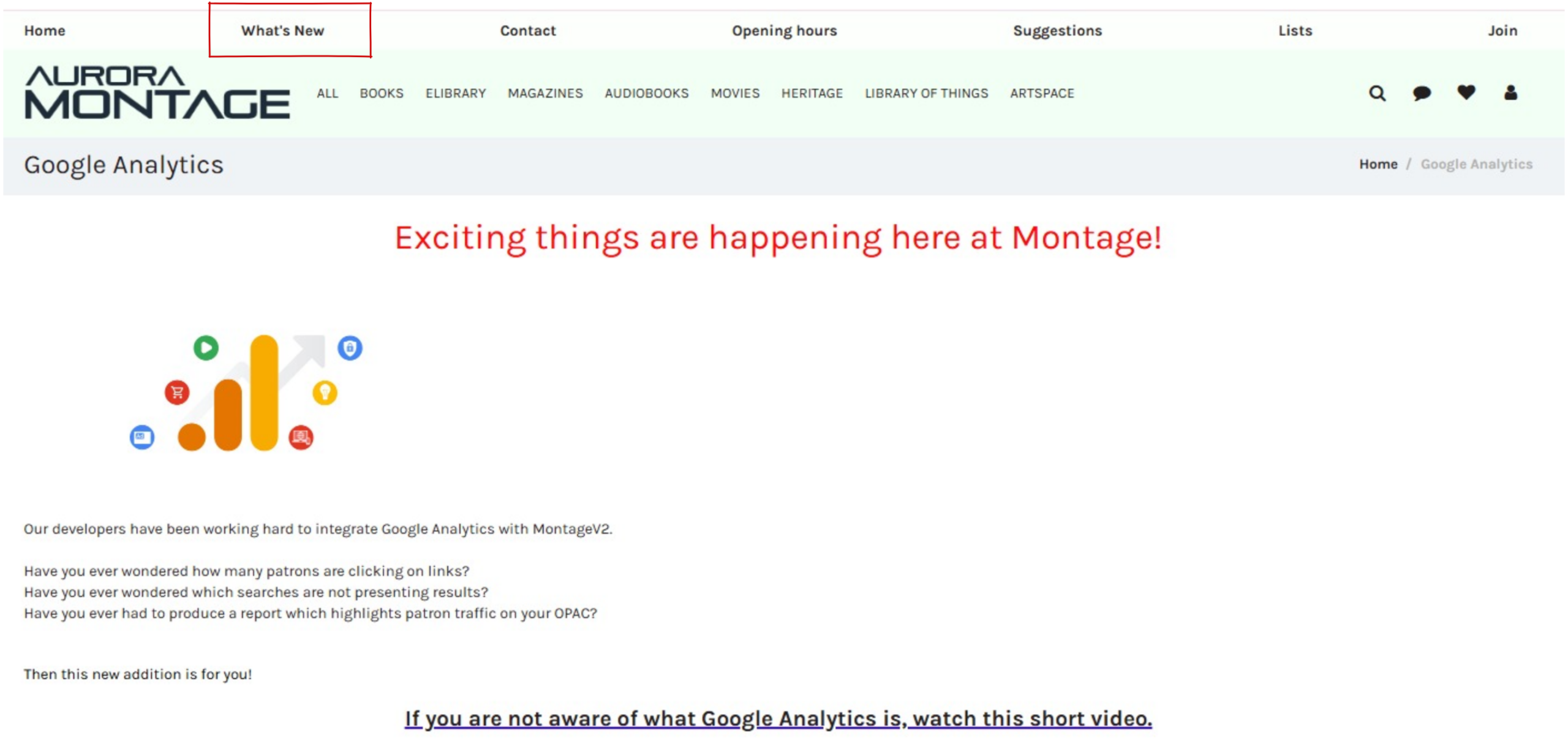
The image to the left is an example of a ‘post’. It has been linked to the Top Nav Menu with a label ‘What’s New”.
The example shows the use of images, links and formatting.