Search Section #
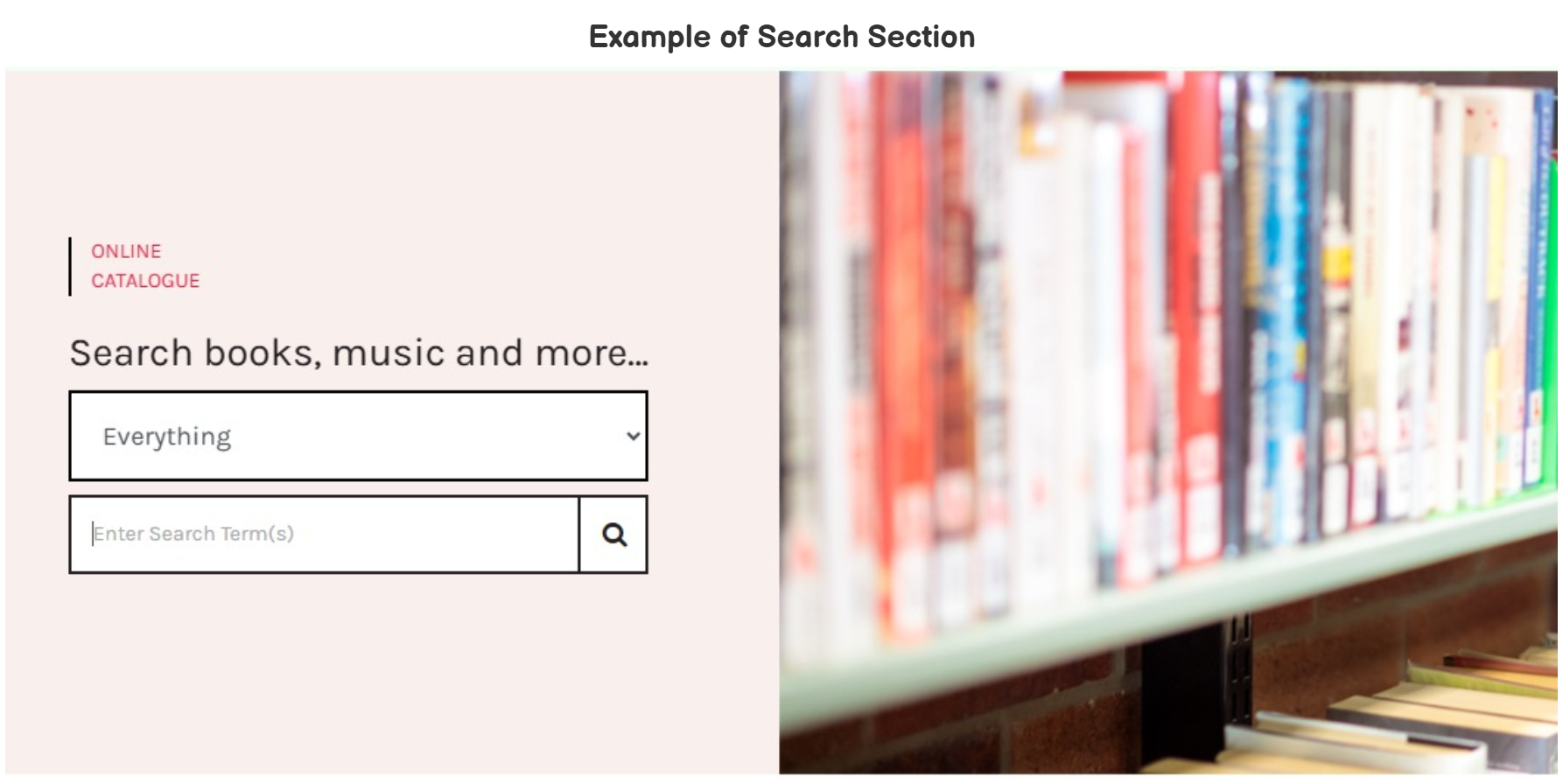
The search section provides a dynamic place for users to search for works.
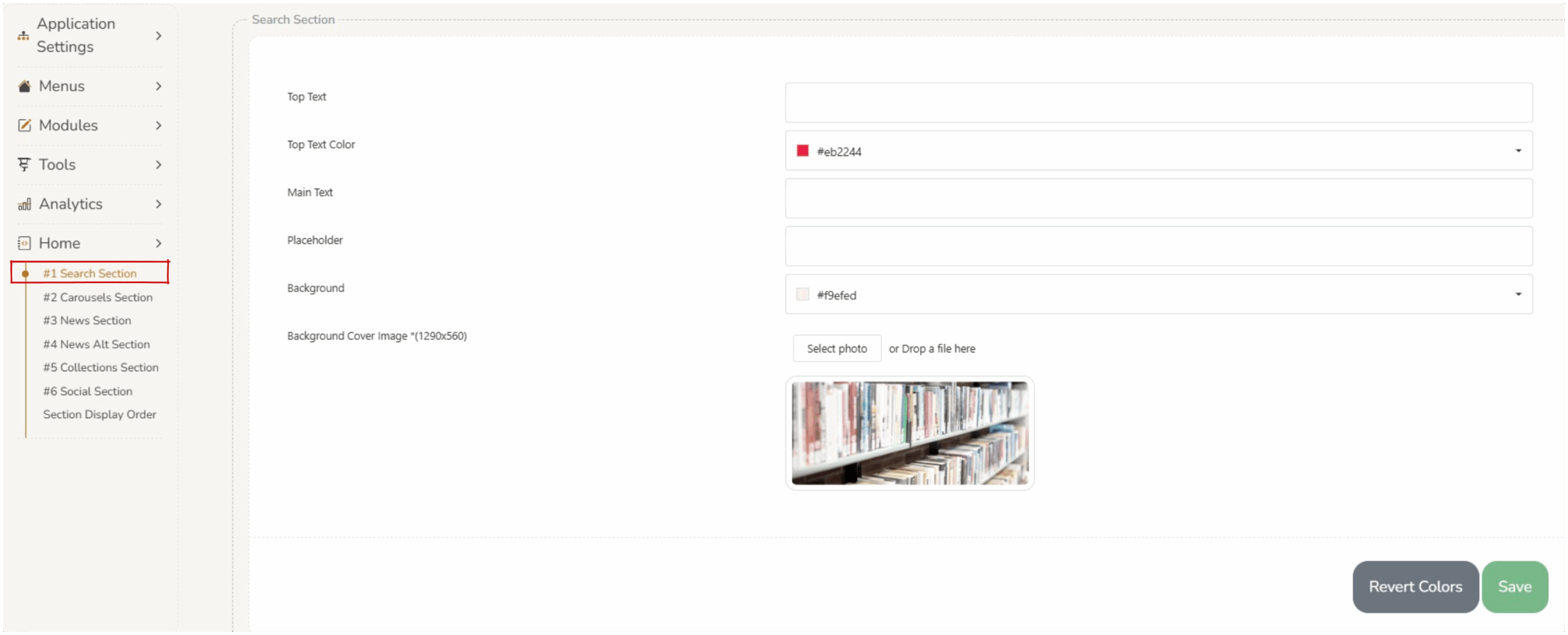
This section can be customized in Home > Search Section.
Search Screen Elements #
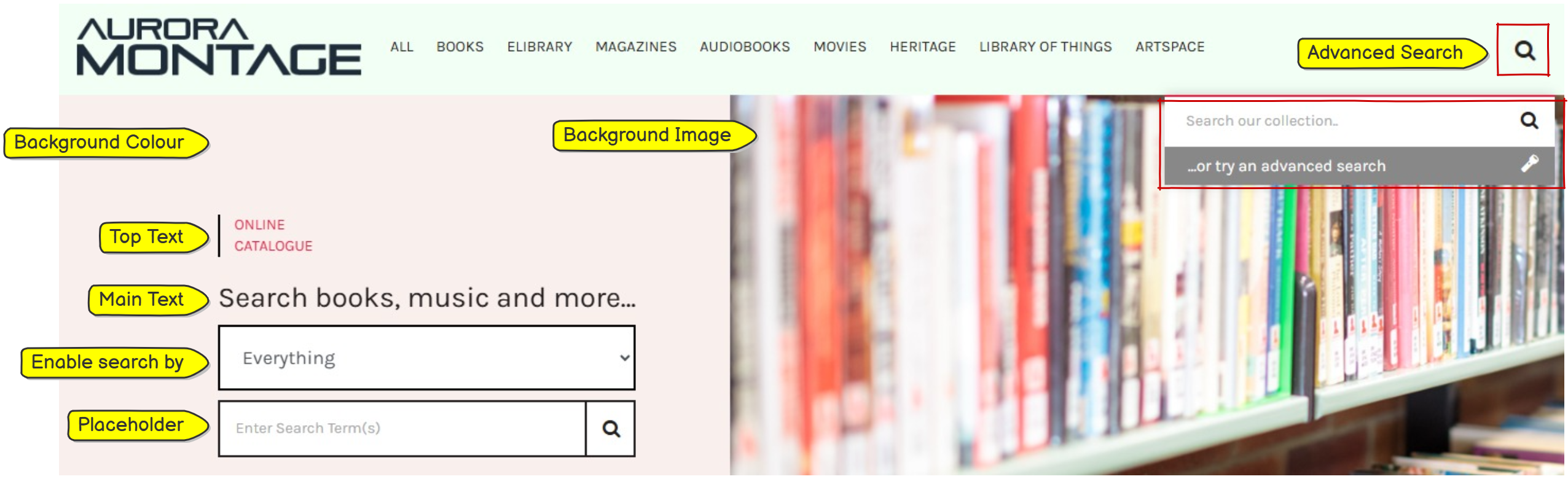
- Top Text: Appears next to the vertical line as the title of the search section.
- Top text Color: Colors can be selected for this title.
- Main Text: Sits below the top text as an instruction for patrons.
- Enable search by: If the
 checkbox is ticked the ‘enable search by’ dropdown will appear. This allows patrons to search by :
- Everything – all fields of the works are searched.
- Title – searches in the title only.
- Title starts with – searches for a specific keyword as the first word of the title (omits words such as ‘the’, ‘a’ etc).
- Author – searches on all names of the author (eg searching ‘Christie’ will present author’s with first or last name as ‘Christie’).
- Subject – searches on the subject fields of a work.
- Series – searches for works in a series.
- ISBN – searches for the ISBN (10 or 13 digit).
- Placeholder – text which appears inside the search box – this is replaced by user’s typing.
- Background – the background color of the search section can be changed here.
- Background Cover Image – any images can be uploaded using the ‘select photo’ button. Operators should consider copyright when sourcing images. For best results images should be 1290×560 pixels, extremely large files will not upload.
NOTE: Advanced search is opened by clicking on the  magnifying glass on the main menu. For details of how to configure Advanced Search please refer to Features.
Saving Changes #
When any changes are made to the section, operators must press save at the bottom of the screen. 
Revert Colors #
If a change to the color has been made, and it is not presenting as expected, operators can use the ‘revert colors’ button to change back to the previous saved colors.