
User Messages #

Messages are a simple way of displaying important information. Messages can be displayed on Montage for a user to view or on Astria for the operator to view.
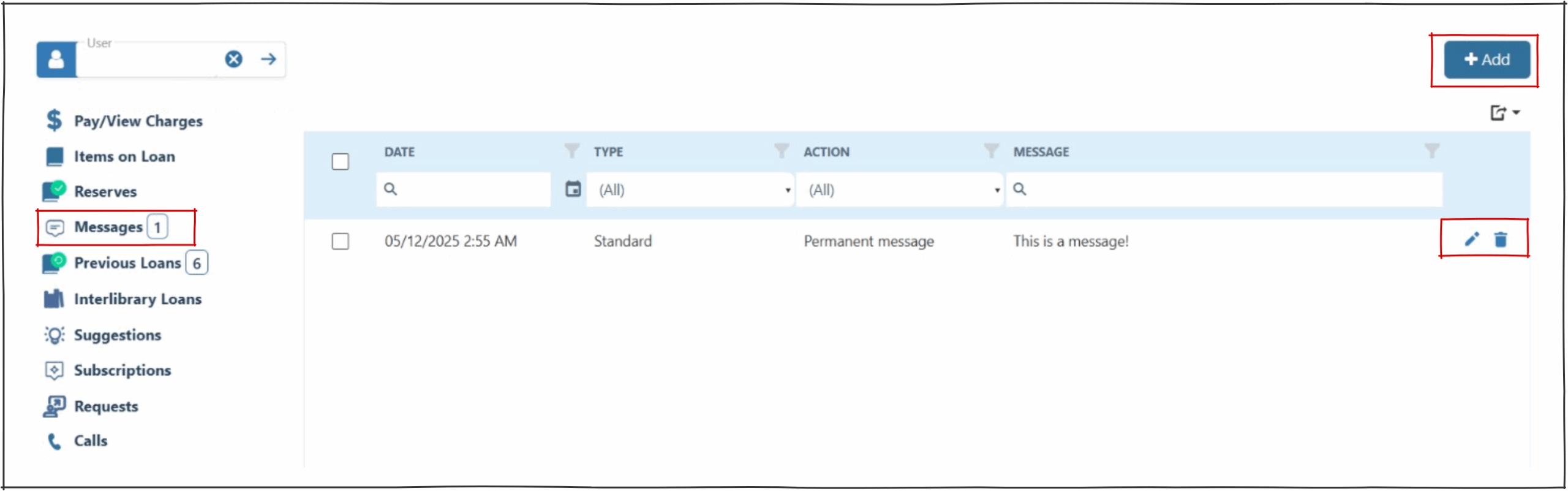
 If there is a message to be viewed it will appear as an indicator in the left hand panel on all user screens.
Adding a message #
- The date field will auto populate when the pop up appears.
- A user message pop up will enable the selection of the type of message and the action of the message.
- The content of the actual message is a free form field, allowing the operator to add any data required.

Message Type #
- Standard – Visible on both Astria and via Montage.
- Hide from public access – Used for messages not to be shown on public access e.g. only displays on Astria.
Message Action #
- Delete on viewing – Enables a temporary message to be displayed on the loans screen of the user. The message will be automatically deleted.
- Delivery – This special action is provided for Libraries for the Blind, to allow for a delivery message to be added for output onto mailing labels. The message remains permanent.
- No prompt – This message does not produce a popup. This action is used for automatic messages created by Astria (e.g. message ‘claimed returned’ items).
- Permanent – Permanent messages may only be removed by staff action.
Editing or Deleting a message #
Messages are displayed in the results table.
Messages can be deleted or edited from the results table using the edit or delete icons.
